
Photo Module
The Photo module lets you insert an individual photo from your Clients on Automation Software Media Library or a custom URL.
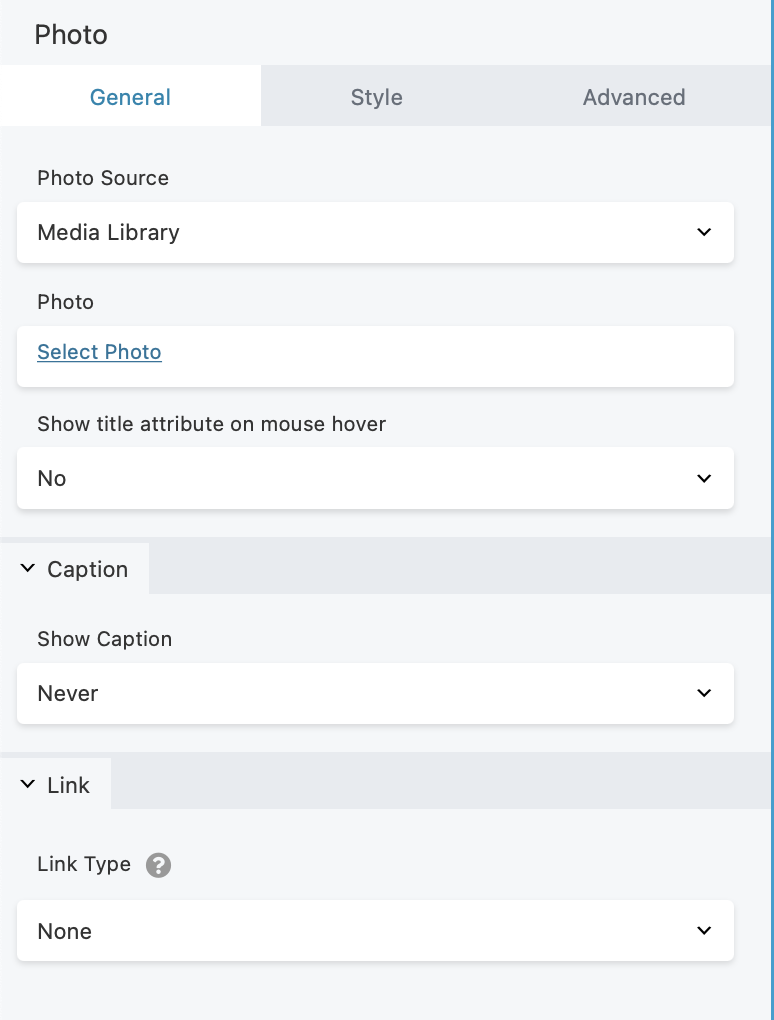
Here are some of the options with the Photo module:
- You can select the photo from your Media Library or use a URL. If the file is from the Media Library, you can select the size of the photo to display.
- You can crop the photo into several geometric shapes: Landscape, Panorama (longer and shorter than landscape), Portrait, Square, Circle.
INFO
Cropping will cut off parts of your photo, depending on the shape of the original photo and the shape of the crop.
- You can specify the alignment of the photo within the column: left, center, or right. If you display a caption, both the photo and the caption will be aligned according to this selection.
- You can display the caption of the image and specify how and where the caption appears in relation to the photo: on hover (appearing at the inside bottom of the photo) or below the photo. If you're getting the photo from an external URL, there's a field for you to enter a caption.
NOTE:Longer captions are truncated at the end of the first line.
- You can add a link to the photo, with several choices of where the link goes:
- A URL, for example, to another web page.
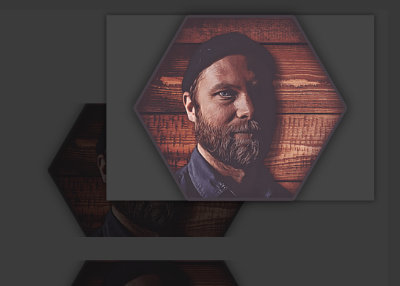
- A lightbox
A popup where the photo appears in a dark background over the page. If you've set the Show caption field to On hover or Below photo, the caption will appear below the photo in the lightbox in both cases.
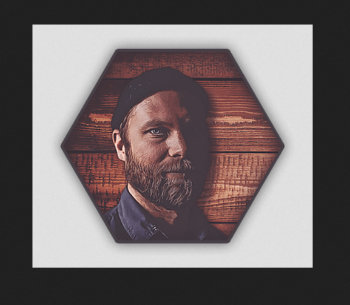
- Photo file
The photo file is displayed by itself.
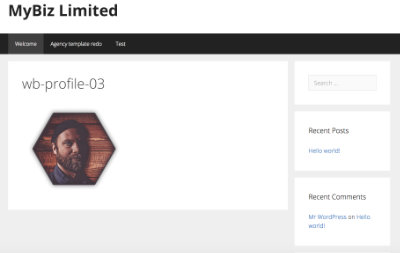
- Photo page (for Media Library photos only)
The photo is displayed with the header, footer, and sidebar of the website.
- There are the standard Advanced tab features: margins, animation, and showing/hiding on particular device sizes.
Note: ( It's a best practice to keep photos to the exact size that you need. Although the photos are automatically sized to fit your display, a larger photo increases page open time.)
Advanced tab
There are all the usual Advanced tab settings for margins, visibility, animations, and advanced HTML settings.
