
How do I migrate content from my current WordPress site?
WordPress lets you export pages, posts, and media from site to site. However, it does NOT migrate over any themes or templates.
Export from Old WordPress website
In order to migrate your site, you'll first need to login to the WordPress dashboard of your current site you want to bring over to Clients on Automation Software.
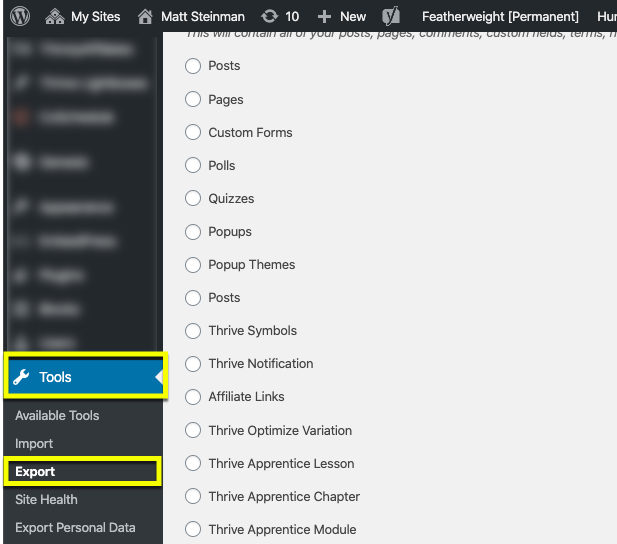
Step 1: Once logged in, navigate to Tools > Export.
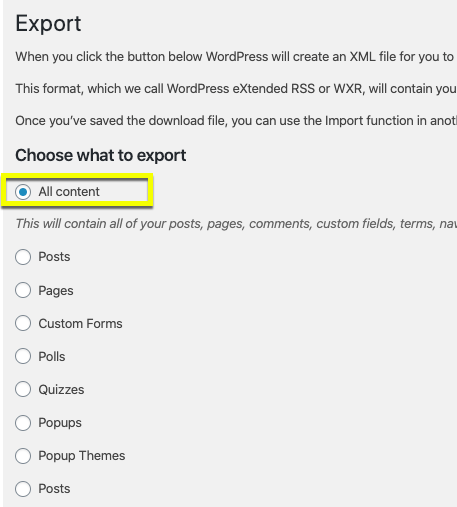
Step 2: Select your option to export All content or select individual content, like pages or posts.
Step 3: Scroll to the bottom of the page and click the Download Export File button.
This will create an XML file for you to download to your computer.
Import Content into Clients on Automation Software
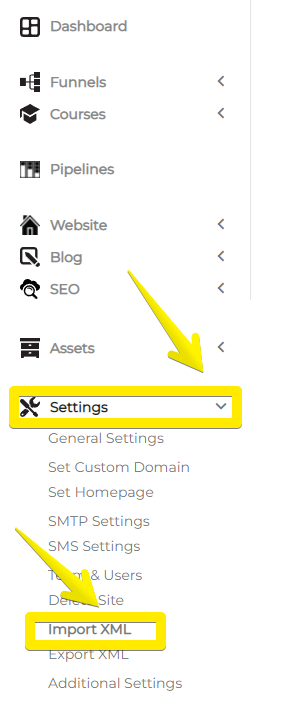
Step 4: Login to your Clients on Automation Software dashboard and navigate to Settings > Import XML.
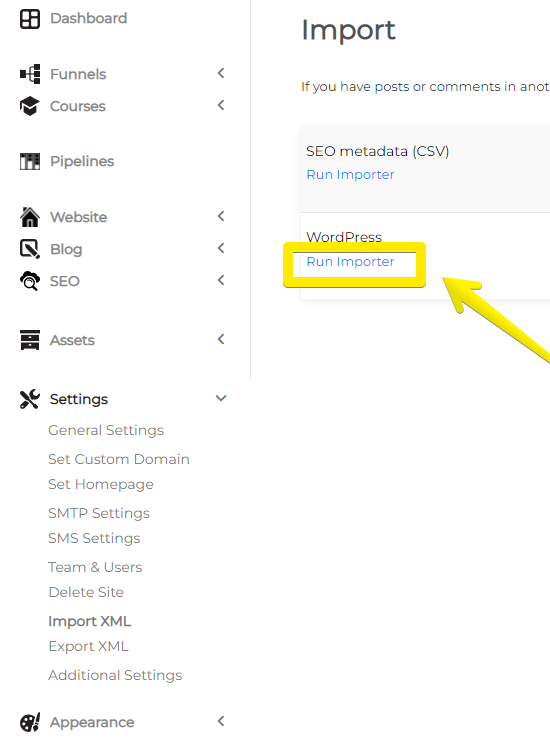
Step 5: Click on Run Importer
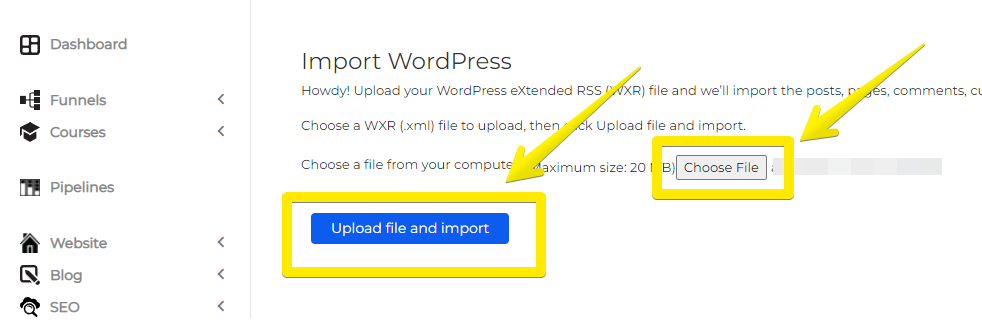
Step 6: Select the XML file you downloaded from Step 3 above and click the Choose File and Upload file and Import button.
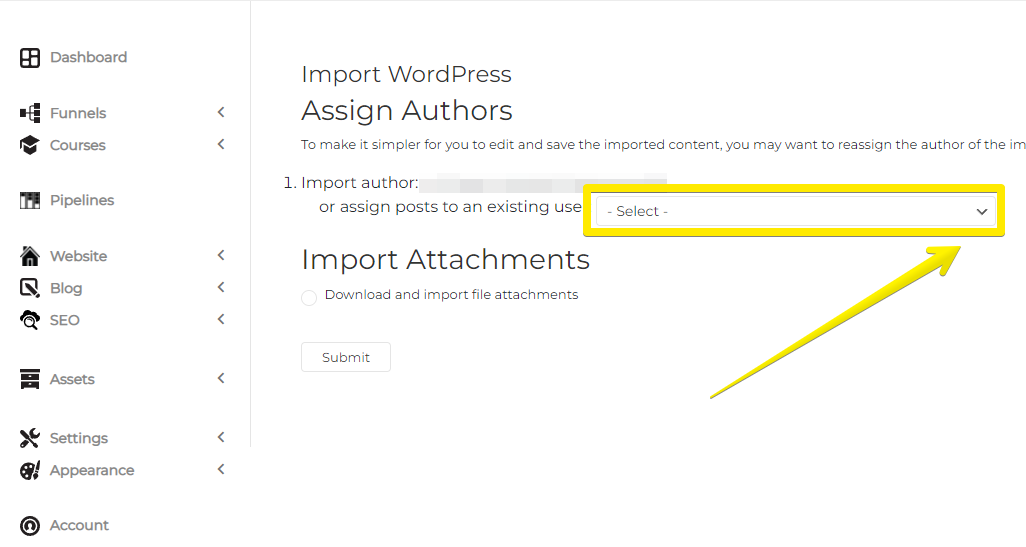
Step 7: Reassign the authors of the posts by selecting the dropdown(s) and then selecting your Clients on Automation Software username. You may only see one "Import author" option, which is normal.
Step 8: If you want to import the media associated with the posts, check the box under Import Attachments that says Download and import file attachments.
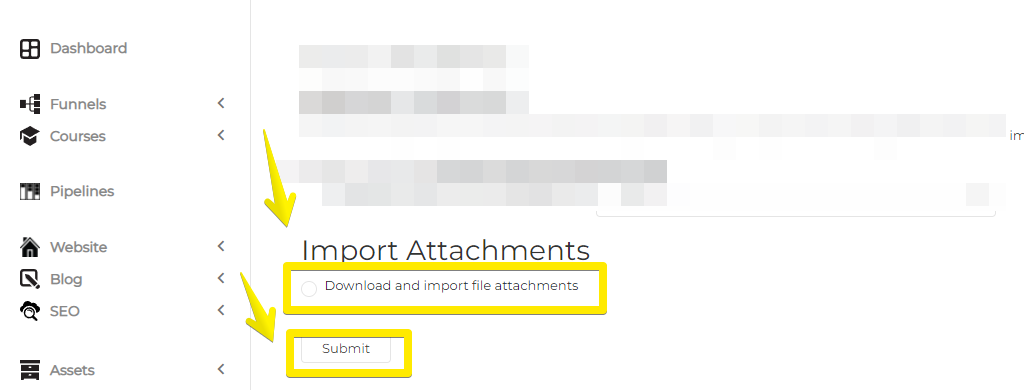
Step 9: Click the Submit button.
Depending on the import options you selected, all the content should now be in your Clients on Automation Software site. Navigate to the Posts and/or Pages to ensure all your pages have imported properly.
