
How to Integrate HubSpot to Clients on Automation Software
HubSpot is one of the fully supported Email Marketing of Clients on Automation Software. You can build your capture leads using' Opt-in form or Checkout form and you can integrate HubSpot to send email confirmation/follow-up emails. Below are the steps on how you can integrate HubSpot on Clients on Automation Software.
Integrating HubSpot to your Opt-in form
Important Note: We recommend using only one Opt-in form per page.
Step 1: From the Clients on Automation Software Dashboard click on funnels (1) and then select the Funnel you'd like to work on (2). See the image below.
Step 2: From the Funnel Flow Tab click to edit the Funnel Step you'd like to add the autoresponder to
The funnel flow tab shows all the current funnel steps of your funnel. You can either create a new step or use an existing step.

Step 3: Edit your Opt-in Settings (or add a new Opt-in Module)
Mouse over your Opt-in Module (or add a new Opt-in Module ) and then select "Opt-in Form Settings"
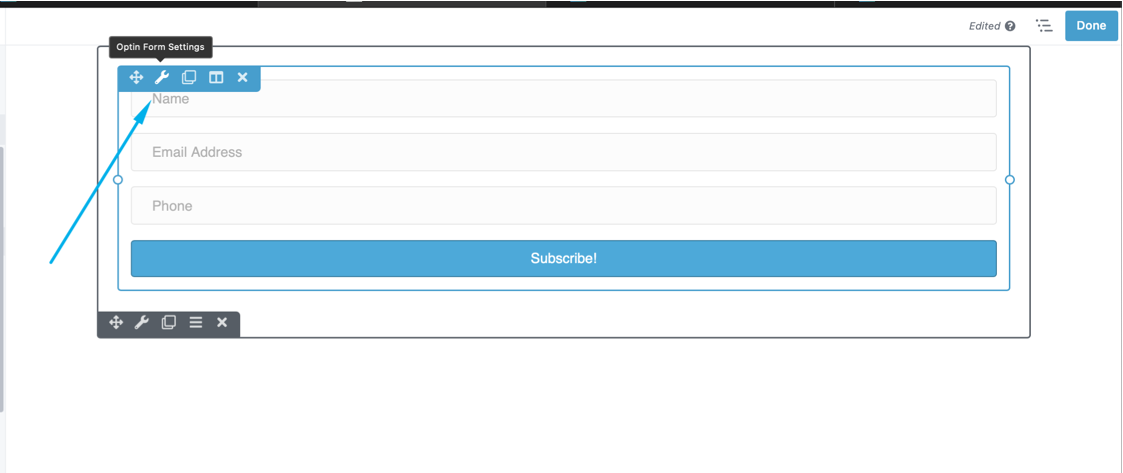
Step 4: Select the service you'd like to use
From the drop-down you'll need to select your autoresponder service, the account drop-down will also allow you to add a new account or use an existing account if you already have an account setup.


Step 5: Fill out the service details provided by your autoresponder and click connect. You'll now need to provide your autoresponder details to allow us to link to them.
Account Name
This can be any name you can easily identify (important if you have multiple accounts using the same autoresponder)
Private Apps
Your API key can be found in your HubSpot account go to Settings > Integration > "Private Apps".

Step 6: You need to log in to your HubSpot account to get the API key.
Once you logged in to your HubSpot account go to Settings > Integration > "Private Apps".
You can set scopes based on your needs. In most cases we choose CRM and select the following scopes:
crm.lists (check read and write)
crm.objects.contacts (check read and write)

If you don't have an existing Private Apps you can create a new Private Apps. Once you created a new Private Apps it should look like the image below. You can copy the Private Apps and paste it on your Opt-in form Private Apps Field.

Step 7: Fill out the information (see step 5) and click "Connect".

Step 8: Once connected it should look like the image below.

Whenever a customer Optin to your Optin form the information will be automatically saved on Contacts > Contacts. See the image below.

These are options that you'll set up so that any leads being placed into your autoresponder are set into the right section with the right tags to send out emails.
Click Save once you are done and your autoresponder is now set up, each of your leads will now send over to your autoresponder.
Learn how to quickly integrate your email autoresponder in Clients on Automation Software by simply placing an Optin form on your page.
