
How to set up SMS messaging with Twilio
This article will guide you through how to setup SMS service inside your Clients on Automation Software account.
IMPORTANT: You need to have a Twilio account in order to use SMS from within Clients on Automation Software. You also need to purchase a phone number from Twilio that cost $1 a month or port a number that you have from different telephone service providers.
If you do not already have a Twilio account, please go HERE to sign up.
After you've signed up for a Twilio account, follow the below steps to connect it to your Clients on Automation Software account.
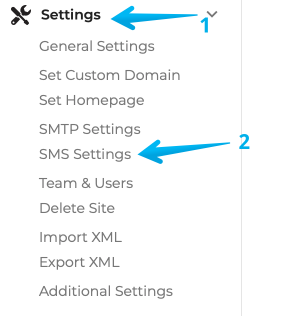
Step 1: Inside your Clients on Automation Software dashboard, go to Settings > SMS Settings
Step 2: You will see a page that requires you to enter your Twilio Account SID + Auth Token:
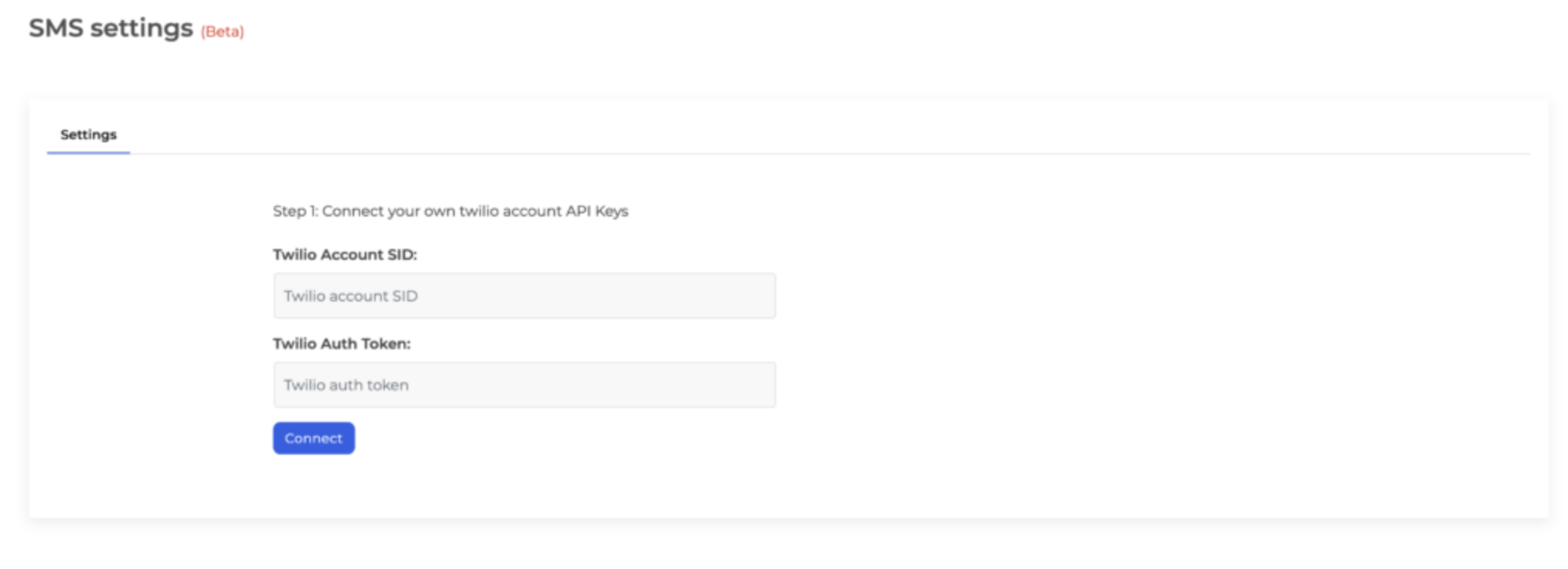
Step 3: Follow this article from Twilio on how to get your SID + Auth Token
Step 4: Paste the SID + Auth Token inside your Clients on Automation Software account and click "Connect".
If connection is successful with the correct SID + Auth Token keys, you will be redirected to the next page to set up your phone number.
Step 5: Go to the Settings tab > Add Phone Number
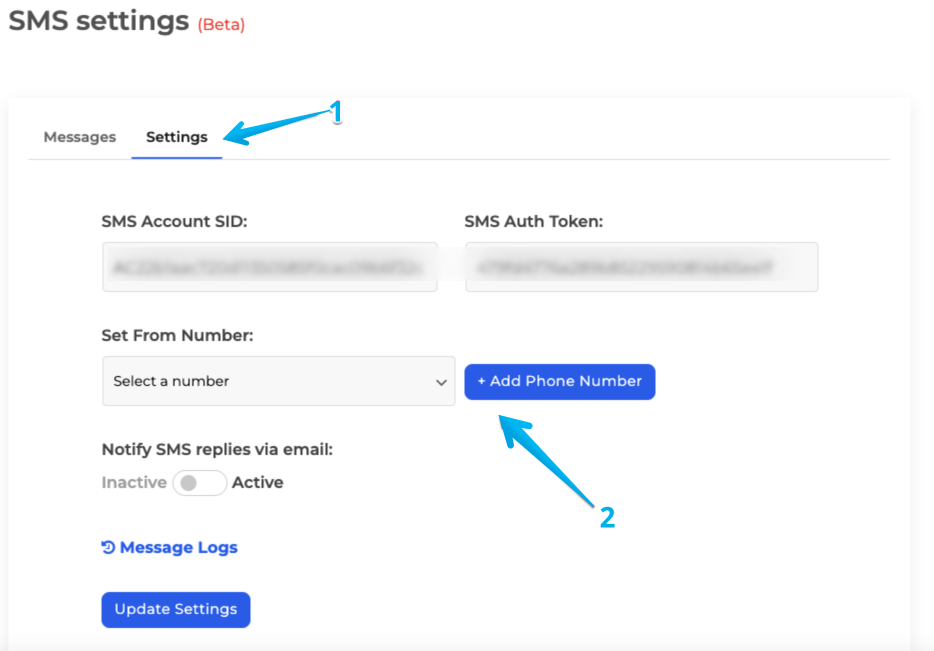
Step 6: The add phone button will allow you to select a number from which your SMS will be sent from and also be replied to.
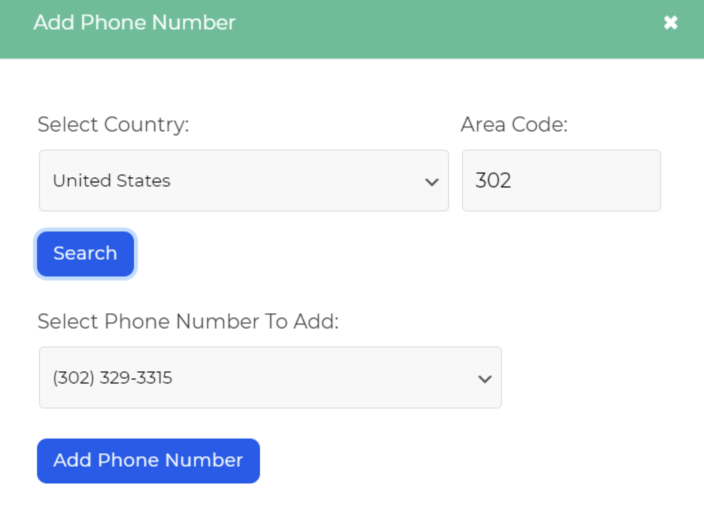
It is a fully functioning SMS number. We recommend you search for an area code that is local to your business.
Once you've found a number you'd like to use click "Add Phone Number"
Your account is now setup and ready to use SMS.
If you'd like to get an email each time a customer replies to you please select the "Notify SMS replies via email" toggle and click the "Update Settings" button.
Please see the following knowledgebase articles for usage instructions:
