
How To Pass Custom Field Data Over To Your Autoresponder
At some point of time, you might want to use Custom Field on your Optin Form module to collect very specific info from your leads. And you will want to pass that custom field data over to your connected autoresponder.
In order for the custom field data to be passed correctly over to your autoresponder, here are the steps to take note.
Step 1: On your Optin Form module, add the custom field you want.
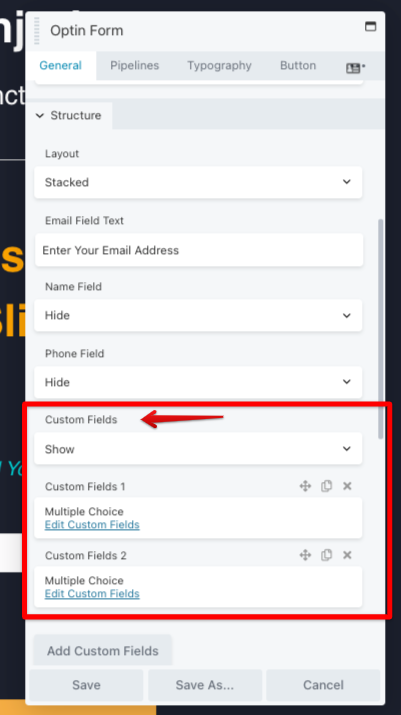
Step 2: Click Edit Custom Fields.
You will want to set the Show Field Name as "No" if you don't want the field name to show on your optin form.
You need to set a Field Name, this will be the name that will appear on your autoresponder.
Note: Please do not use spaces, replace with underscore instead.
Option 1 is the name that will be shown on your optin form itself.
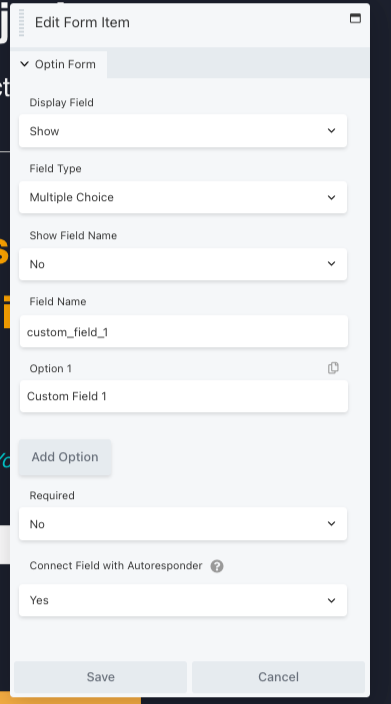
Save the custom field settings and you're good to go.
Now if anyone opts in your form, the custom fields will automatically be passed on to your autoresponder.
