
How to Add A Color Palette Inside the Clients on Automation Software Editor
To add custom color presets manually
Step 1: Open a page for editing in the Clients on Automation Software Editor.
Step 2: Click in any Color field for a row, column, or module.
The Color Picker opens.
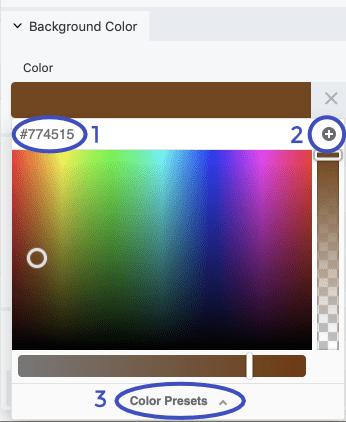
Step 3: Select one of your palette colors or paste in the hex number for one of the colors (#1 in the screenshot below).
Step 4: Click the Plus sign in the upper right corner of the Color Picker create a preset (#2 n the screenshot below).
Step 5: Review your color presets by clicking Color presets in the bottom line in the Color Picker (#3 in the screenshot below).
Note: Neither of these procedures will replace any existing colors that you have set in existing modules, but it makes it easy to select the new color moving forward. Both procedures save the colors for use in the Clients on Automation Software editor no matter where you're editing.
