
How To Use CSS & Javascript Codes For Your Clients on Automation Software Pages (Self-Support Basis)
Warning: Adding any external custom codes (JS, HTML, CSS) might break the Clients on Automation Software Builder, resulting in unresponsive page, or the editor not loading. If you can't load your editor, please read this article here.
IMPORTANT: Use external custom codes at your own risk! The Clients on Automation Software support team will not be able to support the troubleshooting process due to the complex nature of codes.
Step 1: Click to Expand Tools > Select Layout CSS & Javascript
Click your page name in the top left to expand the tools menu and select the "Layout CSS & Javascript" option or by pressing CTRL + Y on Windows or ⌘ + Y.

Step 2: Add your CSS / Javascript and save.
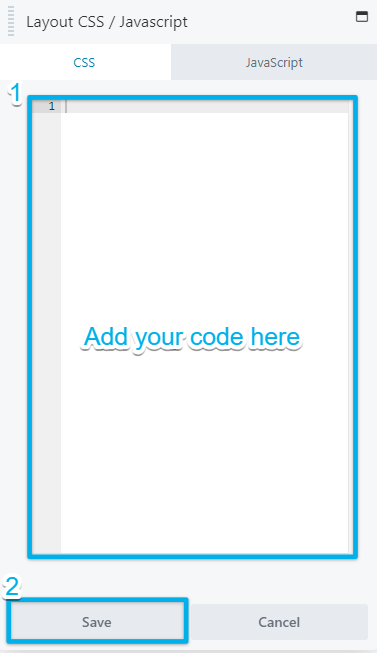
Note: The CSS and Javascript code will only be applied to the funnel/pages that you are editing.
How to add Custom CSS and Javascript Globally
Step 1: Click to Expand Tools > Global Settings
Click your page name in the top left to expand the tools menu and select the "Global Settings" option or by pressing CTRL + Y on Windows or ⌘ + Y.

Step 2: Add your CSS / Javascript and save.
Note: The CSS and Javascript code will only be applied to all the funnel/pages that you are editing.
Custom Code
This article explains the different methods for adding custom code to Clients on Automation Software Builder layouts.
CSS
You can add custom CSS to any Clients on Automation Software Builder layout, per-page or sitewide.
Per-Page or Per-Post CSS
This procedure applies if you only want your CSS to apply to specific page or post using Clients on Automation Software Builder. For example, suppose you have a contact form and know that you only want your custom CSS to apply to that form on that single page.
To add CSS code that is restricted to a single Clients on Automation Software Builder page or post:
- Open the Tools Menu from the Top Bar.
- Click Layout CSS & JavaScript.
- On the CSS tab, enter your CSS code.
- Click Save.
Sitewide CSS
This procedure applies if you want your CSS to apply globally for all pages and posts which are using Clients on Automation Software Builder.
To add CSS code that is applied globally to all Clients on Automation Software Builder pages or posts:
- Open the Tools Menu from the Top Bar.
- Click Global Settings.
- On the CSS tab, enter your CSS code.
- Click Save.
Utility Classes
Clients on Automation Software Builder contains two utility classes that can be helpful when writing custom CSS.
fl-builder
The fl-builder class allows your custom CSS to only style pages or posts using DropFuunnels Builder.
.fl-builder .page-id-1 .fl-module-heading h1 { ... }
.fl-builder .page-id-1 .fl-module-button a { ... }
fl-builder-edit
The fl-builder-edit class is only available when the Clients on Automation Software Builder editor is active on your page or post. This is useful if your theme styling is impacting the builder UI styling.
.fl-builder-edit button { ... }
You can also use fl-builder-edit with the :not() selector to apply complex styling, such as changing the position of a row, column, or module without affecting the builder's functionality.
body:not(.fl-builder-edit).fl-builder .fl-module-heading {
  position: relative;
  top: -100px;
  left: 200px;
}
JavaScript
You can add custom JavaScript to any Clients on Automation Software Builder layout, per-page or sitewide.
Note: To override theme JavaScript, add the code to your theme settings or use the WordPress wp_enqueue_script() function.
CAUTION: The JavaScript tab does not support JavaScript code wrapped with<script>...</script>tags.
Per-Page or Per-Post JavaScript
This procedure applies if you only want your JavaScript to apply to specific page or post using DropFunnles Builder. For example, suppose you have anchor points and wish to tweak the smooth scrolling effect for that page only.
To do this:
- Open the Tools Menu from the Top Bar.
- Click Layout CSS & JavaScript.
- On the JavaScript tab, enter your JavaScript code.
- Click Save.
Sitewide JavaScript
This procedure applies if you want your JavaScript to apply globally for all pages and posts which are using Clients on Automation Software Builder.
To do this:
- Open the Tools Menu from the Top Bar.
- Click Global Settings.
- On the JavaScript tab, enter your JavaScript code.
- Click Save.
Specific point in the page or post
You can add the JavaScript code to a specific point in your page or post using the HTML module.
Tracking Scripts
It is not possible to add tracking scripts to Clients on Automation Software Builder layouts, such as Google Analytics and Facebook pixels. Due to the fact that they need to be added to the <head> of your HTML page. In contrast, JavaScript added to either the Global Settings or Layout CSS & JavaScript is merged into the layout.js file, which loads in the footer of your website.
Per-Node CSS & JS
The Enable Code Settings option in Clients on Automation Software Builder Advanced settings allows you to add CSS and JavaScript to each node (rows, columns, and modules) individually.
See the CSS & JavaScript article in the Advanced tab section for more information.
HTML
To add custom HTML to your Clients on Automation Software Builder pages and posts you can use either the Text or HTML modules.
