
Convert the Global Saved Row, Column, or Module to Standard
Converting a global saved item to standard also converts all instances in your layout to standard, meaning any edits you make will no longer affect any other instance or the saved item.
Step 1: Open any page for editing in the Clients on Automation Software editor.
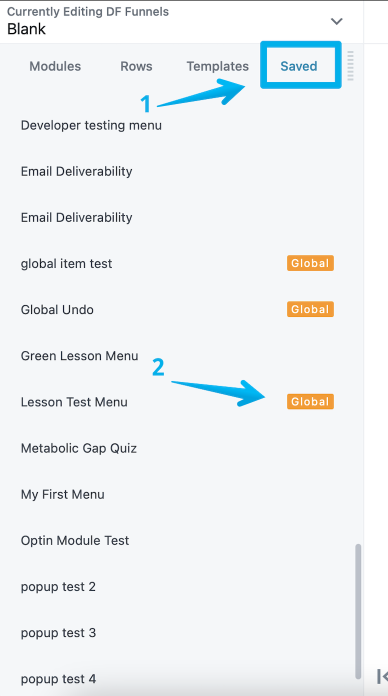
Step 2: In the Content panel click the Saved tab and drag the global row, column, or module into your layout.
This is just temporary.
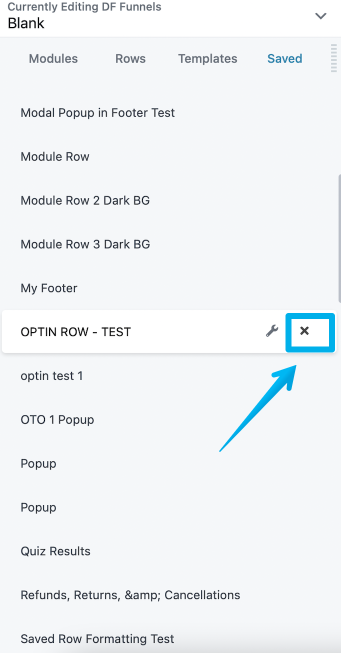
Step 3: In the Content panel, delete the global row or module by mousing over it and clicking the X icon.
Step 4: Open the row, column, or module in your layout for editing and click Save as.
Step 5: Enter a name for the saved item and select No for Global.
Step 6: If you don't need the instance in your layout, delete it.
