
Clients on Automation Software Website Pages
Clients on Automation Software Website Pages are versatile and can be used for standalone pages like Terms and Conditions, site policies, or any other content requiring independent pages.
Creating a Website Page
Step 1 Go to Your Dashboard: Navigate to Website > Pages.
Step 2 Add New Page: Click on Add New Page and enter a title.
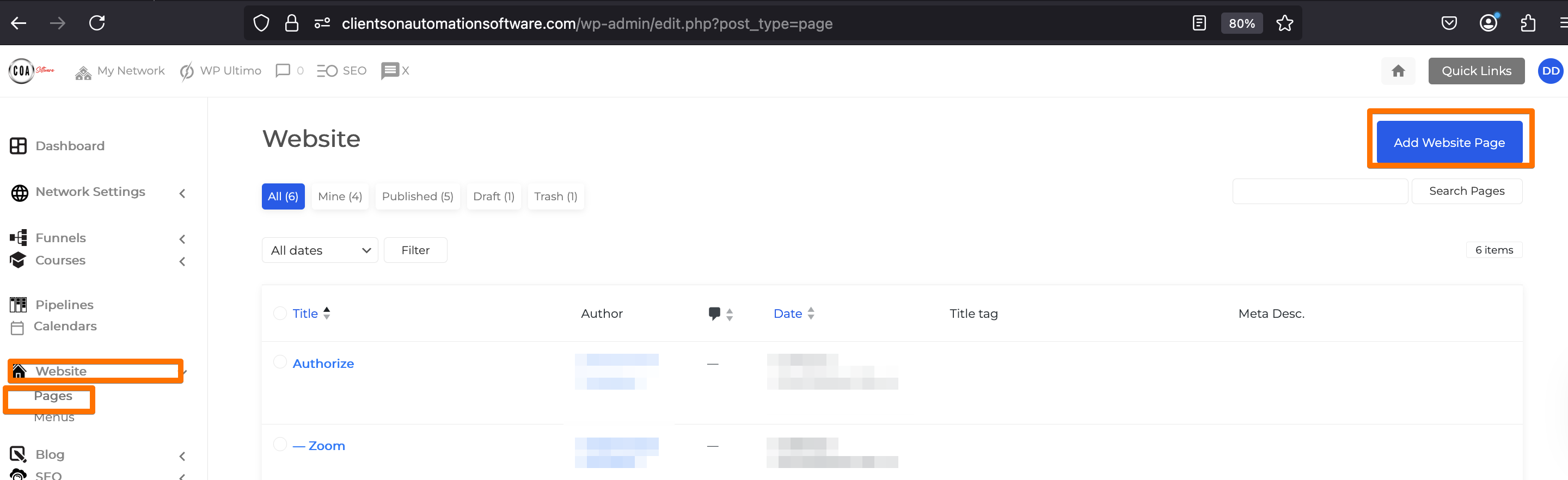
Step 3 Click Save Draft or Publish to create the Page.
Step 4 Edit the Page Design:
-
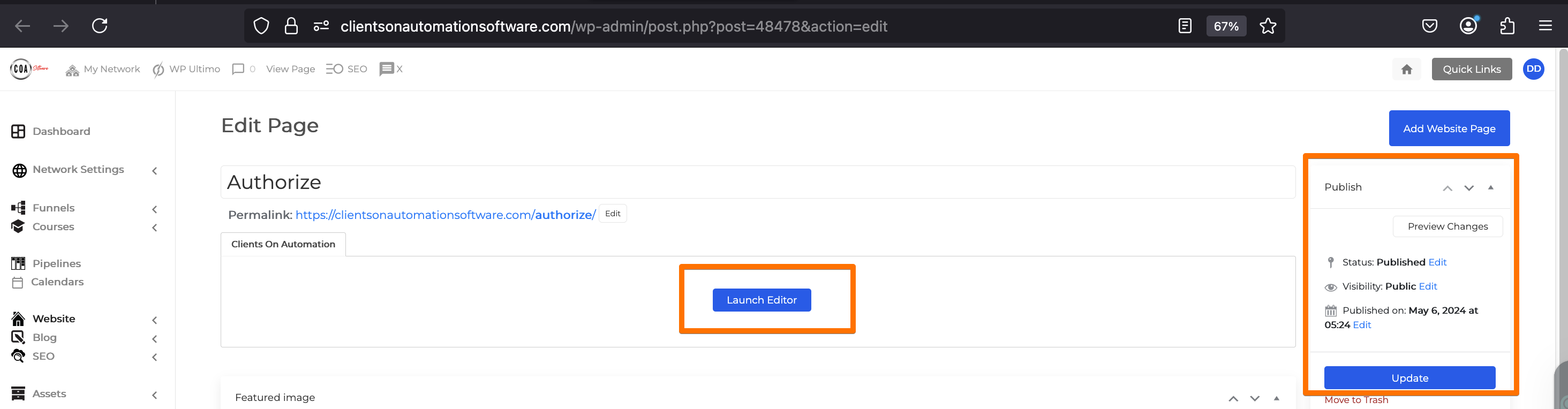
- Click "Launch Clients on Automation Software Editor" to design and customize the page.
Additional Features
- Publish and Update Details: Monitor the page's last activity, including publishing history, drafts, and pending reviews.
- Set up SEO and Tracking codes.
- Content Analysis: Gives you insights about the Page Content Analysis.
- Page Attributes:
- Set a Parent Page: Organize pages hierarchically (e.g., parent and child pages).
- Disable Template: Customize the page layout by disabling the default template.
- Reorder Pages: Organize pages for better navigation within your admin panel.
By utilizing these features, you can efficiently manage and design independent pages on your Clients on Automation Software site.
