How to Change Info List Icon Color
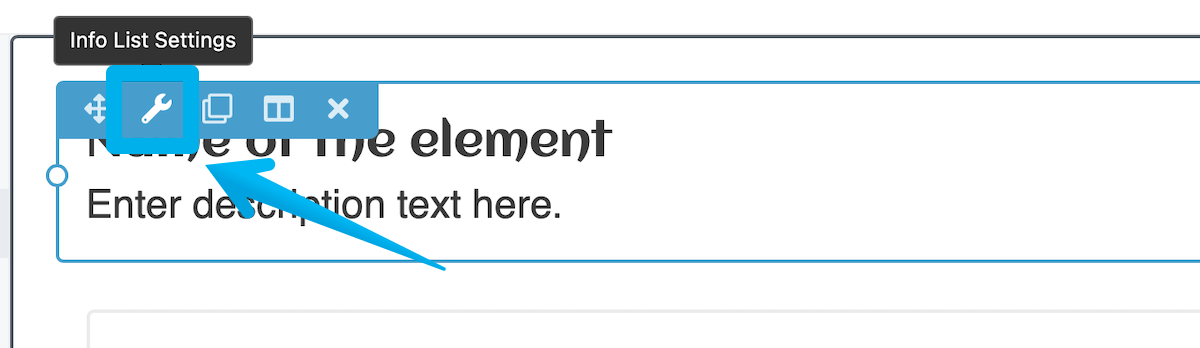
Step 1: Hover over Item List and Click Settings
While editing your page, hover over the Item List you'd like to change the icons for and click settings.
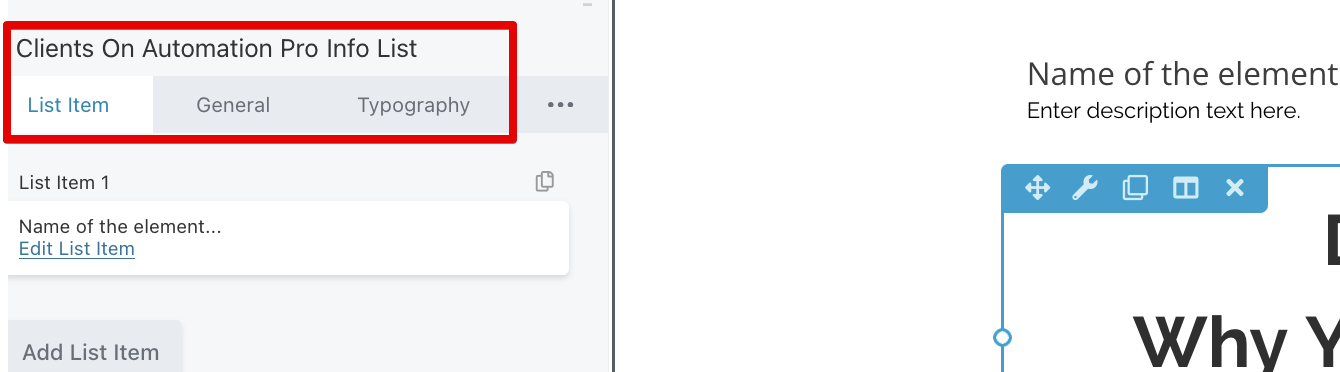
Step 2: Select edit list item
You'll need to do this for each list item
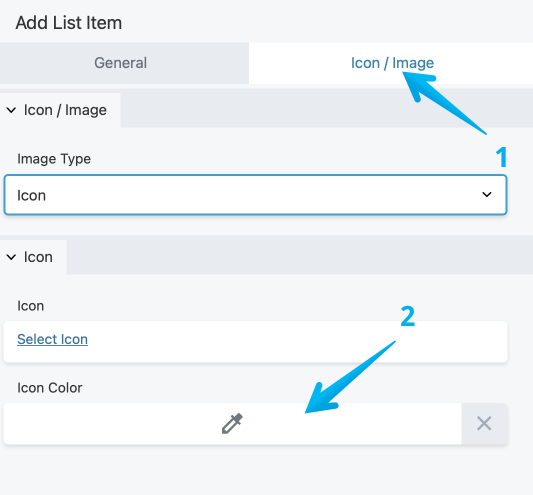
Step 3: Go to Icon / Image and Change Icon Color
Select the Icon / Image Tab (1) and then use the color dropper to select the color for the item (2). Once finished you can click save and edit the next list item or click save again to complete your edit.