
Add / Change Custom Domain
If you have previously setup a custom domain and want to switch to a different one or you'd like to add a Custom domain, follow these steps in order to remove the custom domain from your Clients on Automation Software account.
IMPORTANT: Please ensure the new domains DNS that you want to connect has already been setup correctly from Step 1 to Step 12 of our guide here .
Only then you can continue to Step 1 below:
Step 1: Login to your Clients on Automation Software dashboard, navigate to Settings > Set Custom Domain
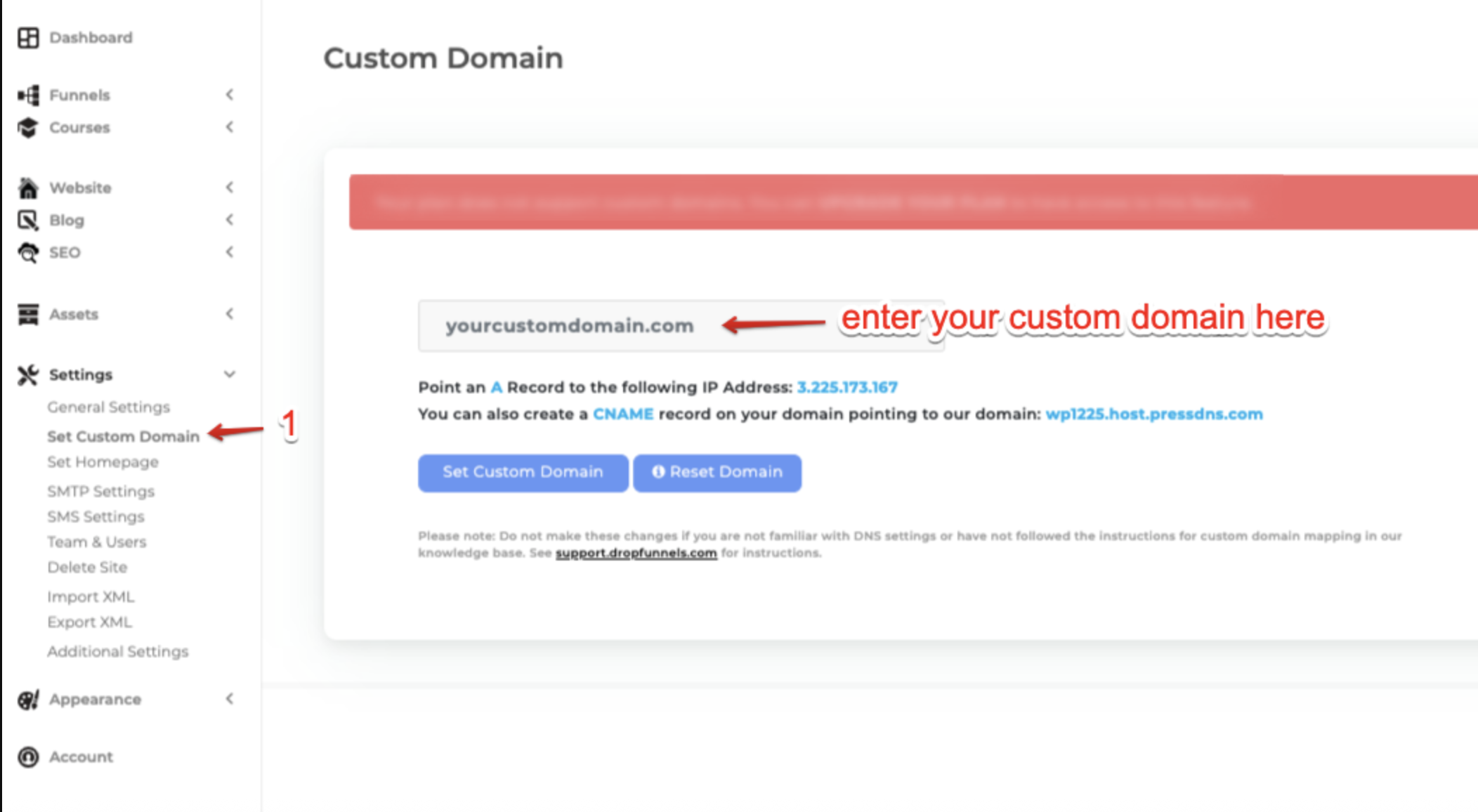
Step 2: Delete any existing text within the field (For existing custom domains) and place your new domain into the field.
Step 3: Click the Set Custom Domain button.
