How To Integrate Brevo with Clients on Automation Software as your SMTP Service For Transactional Emails
In this tutorial, we will use Brevo to configure SMTP for outgoing emails. To do this, we need to:
- Authenticate the domain name used in your email.
- Obtain the API key from your Brevo account.
Step 1: Authenticate Your Domain in Brevo
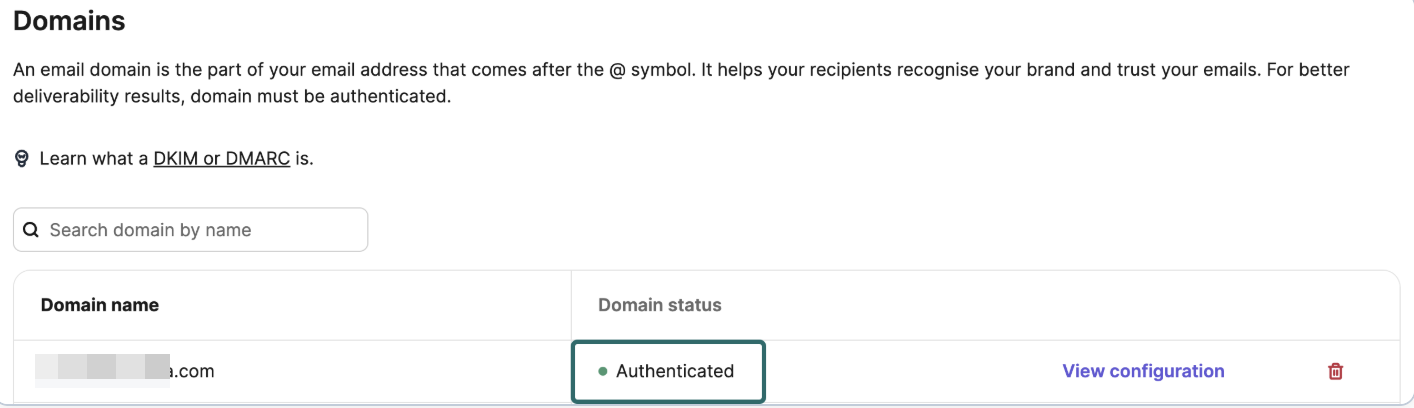
Before setting up SMTP, you must verify the domain associated with your email address.
For example, if your From Email in SMTP is janjey@clientsonautomationsoftware.com, then the domain clientsonautomationsoftware.com must be authenticated in Brevo.
Follow this guide to verify your domain:
Authenticate Your Domain with Brevo (DKIM, DMARC Setup)
Important Note:
- Verifying a domain in Brevo does not create a new email address for that domain. It only allows Brevo to use the domain for sending emails.
- The From Email you use for pipeline emails must be a valid and working email address, as it will be used as the reply-to email when users respond to your pipeline emails.
- If you need a new email address for your domain, you will need to contact your domain/email provider to set it up.
Step 2: Get Your Brevo API Key
Once your domain is authenticated, you need an API Key to connect Brevo with Clients on Automation Software.
How to Generate Your API Key:
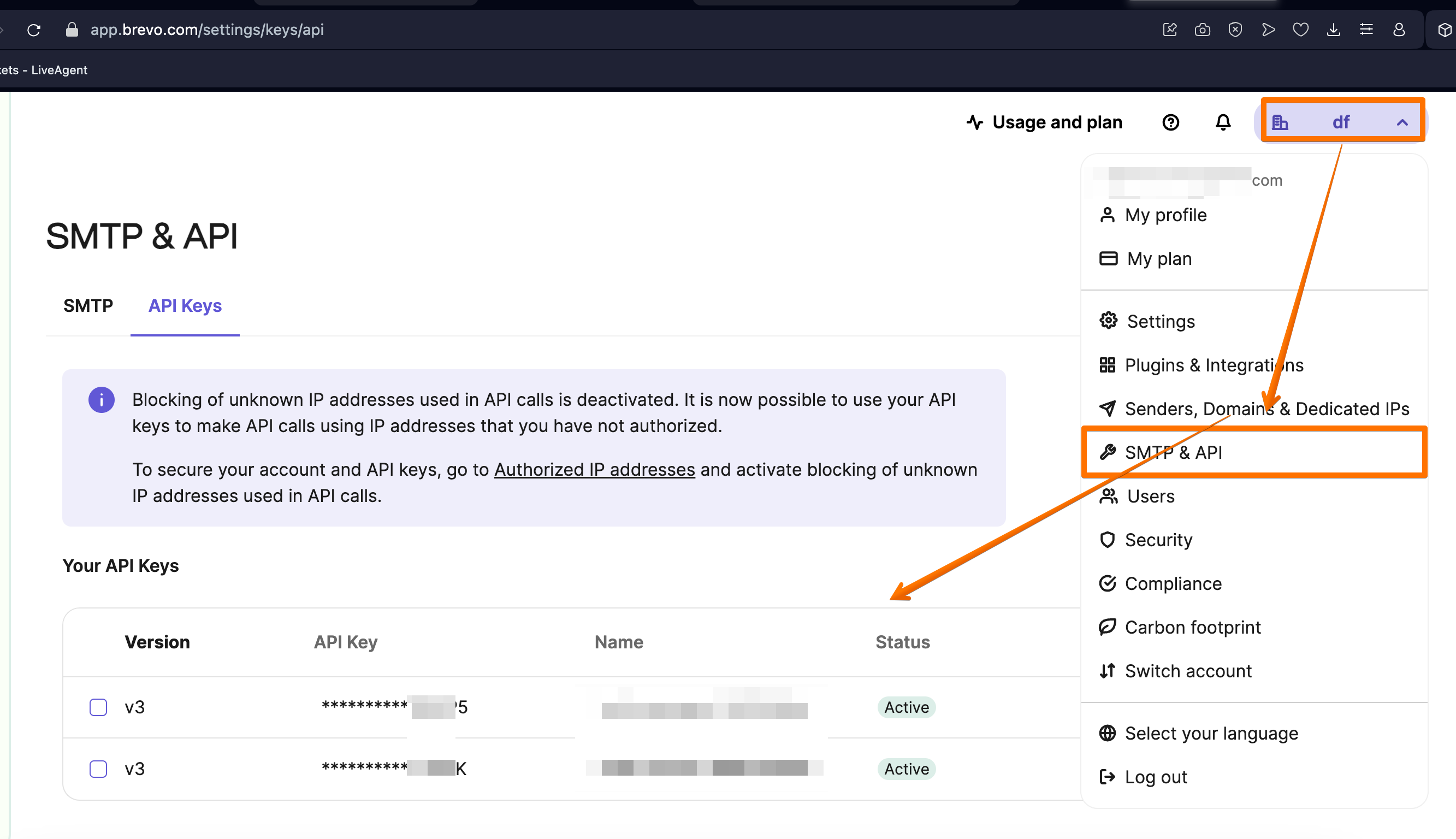
- Log in to your Brevo account.
- Click on your Account Name > SMTP & API.
- Direct link: Brevo API Settings
- Click Generate a New API Key.
- Copy your API key immediately—it will only be visible during this step.
- If you lose it, you will need to create a new one.
Follow this guide for more details:
Create and Manage Your Brevo API Keys
Once you have both domain authentication and API key, you can now complete your SMTP setup inside Clients on Automation Software.
Step 3: Enter the Brevo details to Clients on Automation Software SMTP Outgoing email settings
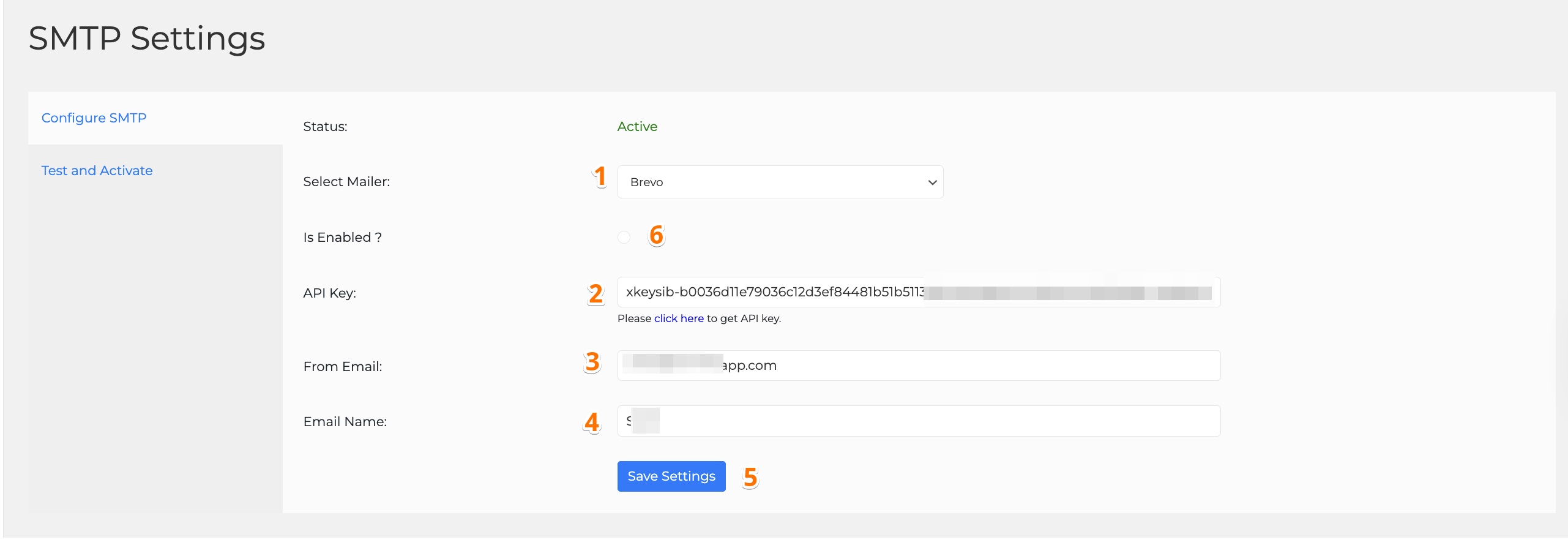
Go to Clients on Automation Software SMTP Settings and follow the steps below:
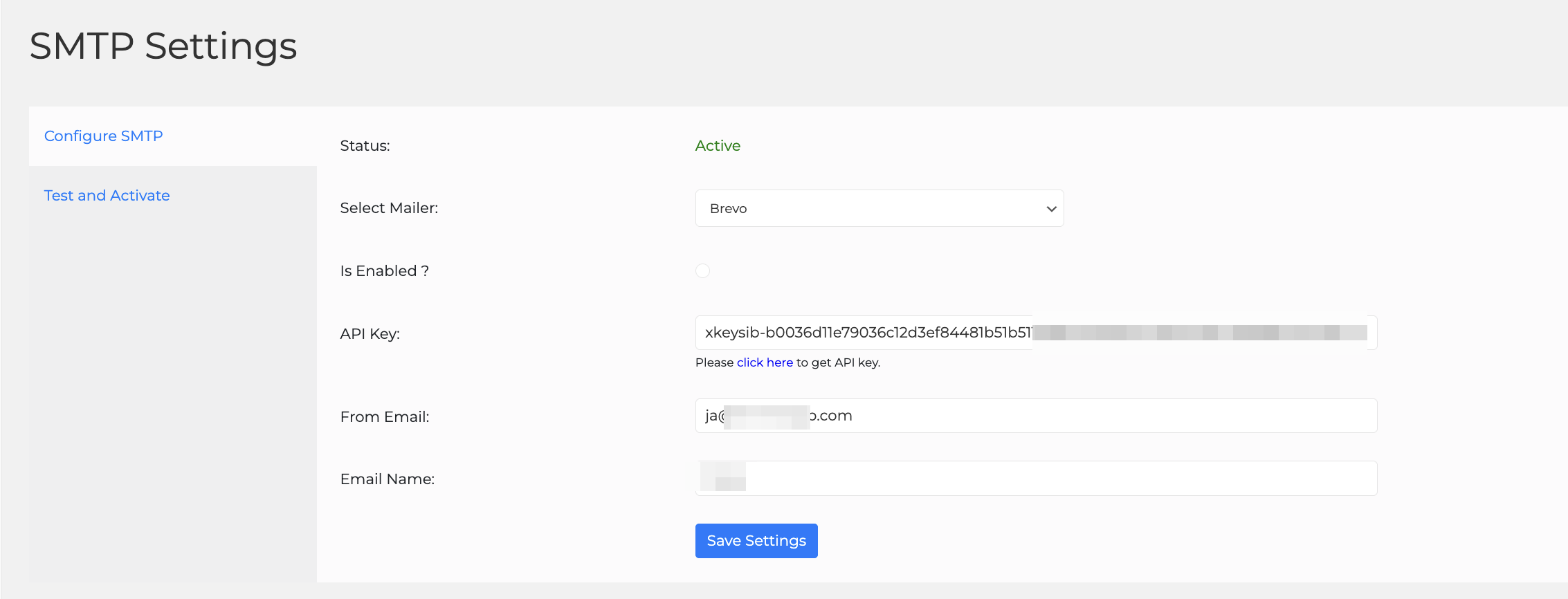
Step 1: Select Mailer: Brevo
Step 2: Enter the Brevo API KEY in its respective field
Step 3: Enter From Email
Step 4: Enter Email Name
Step 5: Save Settings
Step 6: Enable SMTP to lock the settings by clicking the bullet (make sure to have it checked)
Step 7: Go to Test and Activate
Step 8: Enter an email to test STMP.
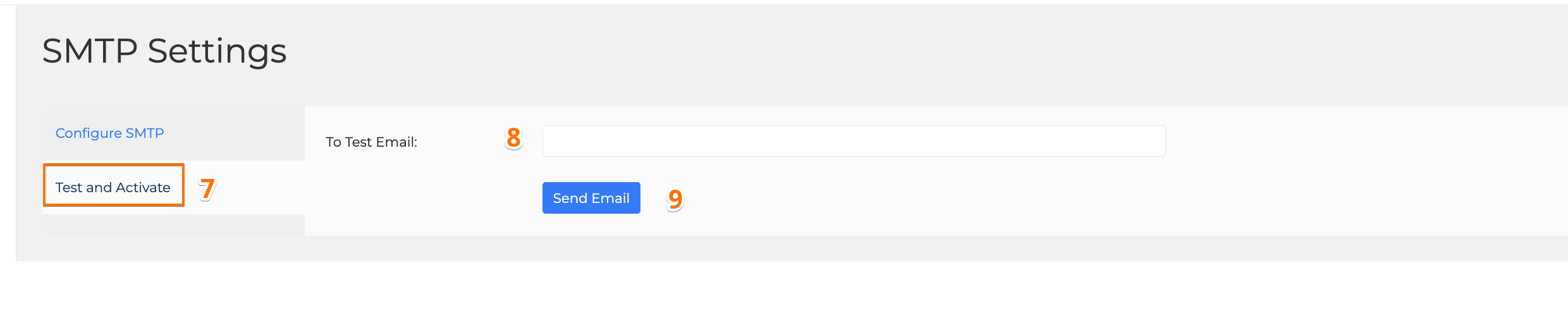
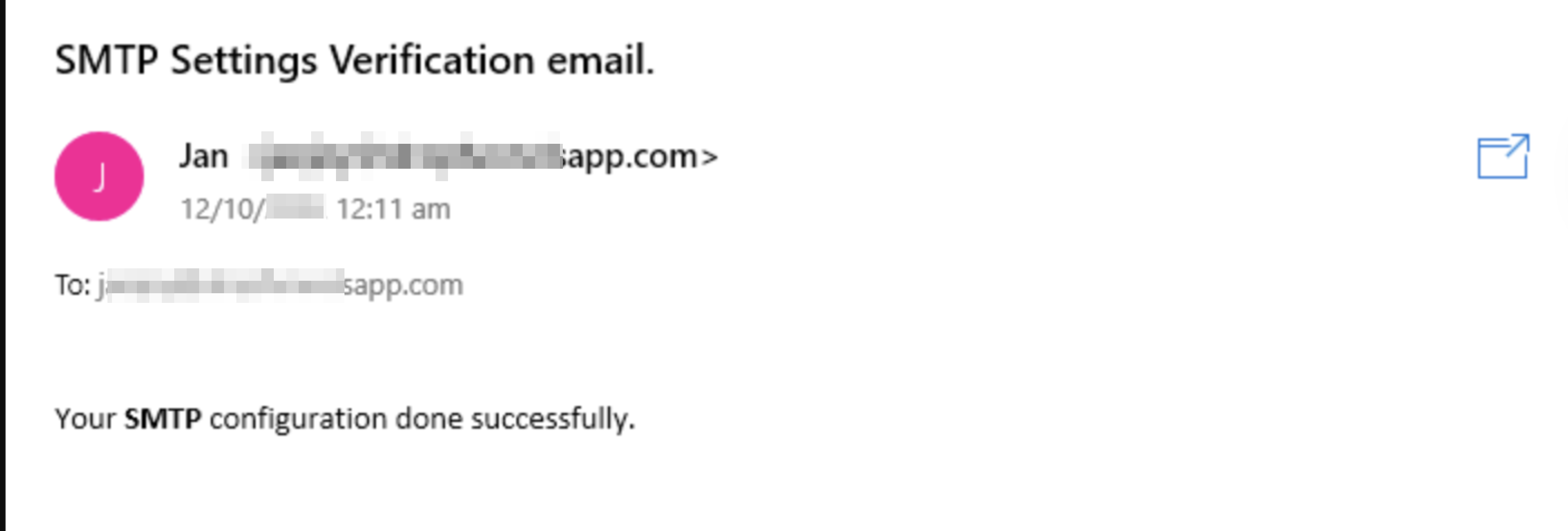
Step 9: Click "Send Email" after clicking you should receive an email that looks like the image below.
Note: If the status shows inactive you need to send a test email, if you can't find the test email in your inbox, check your promotional emails or spam folder.