
How To Assign Footer To Funnel Page(s)
Inside Clients on Automation Software, you have the ability to create different footers, that can either be global elements or single-use for special pages and/or funnels.
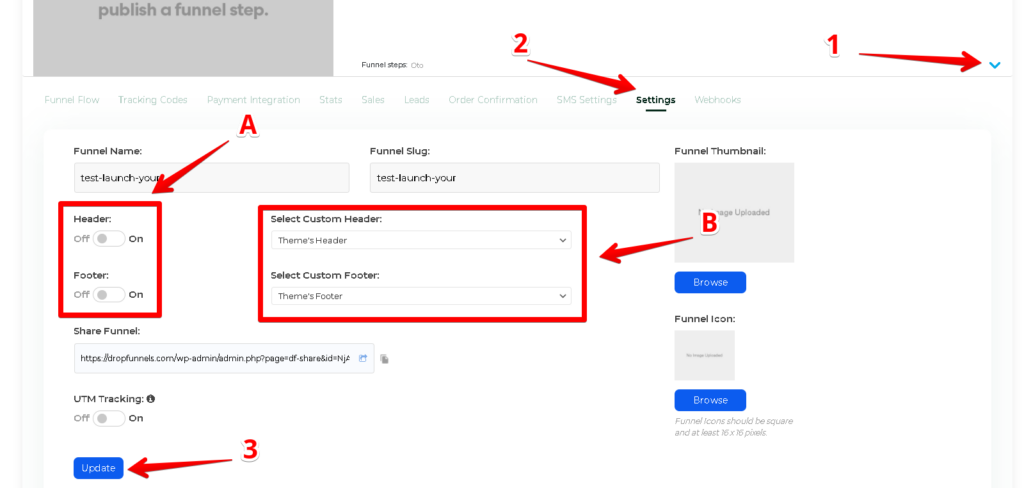
Once your footer is created, navigate to the funnel you want to apply the footer too.
Step 1: Expand the funnel by clicking on the arrow down head icon.
Step 2: Go to the Settings tab to bring up the settings available.
A: Select if you would want to use either the Header, the Footer or both.
B: Select a custom made or pre-made Header or Footer
Step 3: Click on Update.
That header or footer is now applied to every page inside that funnel.
