How to Add a New User to your Site
Clients on Automation Software offers predefined user roles for managing your team’s access to your Clients on Automation Software account.
By limiting access to the dashboard and specific admin panel areas, you can ensure that only authorized users have control over critical website functions. This can help prevent accidents or malicious actions that could compromise your entire site.
The following User Roles are available in Clients on Automation Software:
- Subscriber: Isn't used to provide any access to Clients on Automation Software Internals, can be used to allow users to comment on posts.
- Contributor: Same as above currently.
- Editor: Can edit existing funnels, courses, pages, posts, but is unable to add new ones.
- Author: As above, but can also create.
- Administrator: All permissions except for access to your billing account. Only the account owner (email used to sign up for Clients on Automation Software) will be able to access your billing information.
This guide will show you how to add new users to your account.
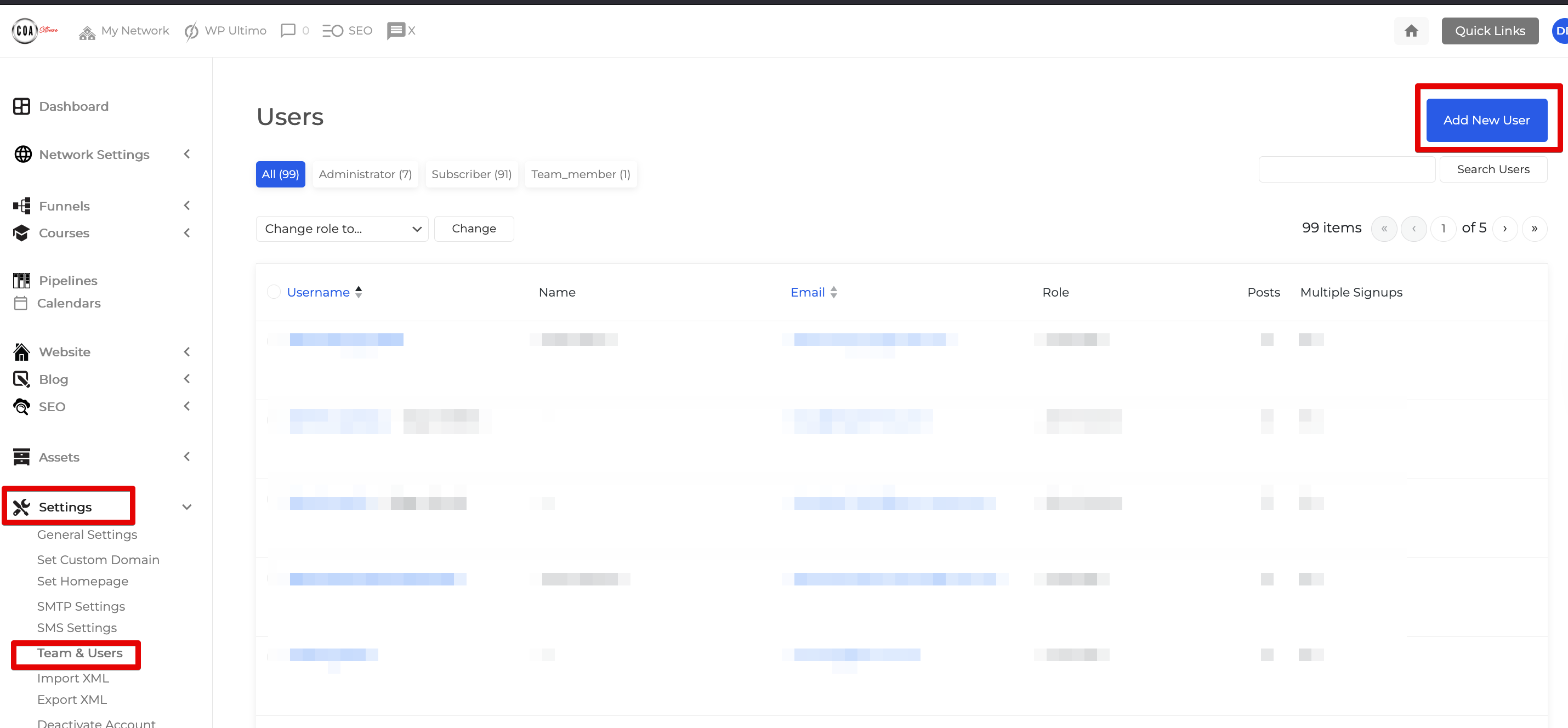
Step 1: On your dashboard, go to Settings > Team & Users > Add New
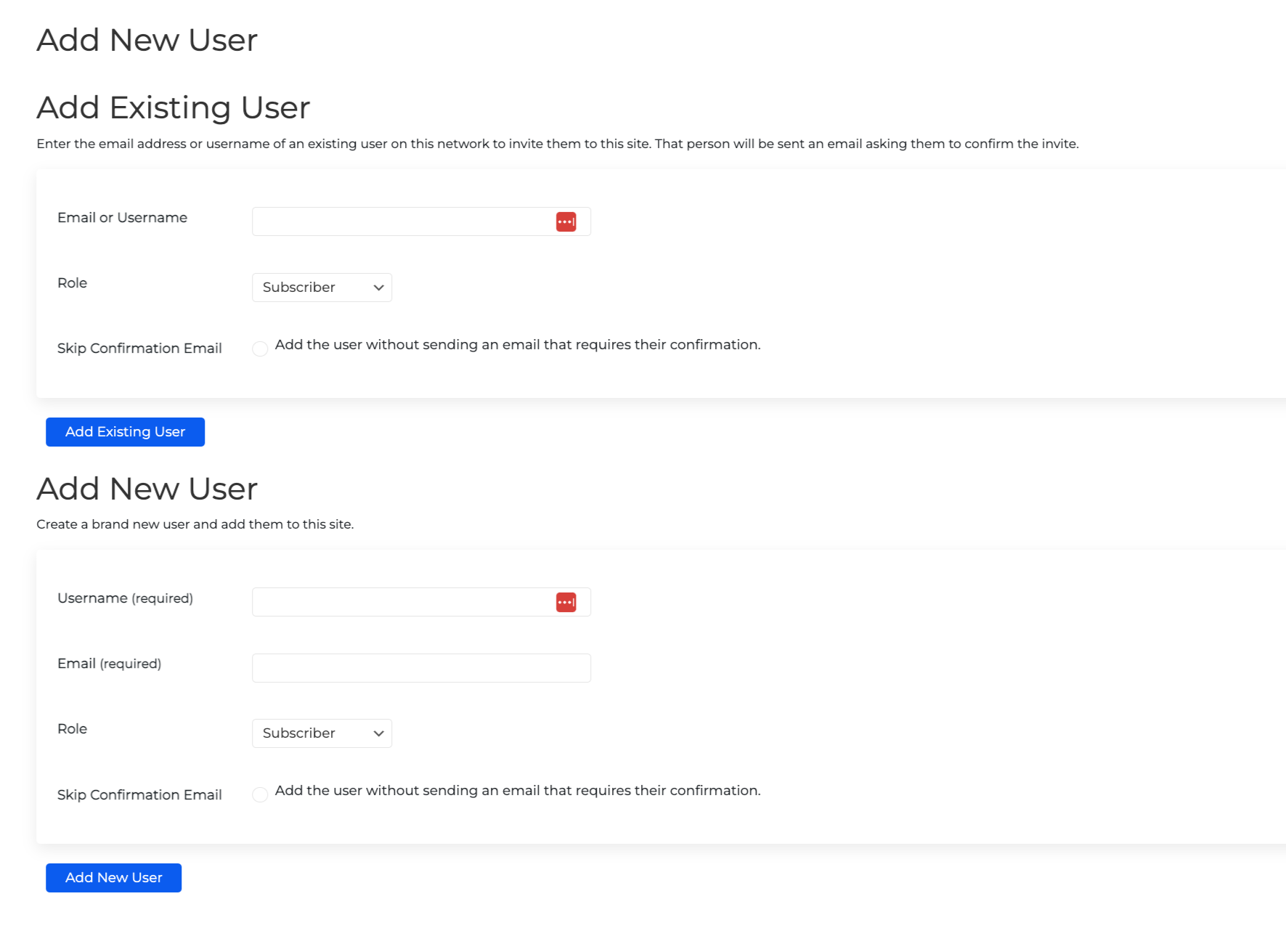
Step 2: You will see that there are 2 options to add a user.
Add Existing User: If you know the user you are trying is already an existing Clients on Automation Software user with an active account, then enter their email address or username to invite them to your site.
Add New User: If you're inviting your designer or VA that has never been to Clients on Automation Software, then use this to create a brand new user and add them to your site.
Make sure you select the appropriate User Role depending on what they are supposed to do on your site. When done hit "Add User" and an email invitation will be sent for them to set up their account.
If allowing Administrator, Editor, or Author roles, please ensure you fully trust the user you are adding as they will have access to your website internals.