
How to Undo / Redo Changes
From time to time you'll be making edits only to find out you need to roll back and undo the changes you've just made.
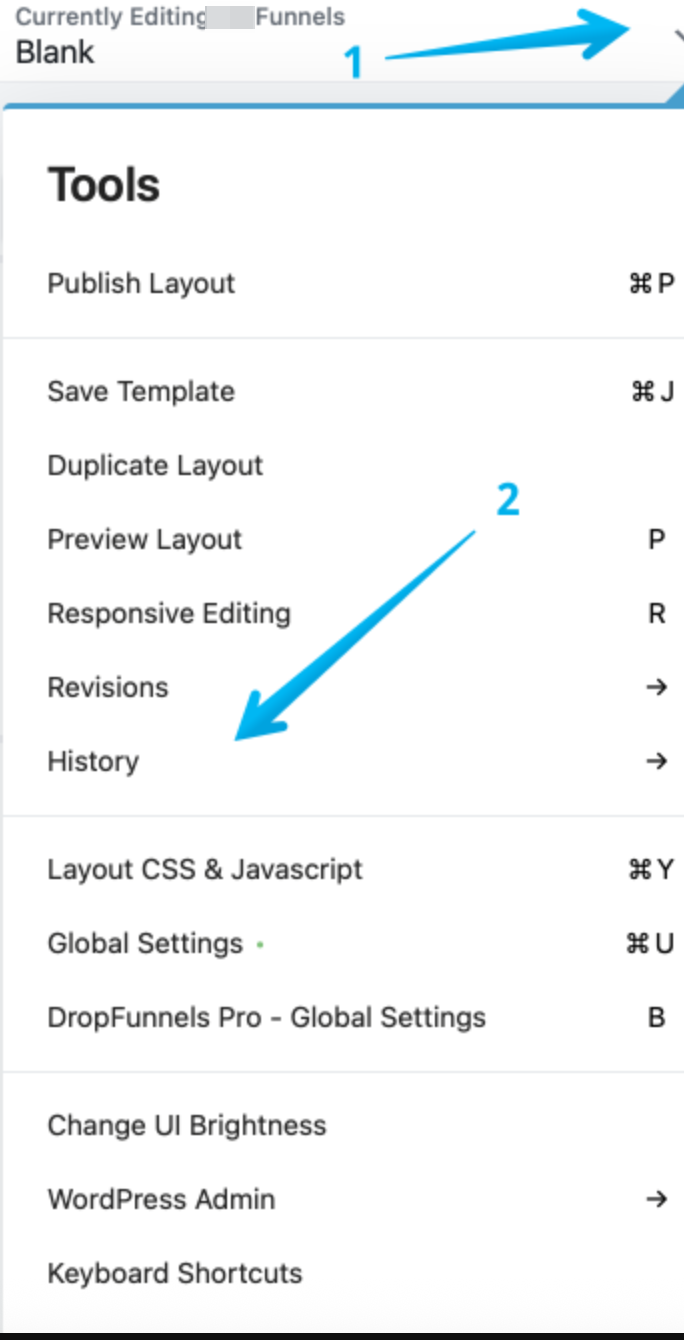
Step 1: Open Tools and Select History
Click the Tools drop-down (1) from the top left and Select History (2)
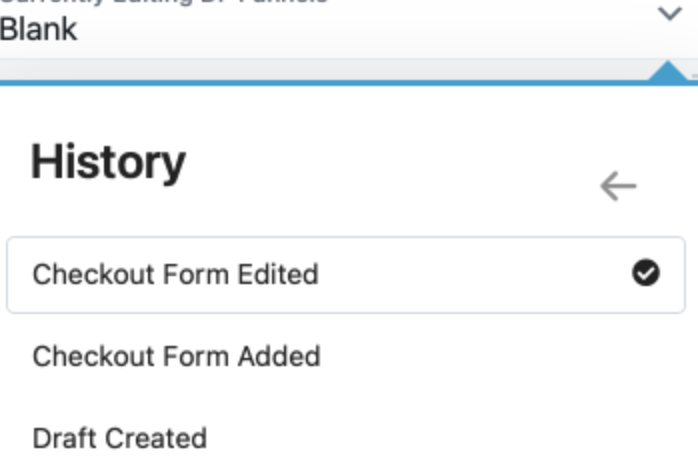
Step 2: Click the action you'd like to move back to
You'll now be presented with a list of the changes you've made since you last saved the page. When an item is clicked you'll get a preview on your page to show you what will change.
Step 3: Click outside the Menu to Continue Editing
If the undo is the correct one, clicking outside of the History menu will allow you to continue editing.
Step 4: Go back to History if the undo is not correct
Should the undo not be the correct one, as long as you do not make an edit to the page, you can go back to History and select another point.
Once a page edit has been made, any changes made after your undo point will be removed.
