
"We are revamping our Knowledge Base articles to serve you better. In case you find something unusual, do not panic. Reach out to our Support Team by submitting a ticket if you ever need some help.”
  1. Home
  2. Clients on Automation Software Builder / Editor Basics
  3. Styles
  4. Colors
  5. Color Picker Inside the Clients on Automation Software Editor
  1. Home
  2. Clients on Automation Software Builder / Editor Basics
  3. Color Picker Inside the Clients on Automation Software Editor

Color Picker Inside the Clients on Automation Software Editor

Color Picker Inside the Clients on Automation Software Editor

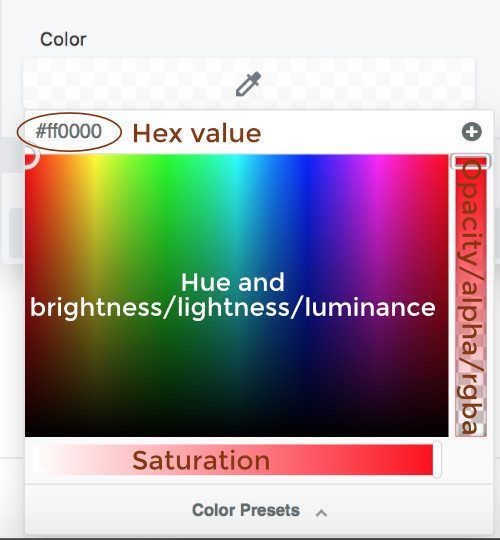
Clients on Automation Software Editor's visual color picker includes an opacity slider, shown in the following screenshot.
the-basics-color-picker-in-bb-1-b96b01e8caf34beecf352dc0f9613292

The opacity slider on the right uses the RGBa alpha channel, rather than an opacity CSS attribute. When you move the opacity slider, you'll see the hex color value change to RGBA settings to reflect the requirement of the alpha channel. You can also set your own RGBA values instead of hex values for colors.

Note:

  • To add your own RGBa values, move the right-hand opacity slider until the color field converts to RGBa values, then enter your RGBa value.
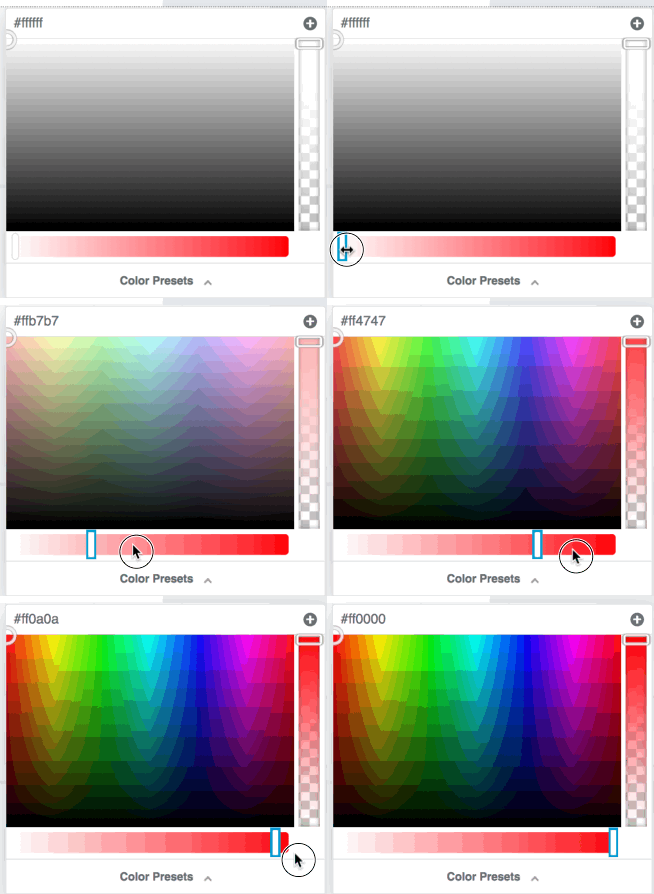
  • If you see only gray values in your color picker, move the saturation slider to the right.
the-basics-color-picker-in-bb-2-280565e78a3c2ad7a78b8e5a33204b82
Was this article helpful?

Related Articles
