How To Upload A Video To Your Pages
Add/Edit a Video Module To Your Page
Clients on Automation Software allows you to upload videos to the following services:
Youtube
Vimeo
Wistia
CloudFlare Stream
Within our video module and in this article you'll find instructions of the URL or Sharing code which you'll need to grab from the service in order to place the video onto your page.
Upload videos using Vimeo
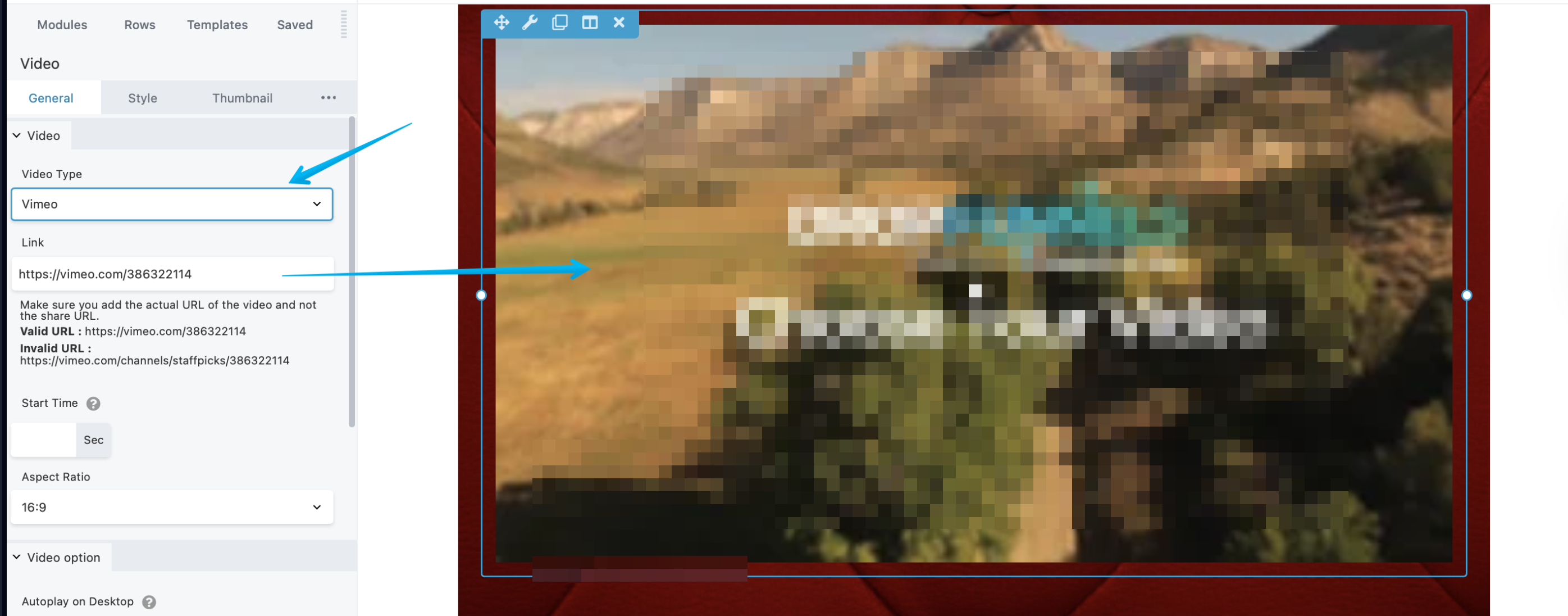
Step 1: Add a video module to your page inside the Clients on Automation Software Editor.
Step 2: Select the Video Type to Vimeo and Add the Vimeo video link
Note: (For videos hosted via Vimeo, make sure that the privacy setting of the video should be "Hide from Vimeo Private on your account, but embeddable anywhere" as this will ensure that the video being embedded within your funnel will play as setting the privacy into Private will cause the video not to play due to that said restriction.
Make sure to add the actual URL of the video and not the Share URL.
Sample of Valid URL: https://vimeo.com/386322114
Sample of Invalid URL: https://vimeo.com/channels/staffpicks/386322114)
Upload videos using YouTube
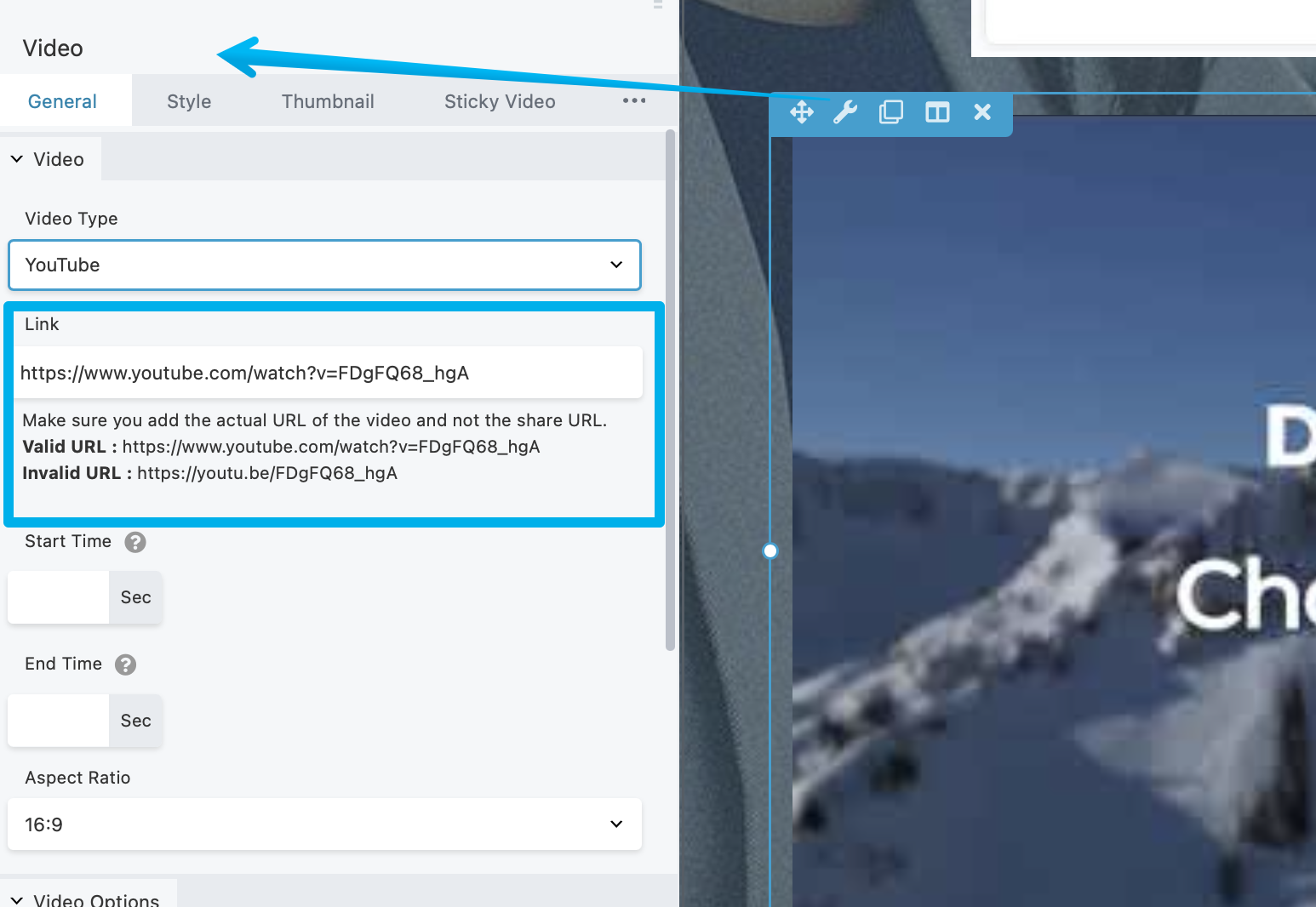
Step 1: Add a Video module to your page inside the Clients on Automation Software Editor.
Step 2: Select the Video Type to YouTube and Add the YouTube video link
Note: (For videos hosted via Youtube, make sure that the link you will be using will be the embedding link and NOT the shareable link. (See examples of embedding link and shareable link below)
Embedding Link:
https://www.youtube.com/watch?v=QE2KQ4rFD9w
Shareable Link:
https://www.youtube.com/watch?v=QE2KQ4rFD9w&list=PL1vgoh2dPon7fJH8qkpDmsp3IAv1uNyDe&index=2
Take notice on the red item in the shareable link, that has to be removed for the Youtube video to play properly within your funnel.)
Upload videos using Wistia
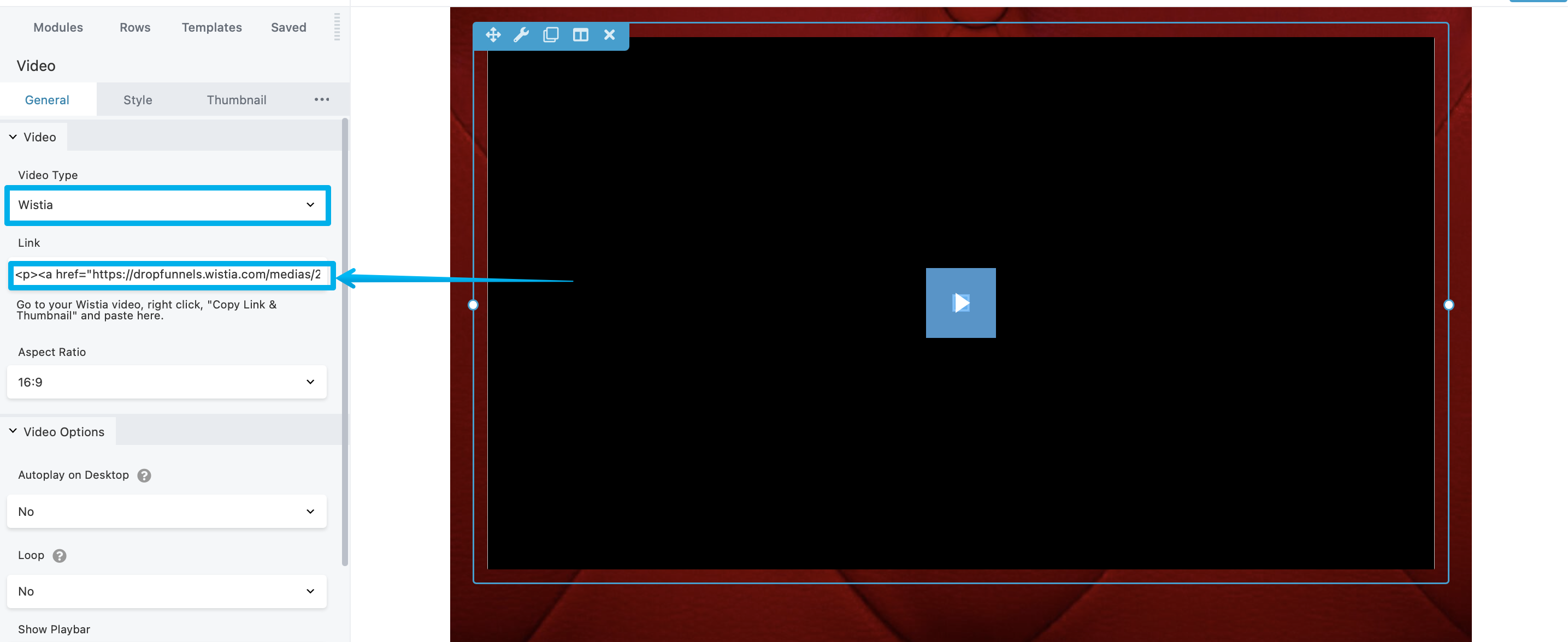
Step 1: Add a Video module to your page inside the Clients on Automation Software Editor.
Step 2: Select the Video Type to Wistia and Add the Wistia video link
Note: (Go to your Wistia Video, right click, "Copy Link & Thumbnail" and paste it in the link field)
Upload Videos using CloudFlare Stream
Step 1: Add a Video module to your page inside the Clients on Automation Software Editor.
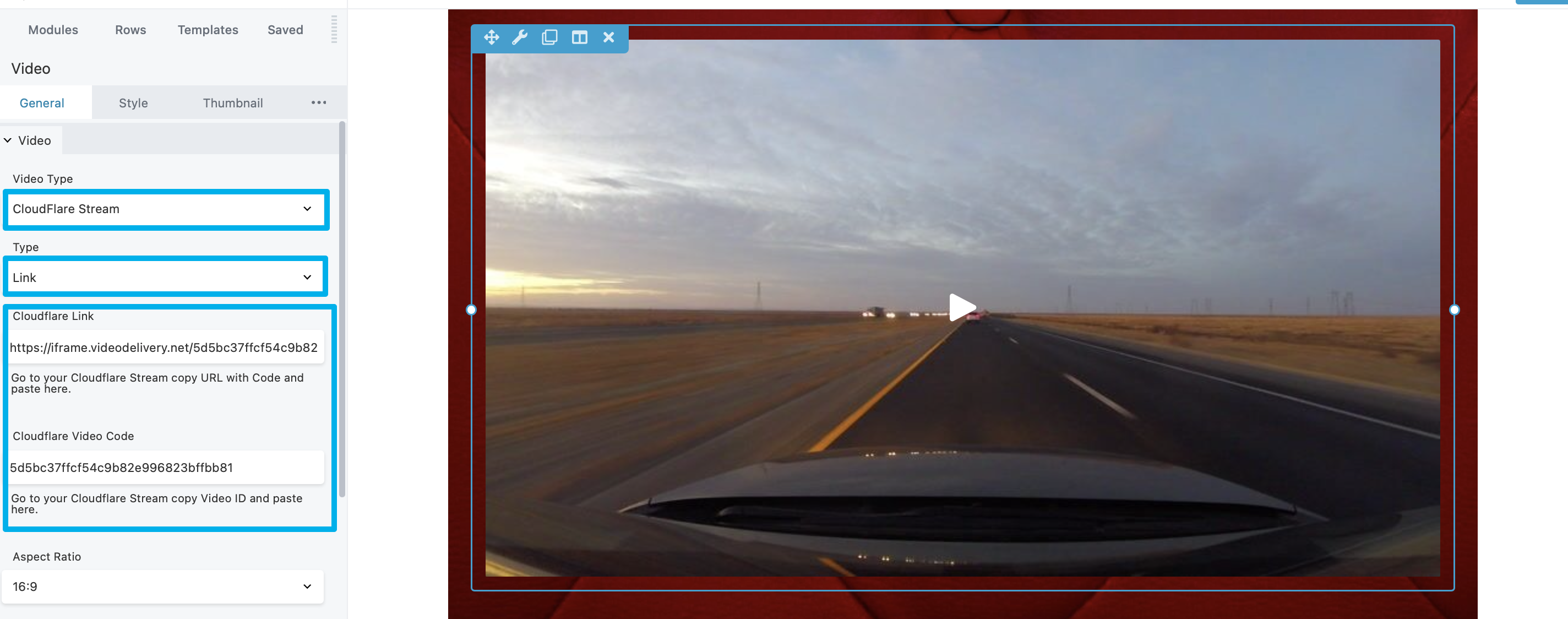
Step 2: Select the Video Type to CloudFlare Stream and select a"Type".
From the Type you can select Link or Code to add your Videos.
Step 3: Add the CloudFlare link and CloudFlare Video Code. In this way, we can make sure that the video will work either from the Type you're selecting.
Note: (To add the CloudFlare link, go to your CloudFlare Stream copy the URL/link with code and paste it in the field.
For CloudFlare Video Code, Go to your CloudFlare Stream copy Video ID and paste it in the field.
You can also refer to this link provided by CloudFlare to locate the Video code and link/URL.)