How to Add an Image to an Item on the Saved Tab
You can display an image with a saved row, column, or module on the Saved tab in the Content panel.
The image comes from the featured image set for the saved item. It fits the width of the pane on the Saved tab, with a width-to-height ratio of 2:1. The item's title is displayed below the image. In the following screenshot, the saved module called "Purple button" is displayed with its featured image, which was created by taking a screenshot of the module.
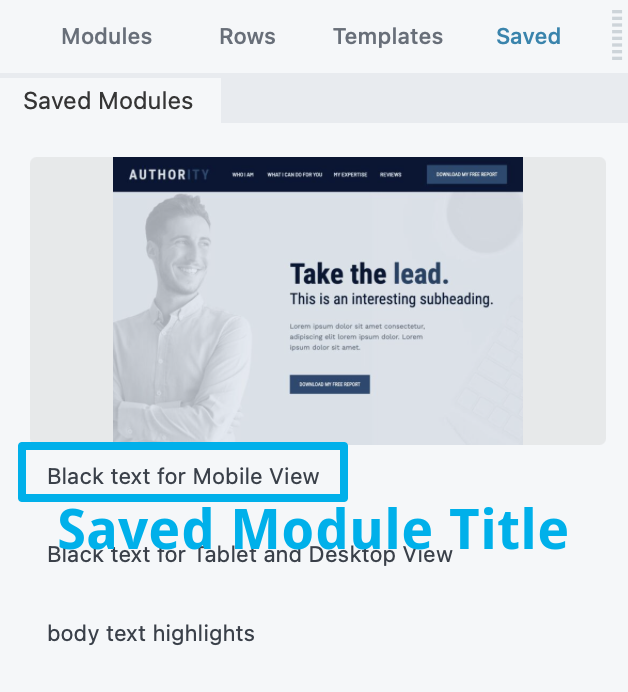
Recommended minimum image size is 300px by 150px.
To add a featured image to a saved row, column, or module:
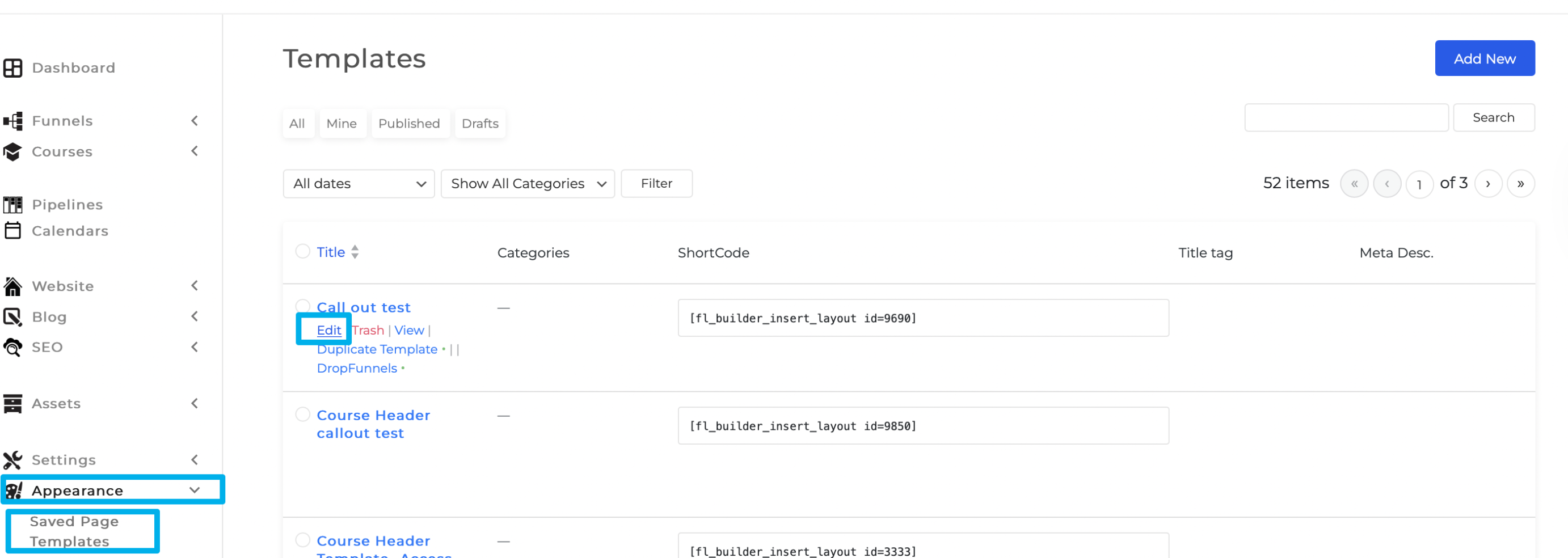
Step 1: Go to Appearance > Saved Page Templates.
Step 2: Hover the mouse from the Saved page Template and click on Edit.
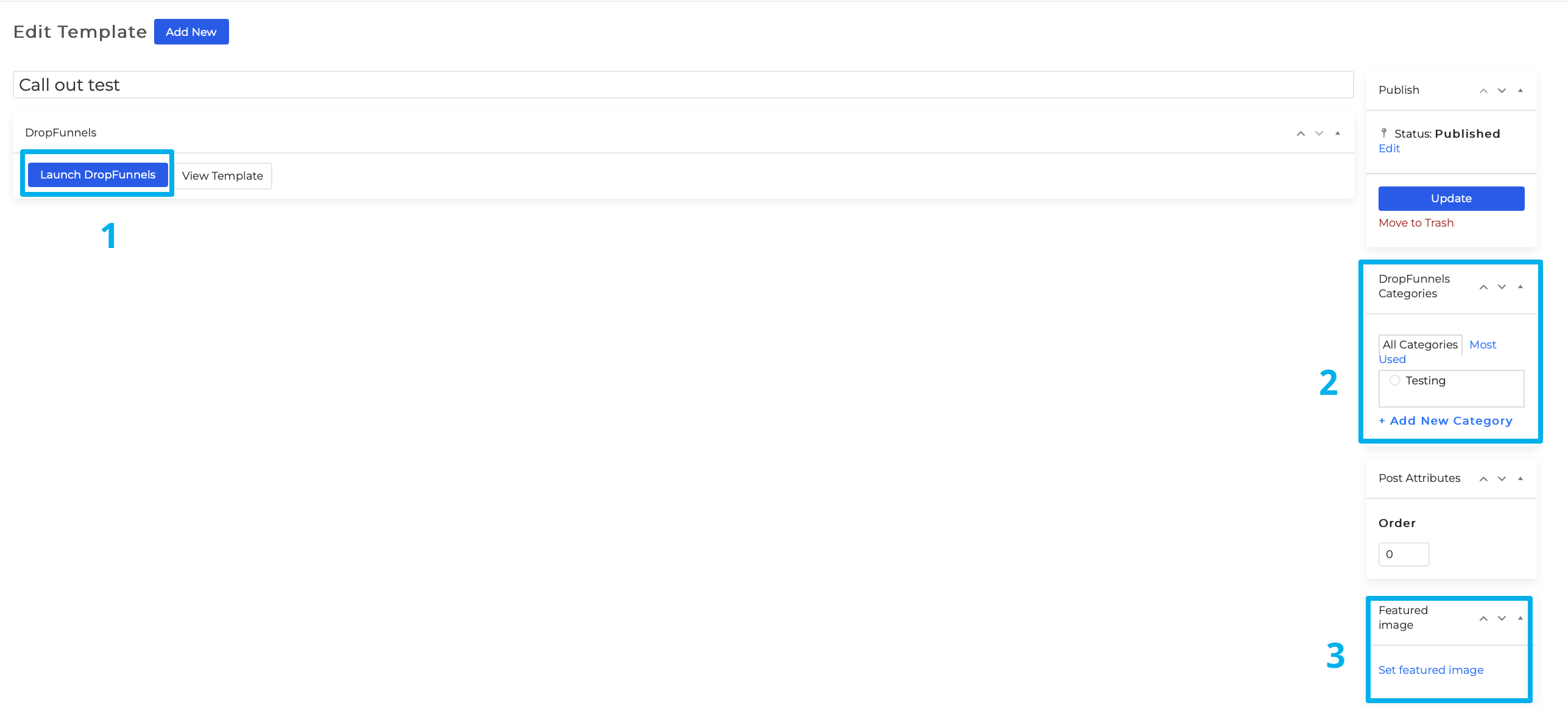
Step 3: You can now edit the saved Page template, module, row, column when you Launch the Clients on Automation Software Editor (1). Change/add a Category for the Saved Page Template (2) and upload a featured image (3).