
Convert a Saved Row, Column, or Module to Global
When you save a row, column, or module, you get the option to make it global. The content in global saved items is updated in the saved item and every other instance when you update the content in any one place.
What if you didn't make an item global when you saved it but want to convert it to global later? There isn't a one-click way to do it, but it's not hard.
To convert a standard saved row or module to global:
Step 1: In the Clients on Automation Software editor, drag the saved row, column, or module into your layout and open it for editing.
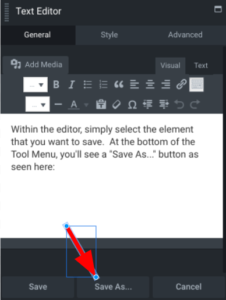
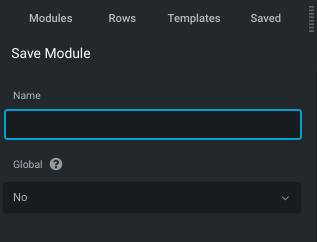
Step 2: Click Save as, assign a name for the row, column, or module, and make it global.
Step 3: Delete the original non-global saved item from the Saved tab in the Content panel.
The new global saved item will be linked to the layout row or module that you created it from and linked to any future use of it in your site.
