
Insert a Saved Row, Column, or Module Into your Layout Inside Clients on Automation Software Editor
The procedure for inserting a saved row, column, or module is the same whether it's standard or global.
In the Content panel, click the Saved tab, then drag the saved row, column, or module into your layout.
(Note: You can't drag a column from the Saved tab inside another column in your layout because of the possibility that the saved column can have child columns, which would exceed the limit of one level of nesting.)
A workaround is to drag the column into a row as a main column and inspect it. If it has no child columns, you can move it from there into another column.)
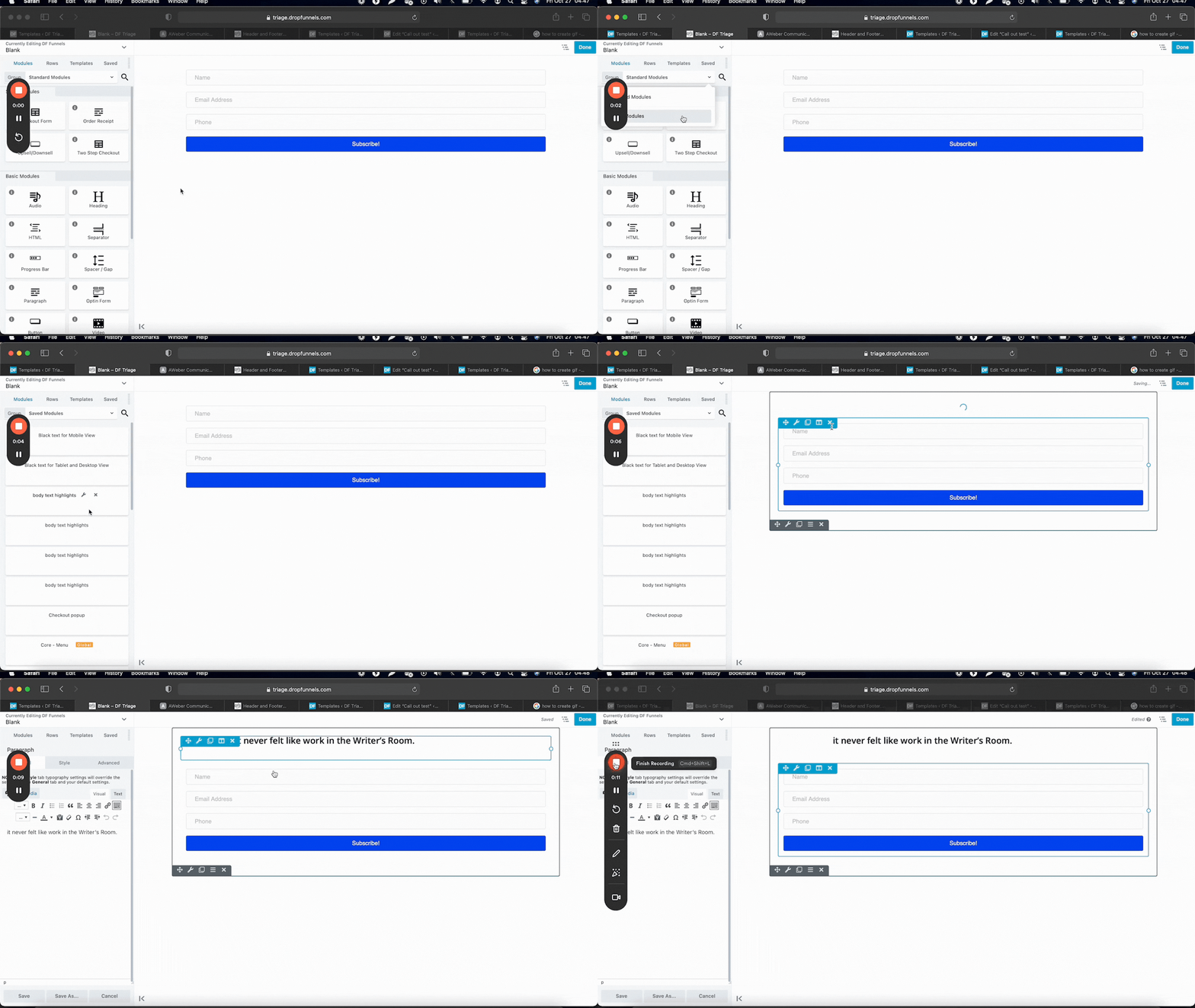
Additonal Info: Global rows, columns, or modules are distinguishable by an orange overlay after insertion. Any changes made to them will impact the saved version as well as all other instances on your site. On the other hand, standard rows, columns, or modules do not feature any distinct formatting in your layout because they are no longer linked to the saved version.
