
How To Setup A Coupon Code For Your Product
Coupon Codes are an excellent tool to encourage customer purchases, increase conversion rates, and attract new customers to your business. By offering discounts, coupons can drive traffic to your store and help convert more leads into paying customers.
In Clients on Automation Software, you can easily add Coupon Codes to any product, allowing you to offer:
- Percentage Discounts (e.g., 20% off)
- Fixed Amount Discounts (e.g., $10 off)
Once the Coupon is enabled, customers will see the Coupon Code input field dynamically appear in the Checkout Module where the product is linked or added. When they apply a valid coupon, the discounted price will be reflected in their total.
Enable Coupon Codes for a Product
Step 1: Locate Your Product
- Go to your Dashboard > Funnels > Products.
- Find the product you want to enable a Coupon Code for and click the Pen Icon to Edit.
Step 2: Enable Coupon Codes
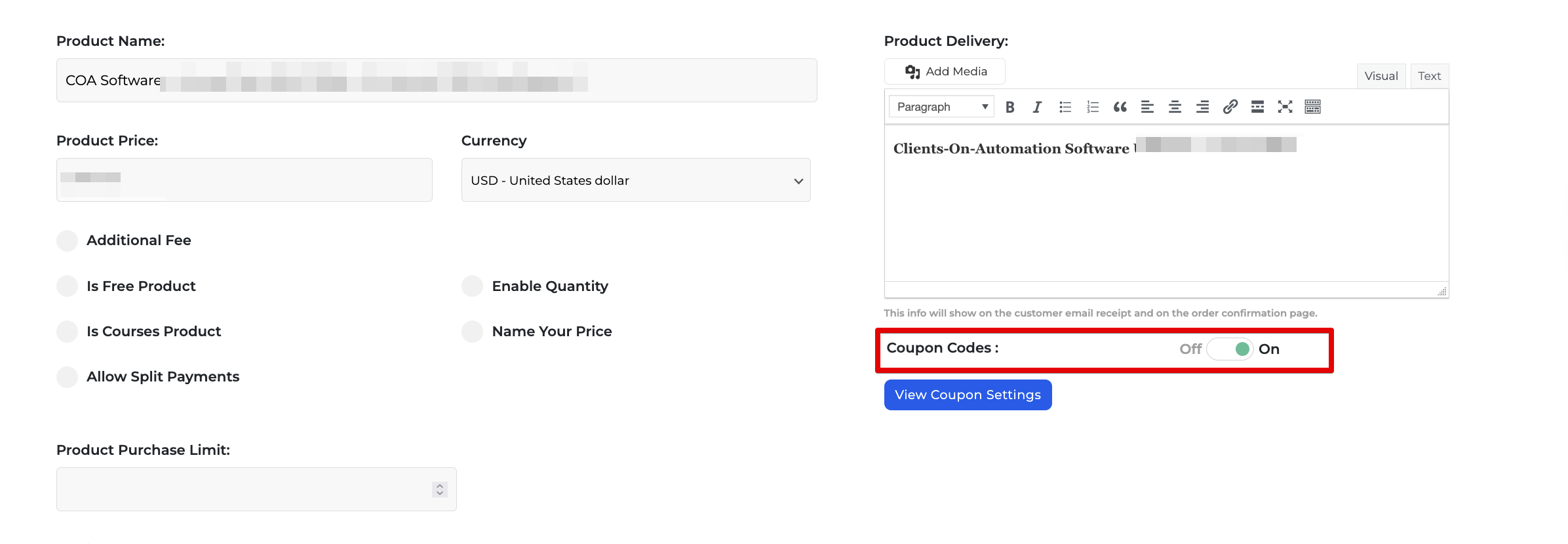
- Within the product settings, look for the Coupon Code option.
- Toggle the button to "ON" to activate Coupon Codes for that product.
How to Create and Configure a Coupon Code
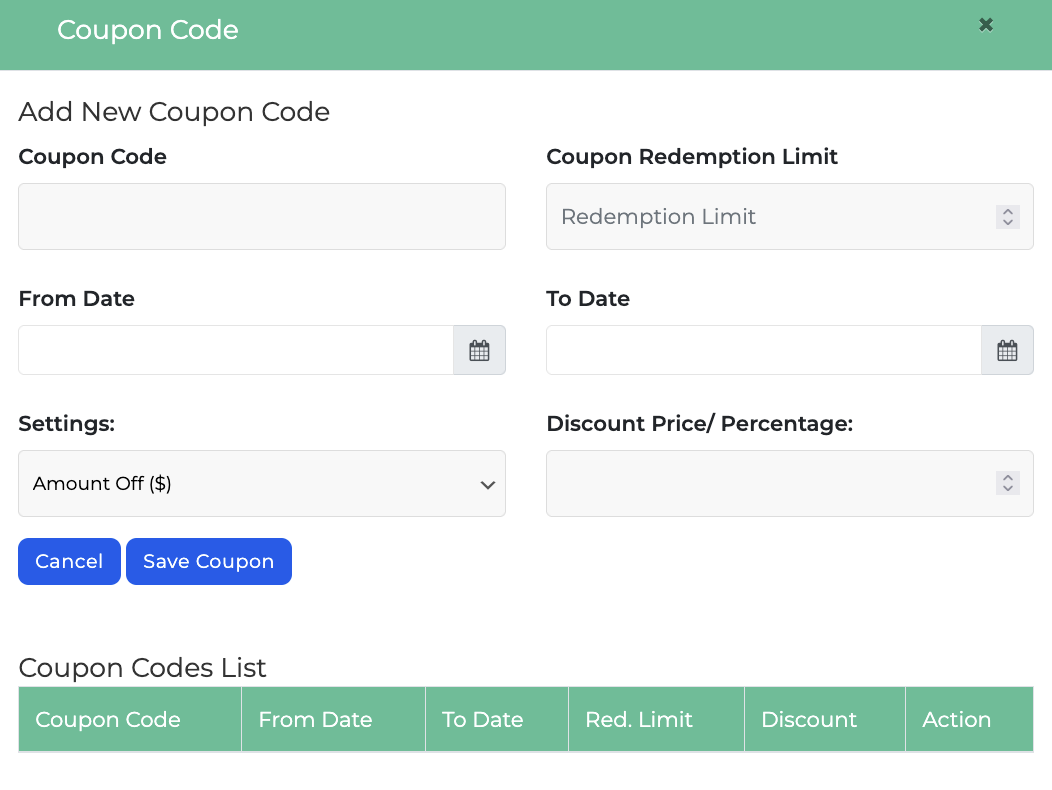
Step 1: Coupon code Add a coupon name or code.
Step 2 (Optional): Redemption Limit Set a limit on coupon redemptions, or leave blank for unlimited use.
Step 3 (Optional): Limit the date range during which the coupon can be redeemed. Leave the field blank if you want the coupon to have no expiration date.
Step 4: Settings: Choose the discount type under settings by selecting either "Amount Off" or "Percentage Off."
Step 5: Specify the discount value:
- For "Amount Off," set the fixed discount amount.
- For "Percentage Off," input the percentage to apply.
Step 6: From and To Date enables you to have an expiry date for the coupon. By default, native Clients on Automation Software coupons are applied only once during the checkout process.
Step 7: Click Save Coupon to add the coupon.
Step 8: Click Update to save the configuration and the coupon.
Start using Coupon Codes today to give your customers extra value and maximize your sales potential!
