Animation Inside The Clients on Automation Software Editor
Within the Advanced tab, the Animation section enables you to add an entrance animation effect to any row, column, or module when it first becomes visible on a page.
Animations
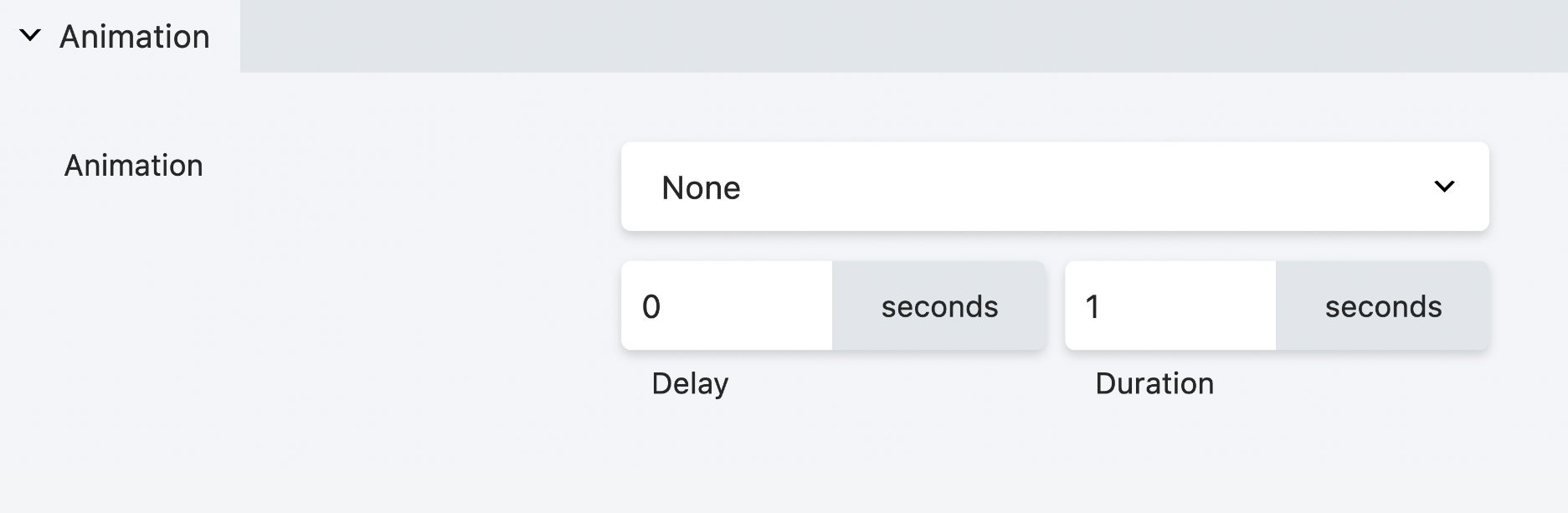
There are 38 different entrance animations to choose from, including:
- None (default)
- Fade
Fade In, Fade Left, Fade Right, Fade Up, and Fade Down. - Slide Slide Left, Slide Right, Slide Up, and Slide Down.
- Zoom
Zoom In, Zoom Left, Zoom Right, Zoom Up, and Zoom Down. - Bounce
Bounce, Bounce In, Bounce Left, Bounce Right, Bounce Up, and Bounce Down. - Rotate
Rotate In, Rotate Down Left, Rotate Down Right, Rotate Up Left, and Rotate Up Right. - Flip
Flip Vertical and Flip Horizontal. - Fancy
Flash, Pulse, Rubber Band, Shake, Swing, Tada, Wobble, Jello, Light Speed, Jack in the Box, and Roll In.
Delay
You can configure the time delay (seconds) before the animation begins. Decimals are allowed.
Duration
You can configure the time duration (seconds) of the animation. Decimals are allowed.
Adding an Animation
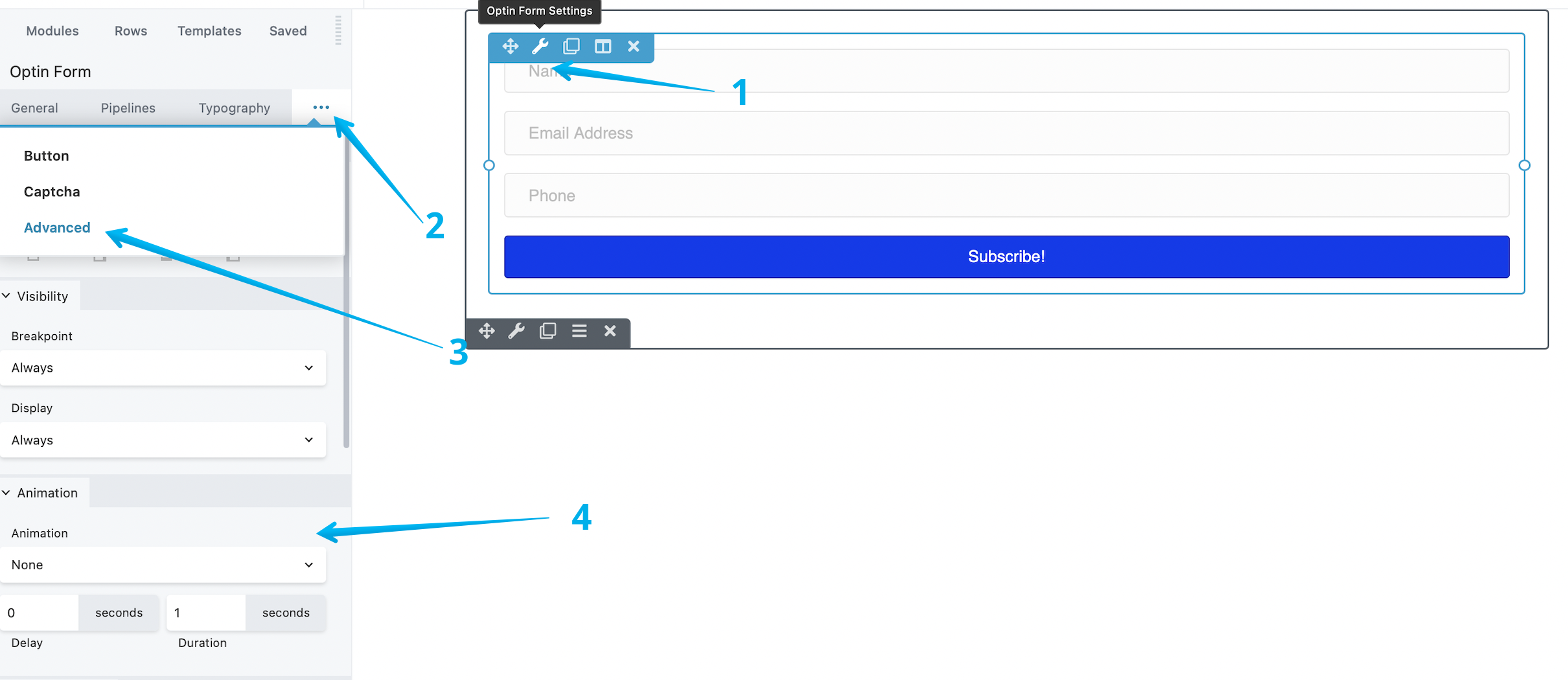
Step 1: Open the row, column, or module settings.
Step 2: Click the Advanced tab and scroll to the Animation section.
Step 3: Select an animation effect from the Animation drop-down menu.
Step 4: Specify a time delay and duration in seconds.