
Spacing - Margin & Padding Inside Clients on Automation Software Editor
In the Advanced tab, the Spacing section allows you to modify the default margin for rows, columns, and modules, as well as adjust the padding for rows and columns.
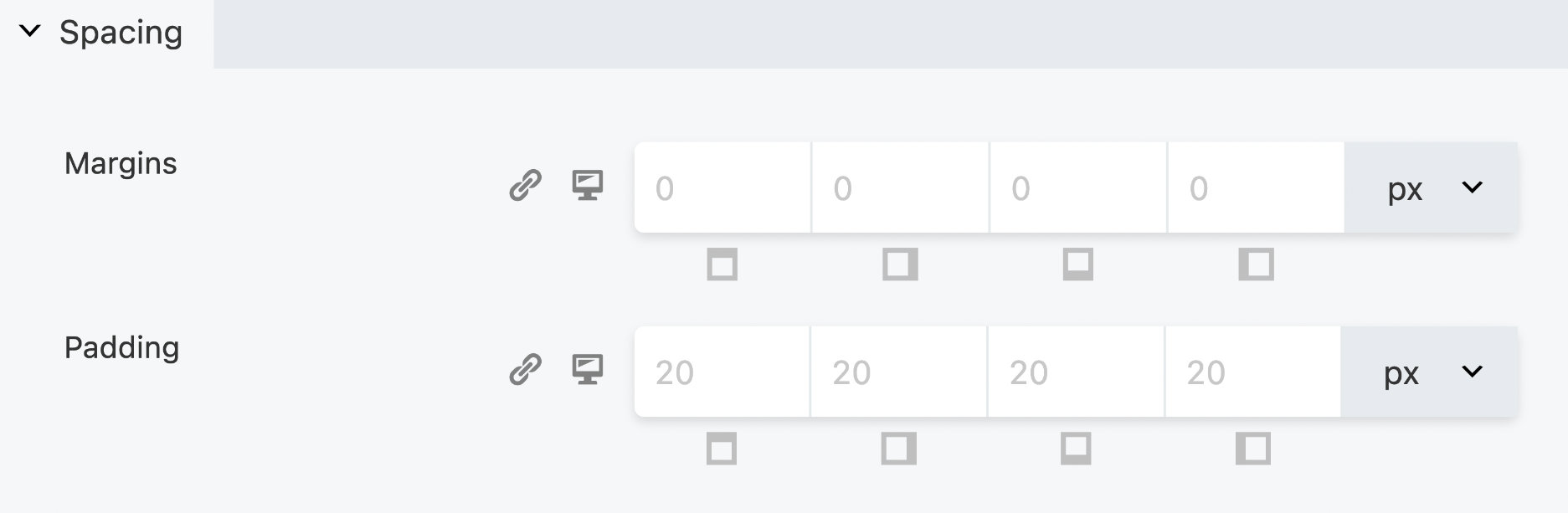
Global Defaults
The Clients on Automation Software Editor applies the following default margins and padding through Global Settings:
- 0px margin on each side of all rows and columns.
- 20px padding on each side of all rows.
- 0px padding for columns.
- 20px margin on each side of all modules.
(Note: Modules do not support padding.)
If you didn't change a single margin or padding anywhere, these defaults would apply on every device, though mobile devices may be different if Auto Spacing is enabled, which is enabled by default.
Margin
With Clients on Automation Software Editor, you have extensive control over margins. You can adjust margins for each side of an element, including the top, right, bottom, and left. Furthermore, you can choose from a range of CSS units, including pixels (px), percentages (%), viewport width (vw), and viewport height (vh).
Negative Margins
While margin property values can be negative, there may be visual inconsistencies between browsers, especially when using large values, such as -50px or greater. If you need to move your content slightly to one side, then -15px or less should work without causing any inconsistency between browsers, but higher values should be avoided.
For content positioning, we recommend using position, top, right, bottom, left, and z-index properties instead of negative margins.
For example, suppose you need to position your Heading module higher up the page. You can use a negative margin-top value such as -150px, but this may appear differently between browsers. As a result, you should give your Heading module a custom class and then use this with the position, top, right, bottom, left, and z-index properties, see the example CSS below. By using this method, browser inconsistencies caused by high negative margin values should be eliminated.
(See Example Below)
.my-heading-module {
    position: relative;
    top: -150px;
    z-index: 10
}
Padding
Clients on Automation Software Editor gives you complete control over Padding. Padding can be set for each side of an element (top, right, bottom, and left). You can also choose from the following CSS units px, em, %, vw and vh.
(Note: Padding does not support negative values.)
