
Delete a Standard or Saved Row, Module, or Column
You can delete a module and leave the column, or you can delete a column, which also deletes the column's contents.
Delete a module and leave the column
If you delete a module from a column that has more than one module, the other modules will remain in the column. If you delete a module when it's the only module in the column, an empty column will be left behind.
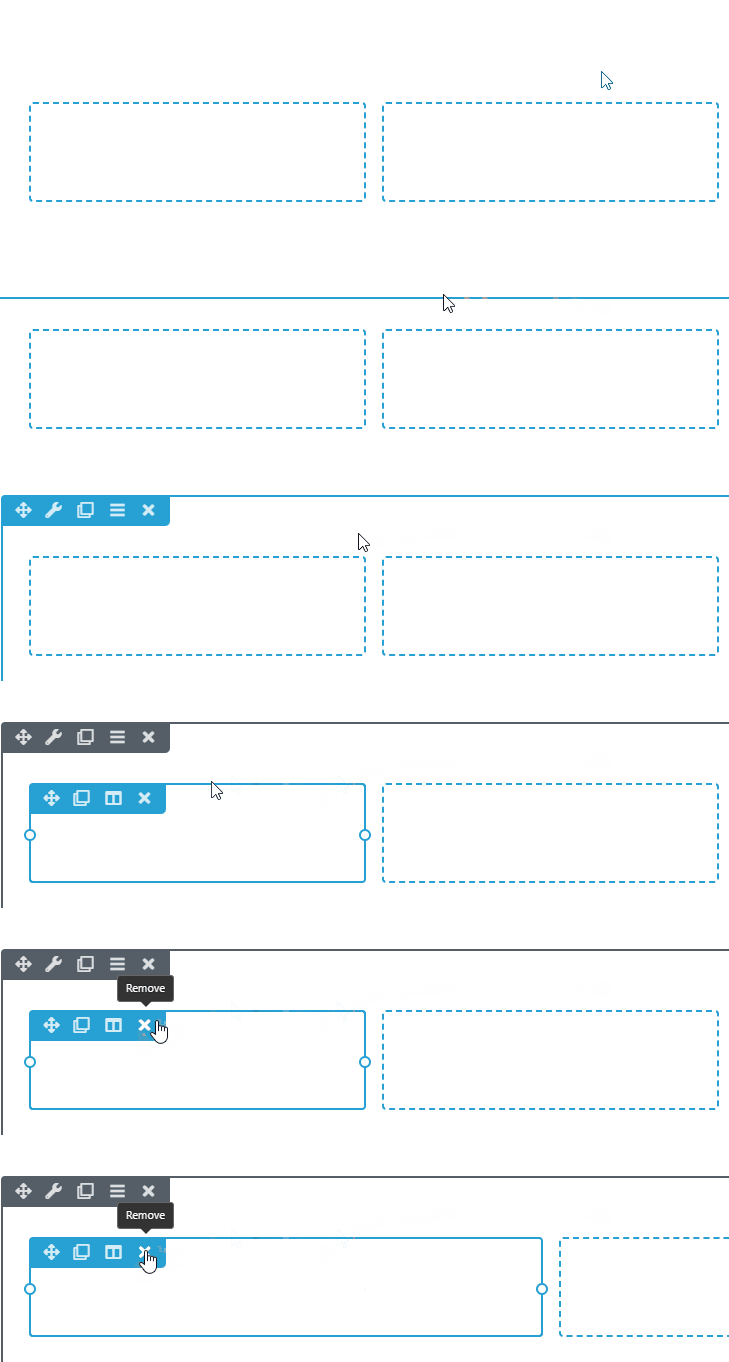
- Mouse over the module to reveal the options.
- Click X to delete the module, or click the hamburger icon and then Remove.
- Verify that you want to remove the module.

Delete an empty column
Mouse over the column to reveal the options > Click X to delete the column.
Delete a column or child column and its content
When you delete a column or child column, the contents of the column are also deleted.
It's a good idea to mouse over Delete column before you click it. The scope of what will be deleted is shaded in blue. Or, to be extra safe, delete individual modules instead of columns using the Remove command in the module options, then delete any empty columns.

- To delete a main or child column and its contents:
- Mouse over one of the modules to reveal the options.
- Click Edit Column, then mouse over Delete column.
If you see a column icon, click that, then mouse over Edit column and Delete column.The area to be deleted is shaded in blue.
- Click Delete column to remove the area shaded in blue.
