
How To Undo And Redo Inside Clients on Automation Software Editor
The Clients on Automation Software editor maintains a history of editing changes, recorded at the following level of granularity:
Objects tracked:
- Rows
- Columns
- Modules
- Layout templates and prebuilt rows
- Saved rows, columns, or modules
Events tracked:
- Add
- Edit
- Delete
- Move
- Duplicate
Sample Of Editing History
In the screenshot below, you can see an example of the editing history generated by simple actions within the editor. The numbered annotations in the layout correspond to the actions recorded in the history.
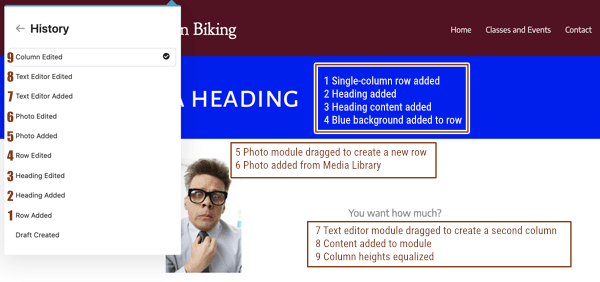
The dot next to the topmost item shows that the most recent and all previous actions are displayed. As you can see, if you make a number of edits to a row, column, or module at one time, the history shows Edited, so if you undo that item, you'll lose all of the changes you made within that item at that point.
Prebuilt and saved items are also recorded when you add them. The following screenshot shows the actions that are recorded when you add various types of layout templates and saved items:
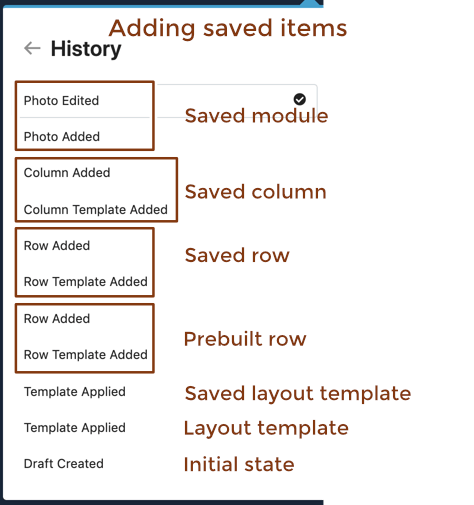
Notice that when you add saved items, the "added" action is recorded as well as the addition of the actual row. To remove a saved row, column, or module that you've added, you'll need to backstep two items in the history.
To undo and redo
You can perform undo and redo actions either by directly using the History feature in the Tools menu.
Access the history to undo and redo
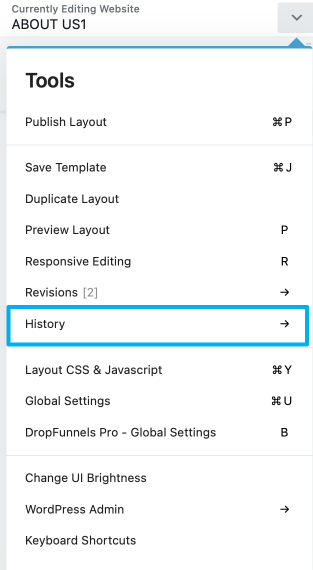
Step 1: Click History in the Tools menu, as shown in this screenshot.
You can also see an example of items in the history.
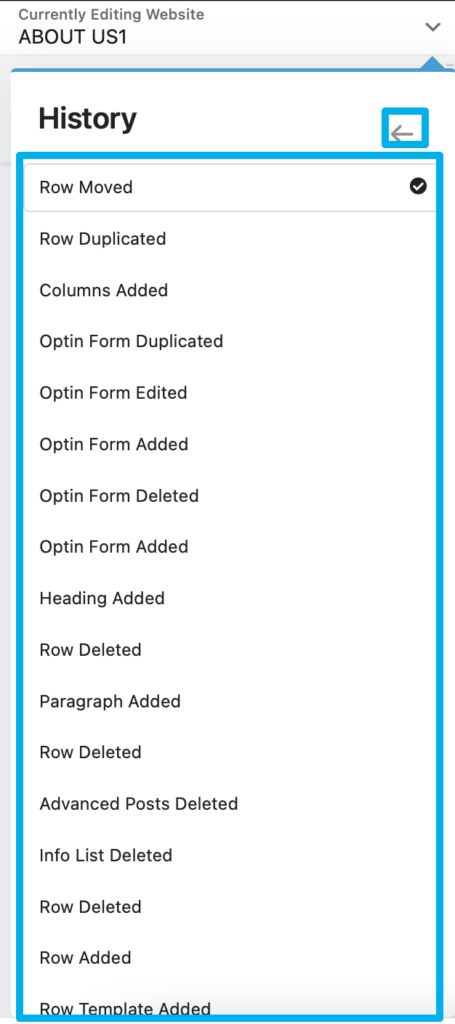
Step 2: Click any of the items listed in the history and the layout reverts to the layout at that point.
You can keep clicking in the history at various points to undo or restore layout.
Step 3: When you're done, click Done and then Publish, Save as draft, or Discard.
(Note: When you publish the page, the history is reset, so you'll no longer have access to the items that you chose not to keep. If the Save as Draft or Discard your layout, the history remains and you can undo and redo the next time you open the editor.)
