
How To Launch Clients on Automation Software Editor
By default, the Clients on Automation Software editor is automatically enabled inside your site to edit the design, appearance, and contents of your page.
To access the Clients on Automation Software editor inside your Website or Blog pages.
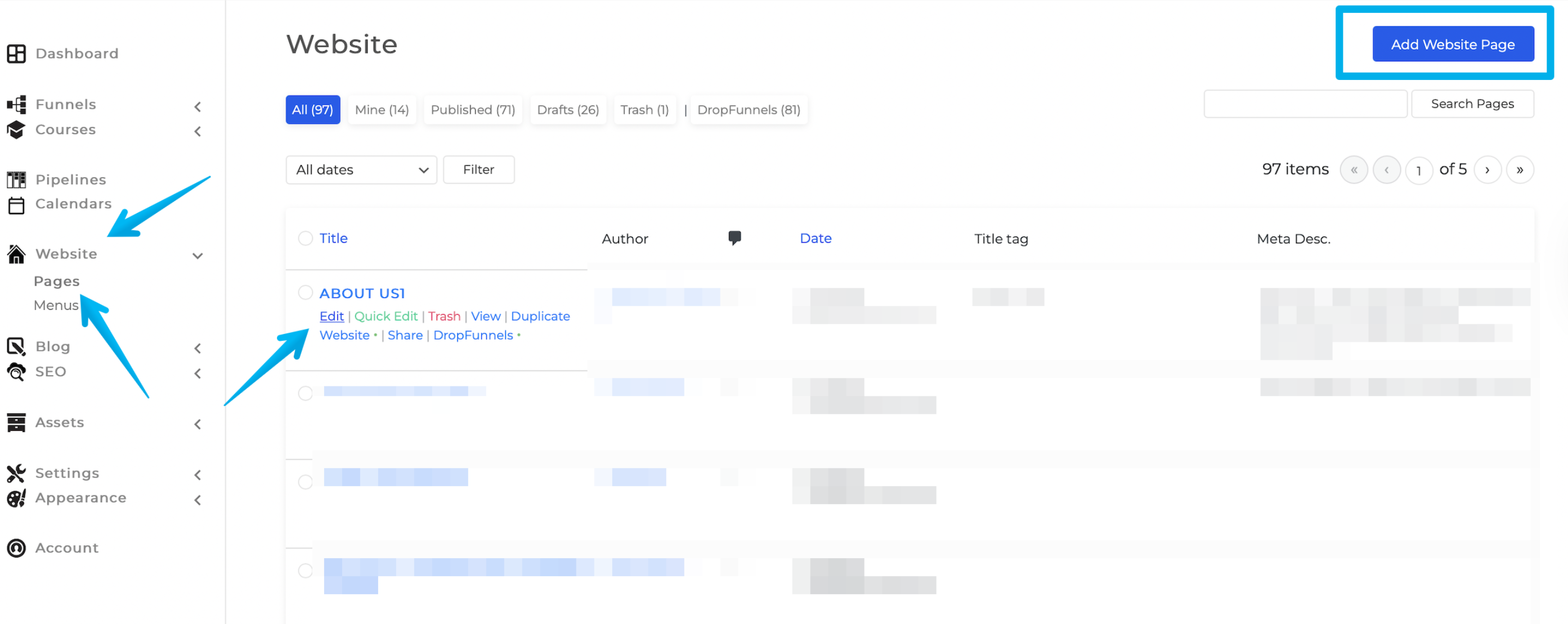
Step 1: Go to Website > Pages, then click on "Edit" from the selected page you want to edit or to create a new one select "Add Website Page".
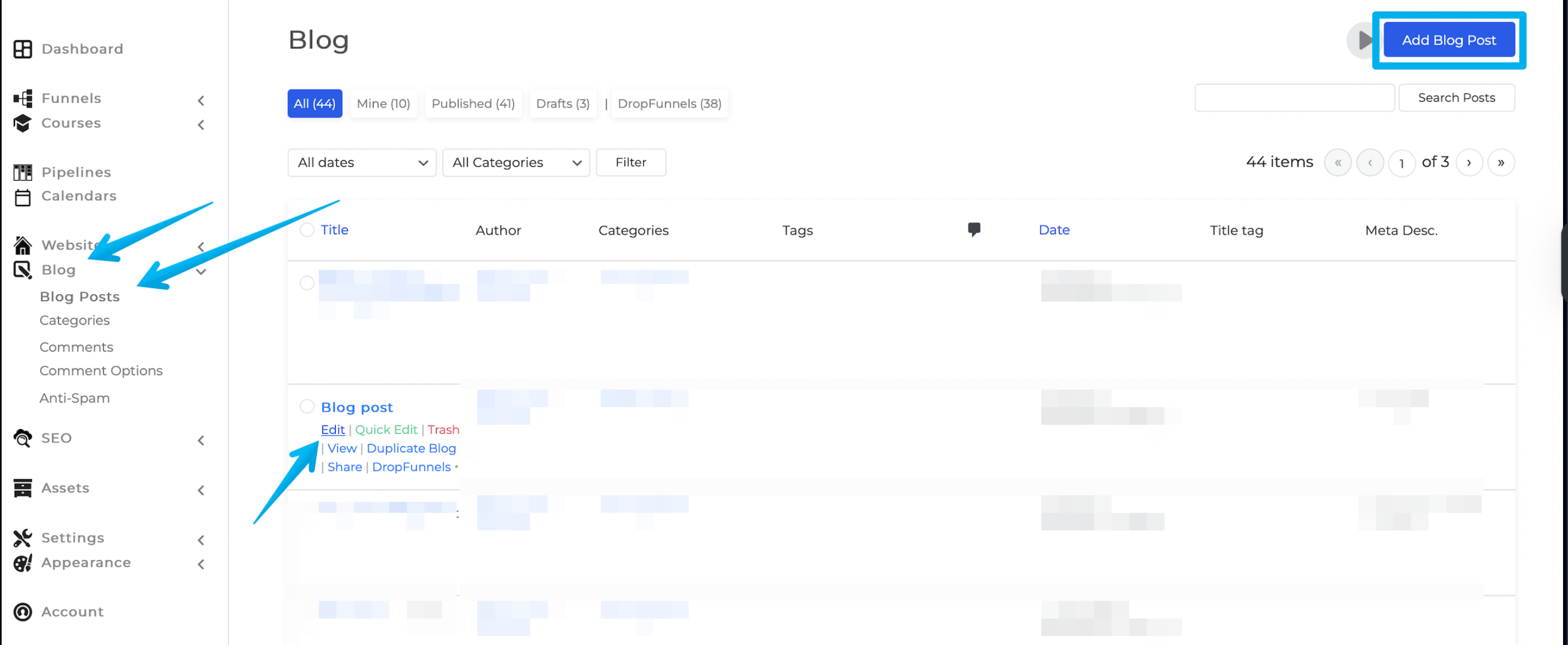
For Blog, Go to Blog > Blog Post, and select "Edit"from the intended page you want to edit or create a new blog by clicking on "Add Blog Post"
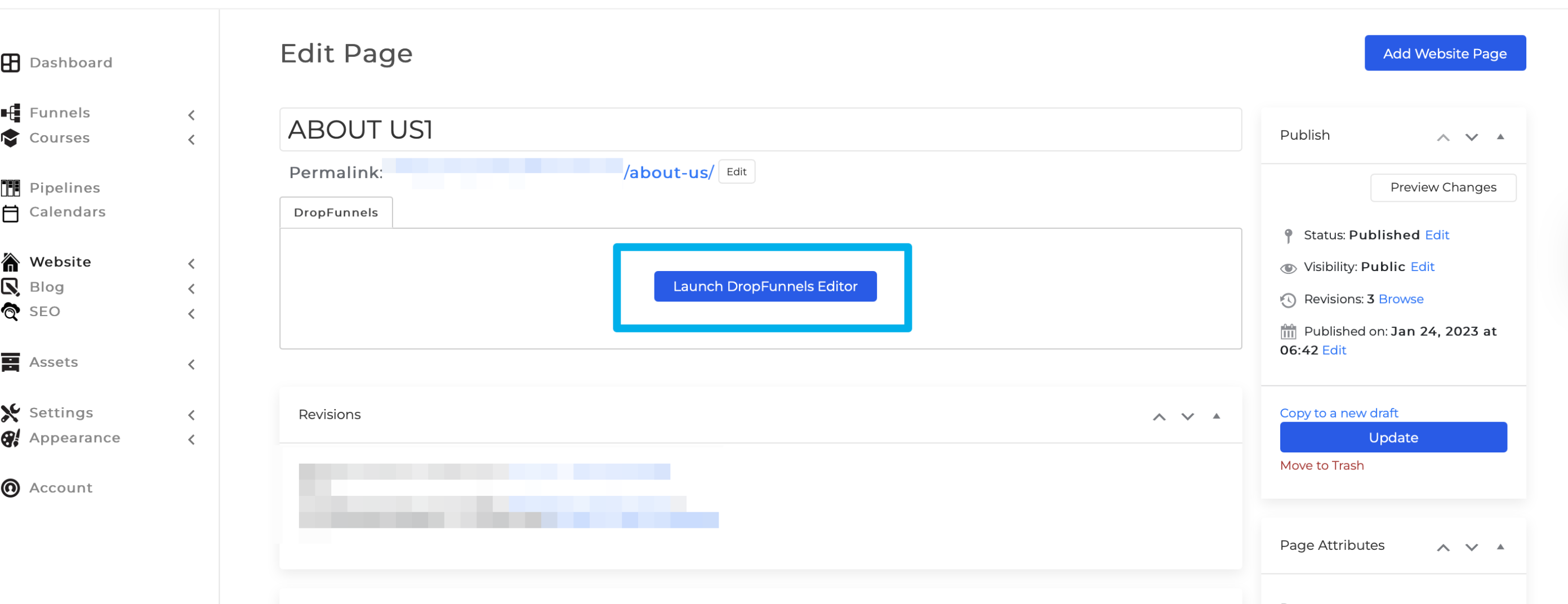
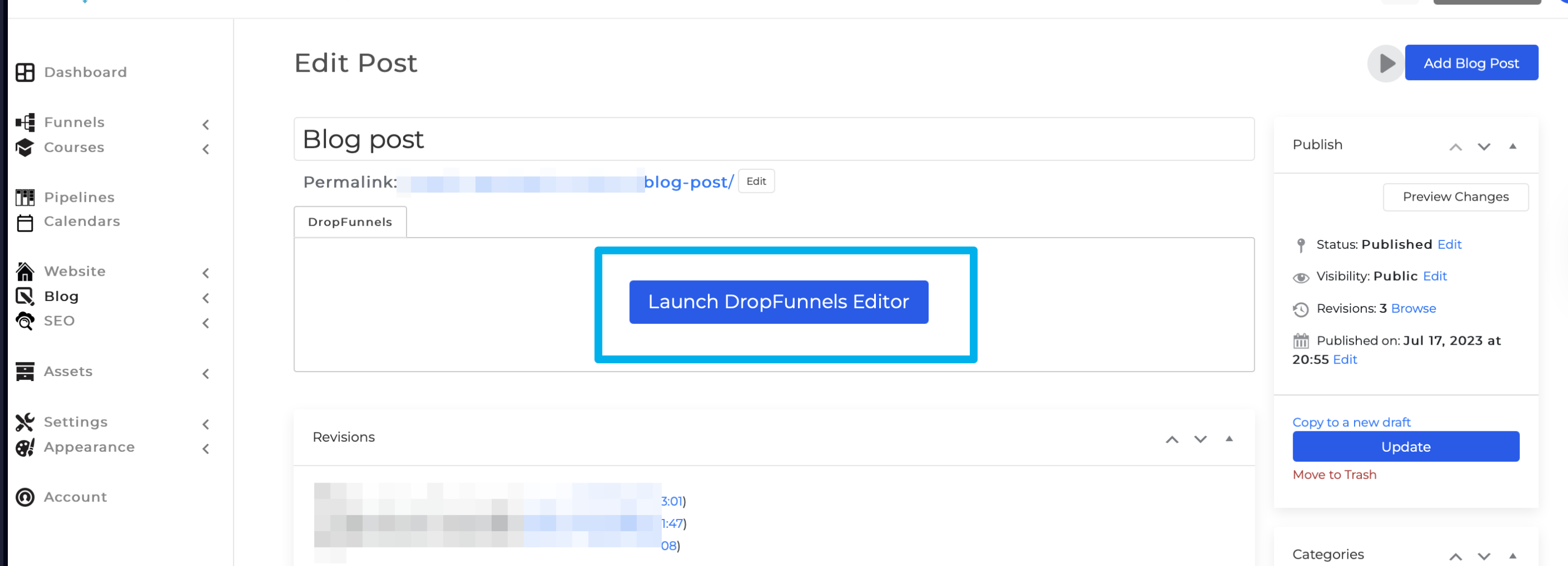
Step 2: Access the Clients on Automation Software Editor by clicking the Launch button to edit the page.
Note: For your Course pages and Funnel pages. The Clients on Automation Software Editor is launched automatically once you edit the intended Course/Funnel page.
