How to Create and Save a Custom Layout Template
There may be times when you'd like to move an entire Page to a Funnel Step or vice versa. To do that, you'll need to save the page as a template itself so you can reuse it anywhere within your Clients on Automation Software pages.
How To Save the Page as a Template
Step 1: Open the page and enter into the Clients on Automation Software Editor.
Step 2: Go into the Mega Menu by clicking on the drop down in the top right of the Menu Bar.
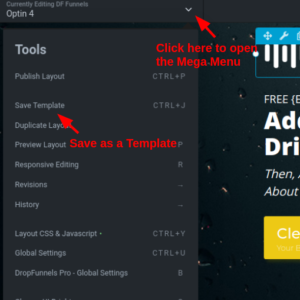
Step 3: Give your template a name.
Step 4: Click Save
Create a New Page or Funnel Step from the Saved Template
Step 1: Create the new Page or Funnel Step where you want this Page to be.
Step 2: Open the blank page into a Clients on Automation Software Editor.
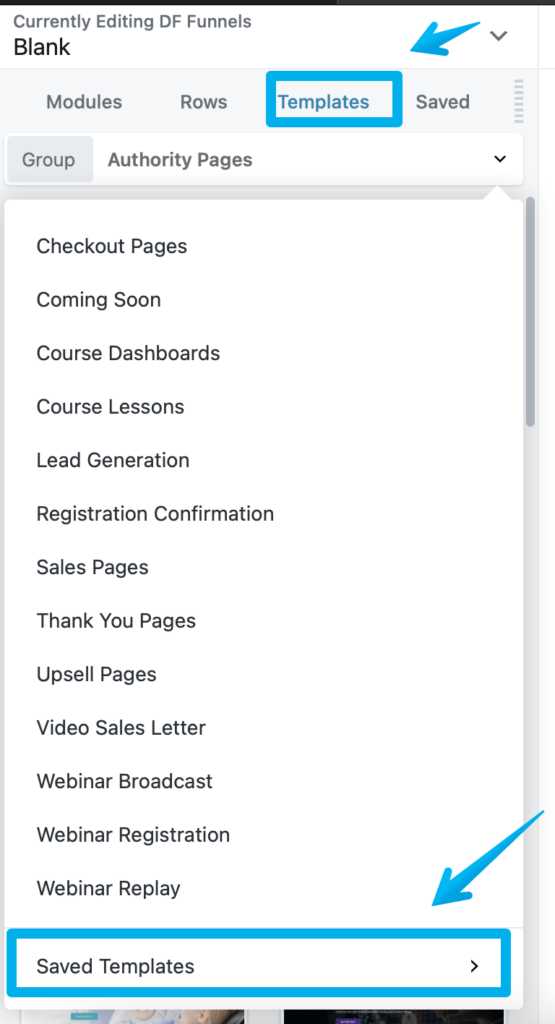
Step 3: From the Tools Menu select Templates.
Step 4: In the "Group" drop-down select -> Saved Templates.
Step 5: Click on the Template Name that you just saved in the last step.