How To Use the 'Name Your Price' Feature your Checkout Form
This allows the user to provide the price they want to pay for a product.
Requirements to Use:
- Single Product (with Name Your Price enabled)
- 2 Page Funnel (order form and receipt/order confirmation page)
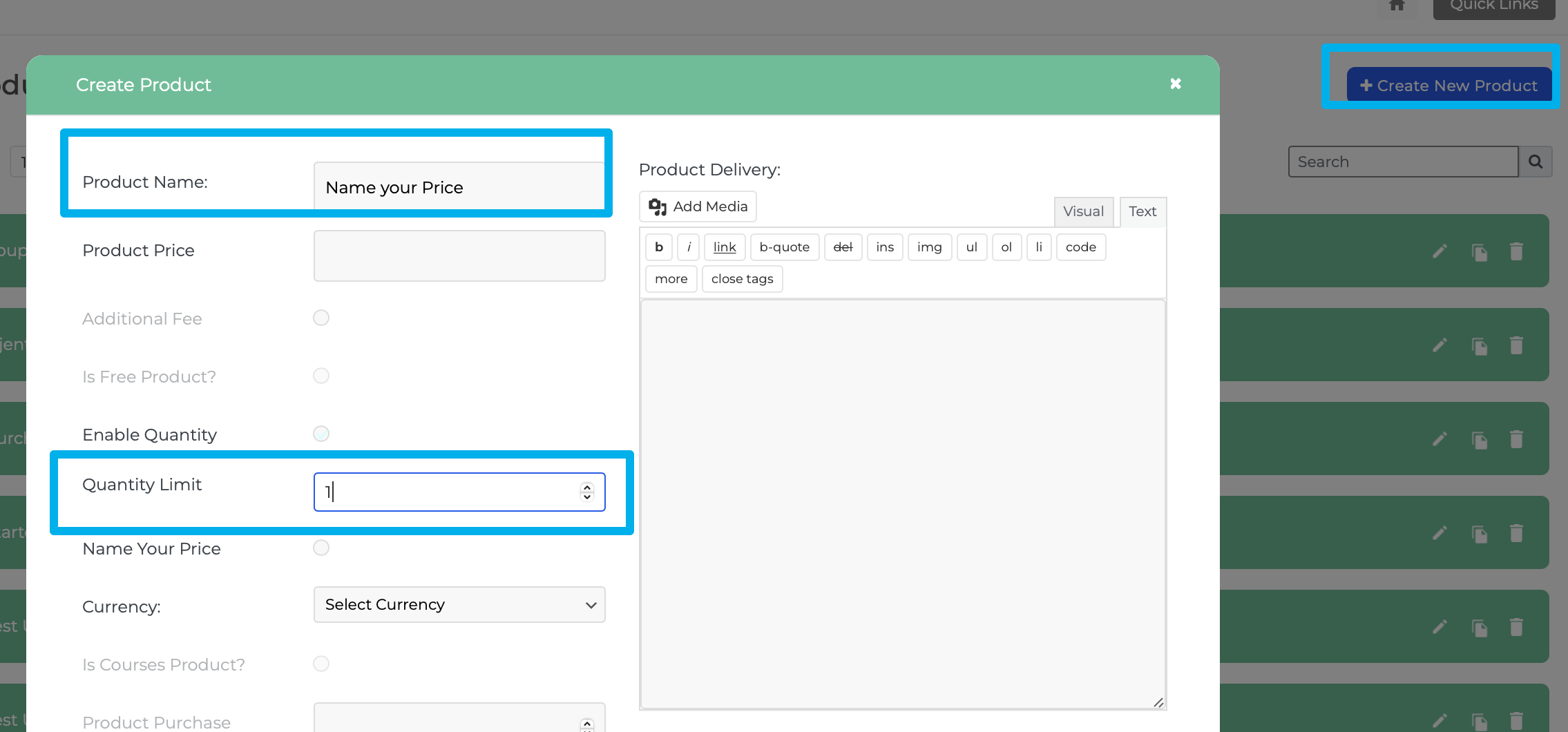
Step 1: Create a New Product (Funnels > Products)
Step 2: Select the Name Your Price option and enter a value that is greater than or equal to 1
NOTE: It's recommended to fill in the product description. This will show up on the order form and provide your visitors with more details on what you'd like them to do.
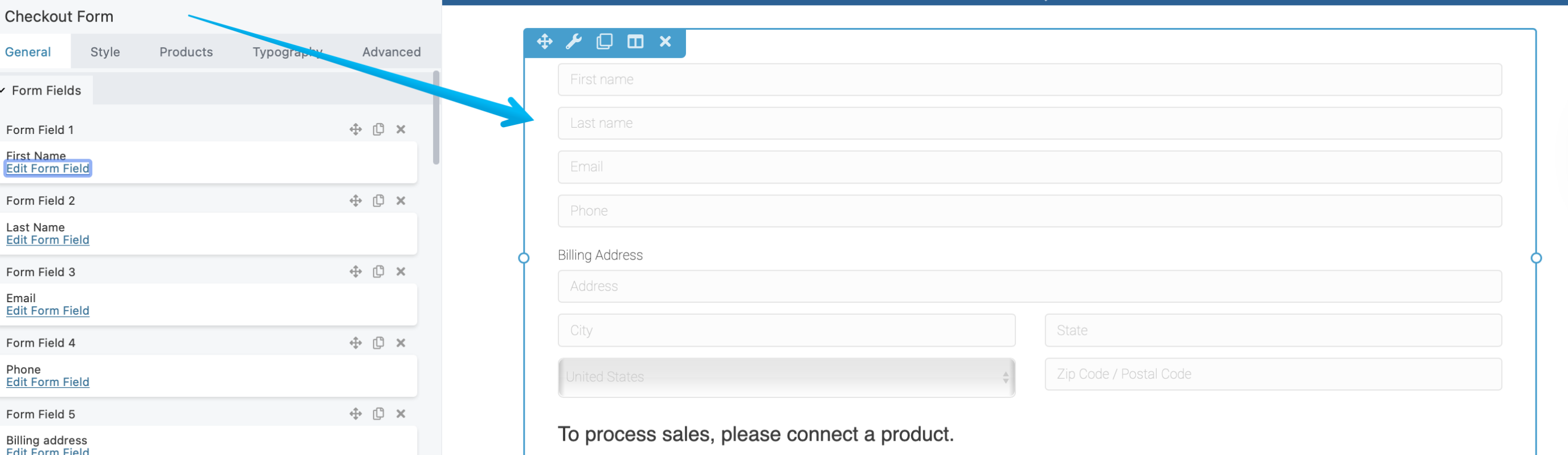
Step 3: Inside your Funnel, place a checkout form module on your funnel page.
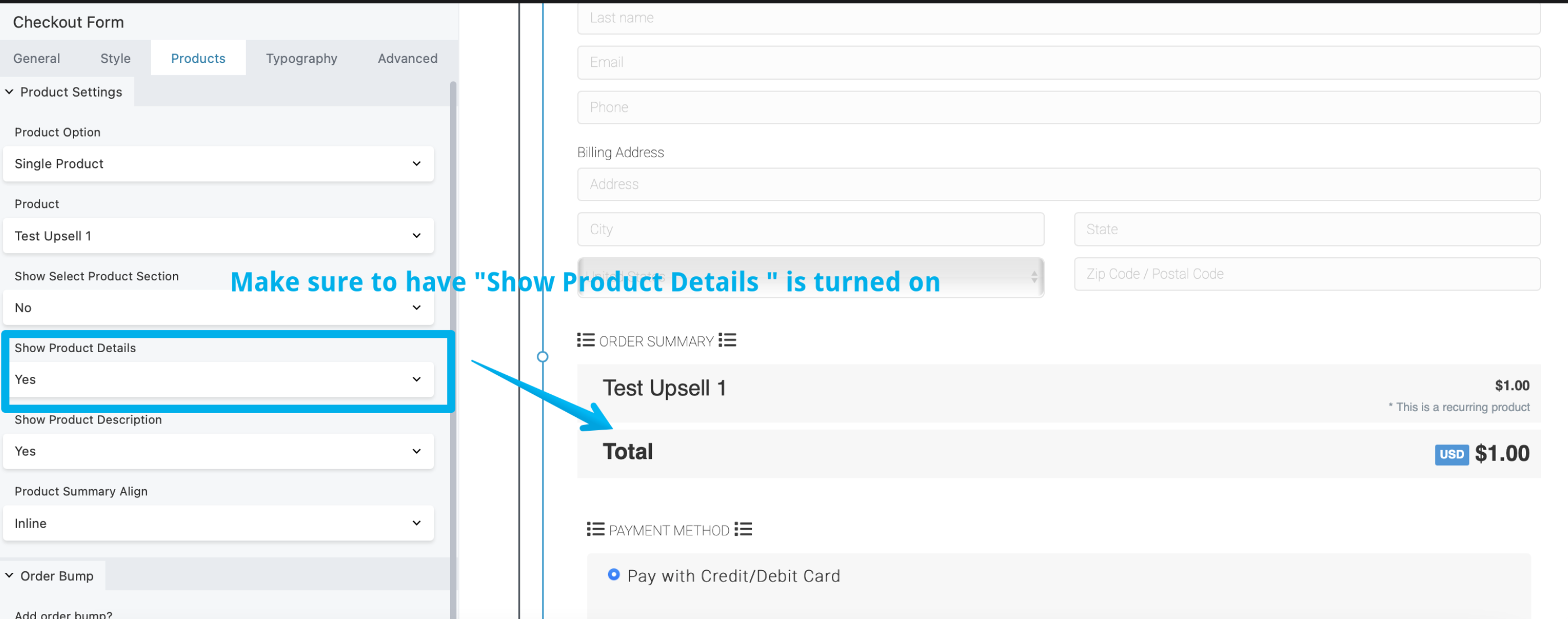
Step 4: Select your Name Your Price product inside the checkout form settings and Save.
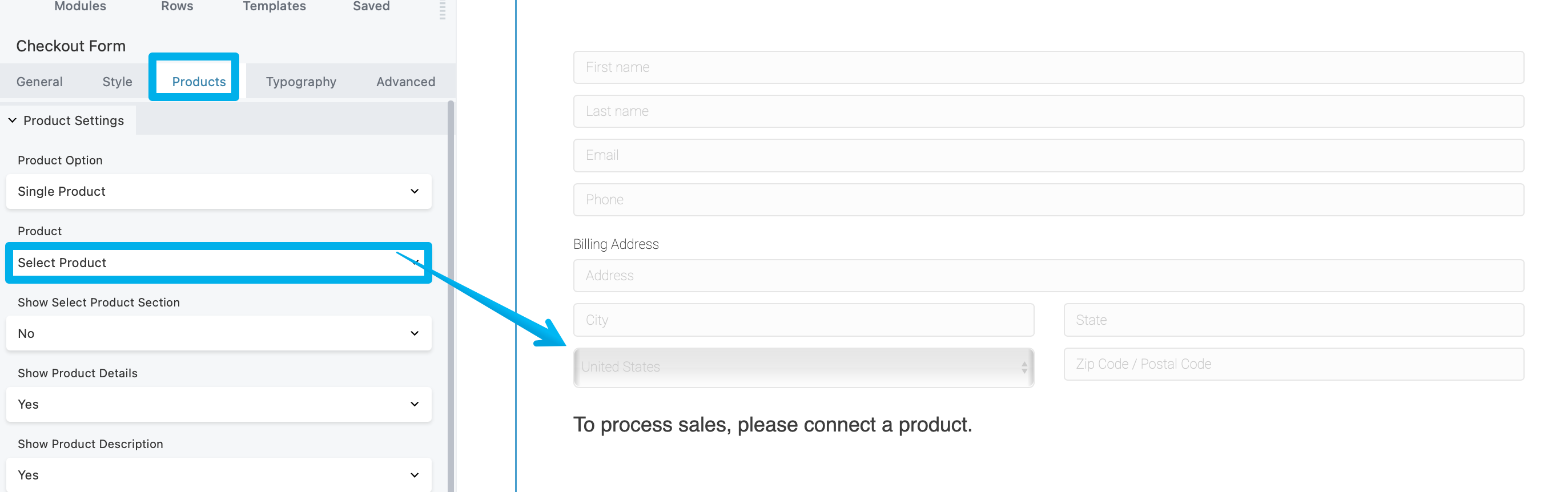
IMPORTANT: Make sure you have the Product Settings > Show Product Details > Turned on to enable customers to name the price.
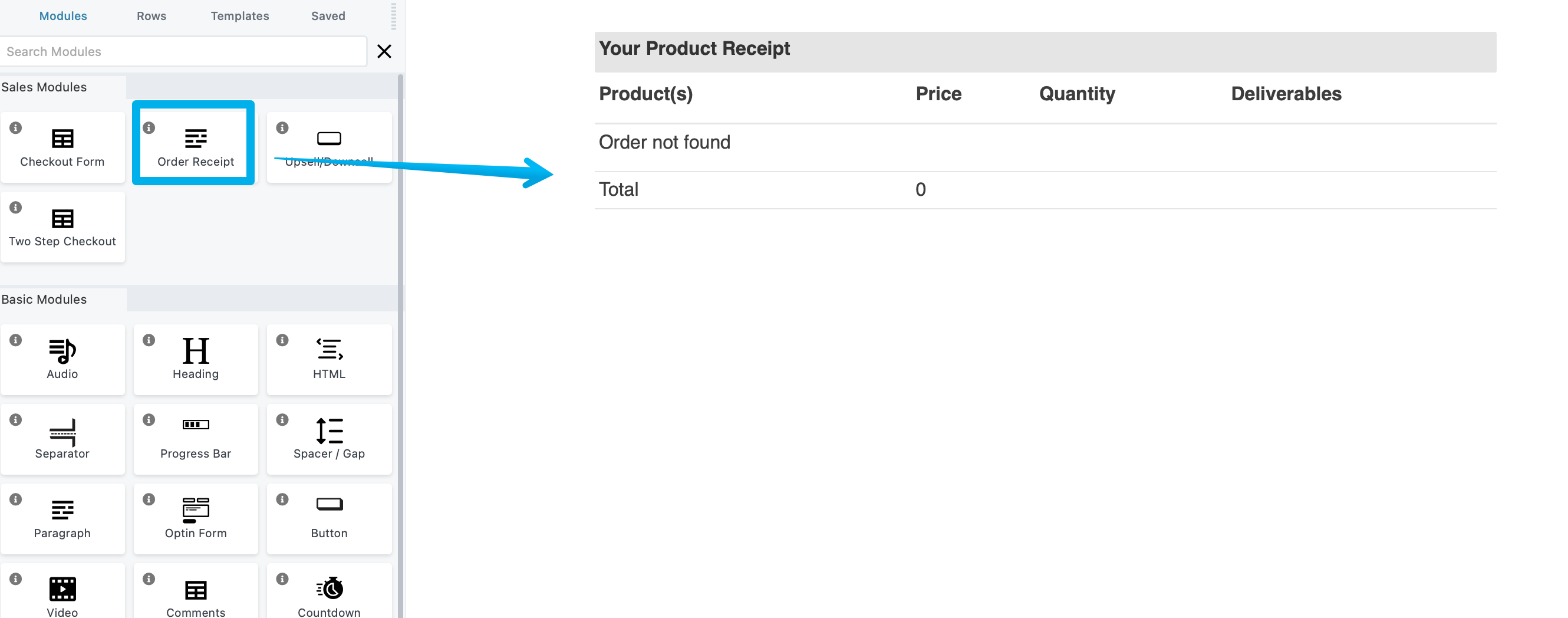
Step 5: Create a second funnel step (Thank You page) that includes an order receipt module