
How To Use Split Testing on Funnel Pages
Some important notes when running split testing on your funnels:
- Traffic MUST be sent to the starting point URL of the funnel for it to distribute traffic properly
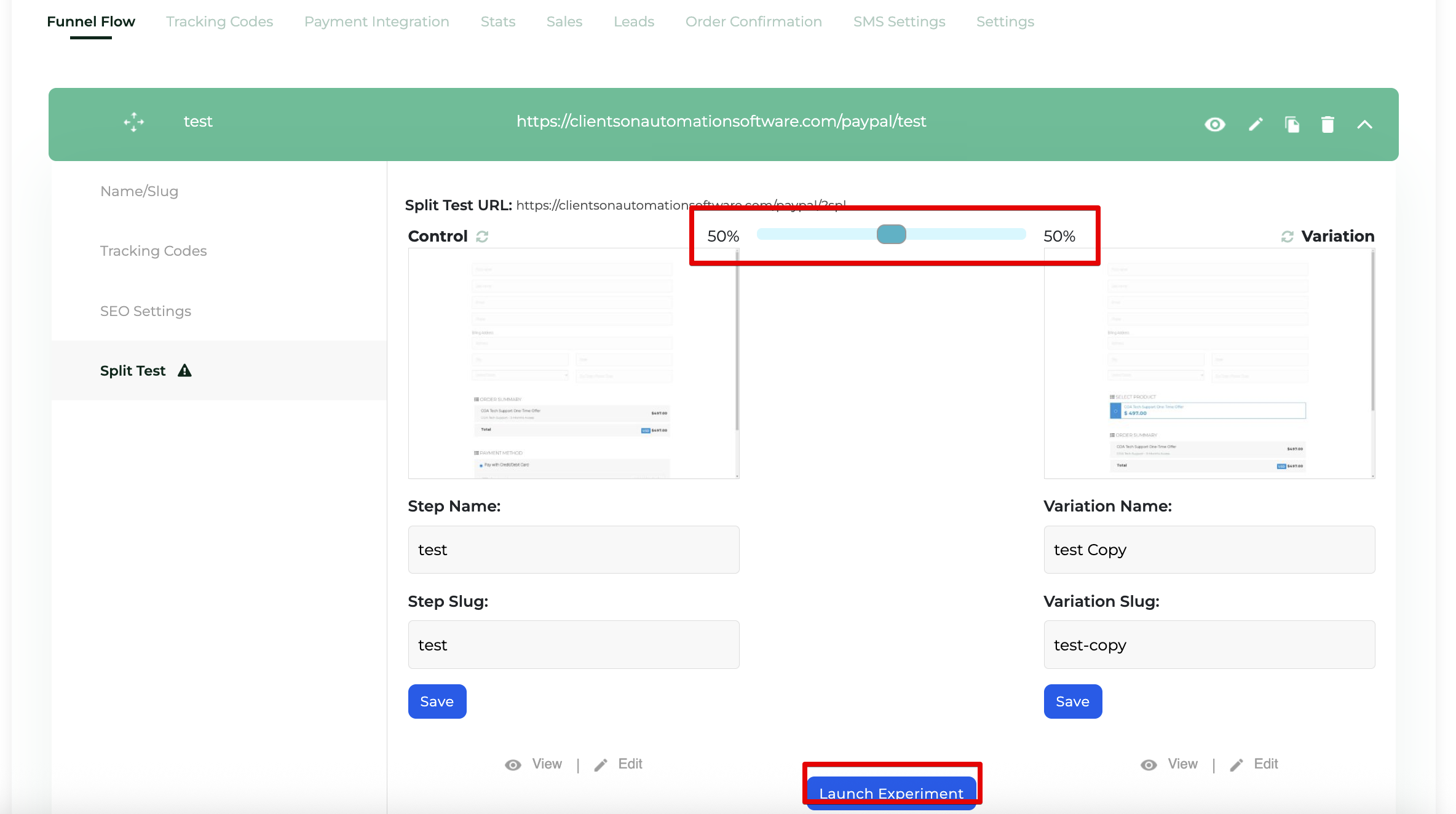
- Clicking the Update experiment will update the distribution and the changes made.
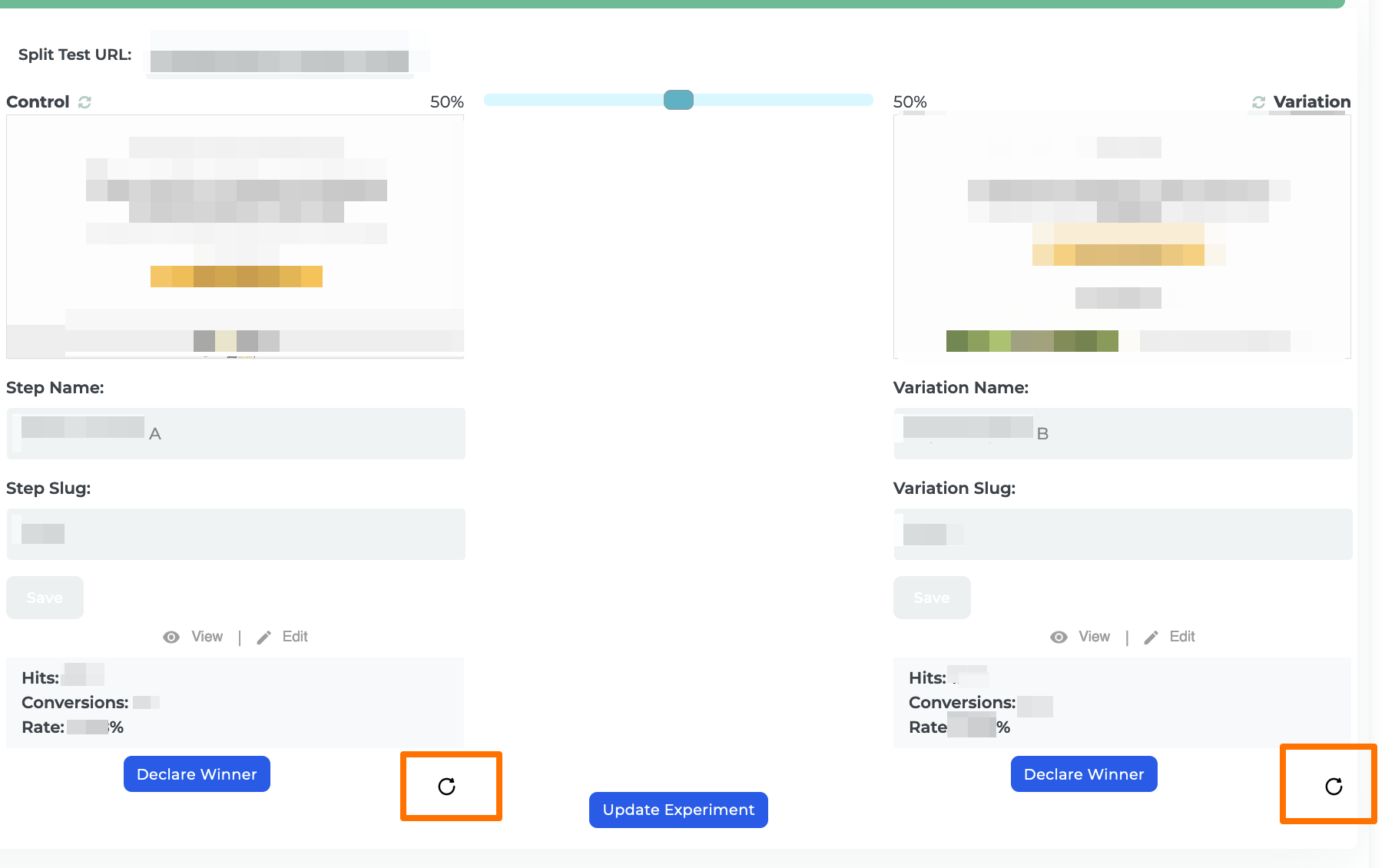
- Declaring a winner will delete the losing variant and make the winner the primary new design
- Click on the Reset button located next to the split pages to reset the statistics.
How To Setup
Step 1: Go to Funnels > Funnels > Select a Funnel and click the Edit icon
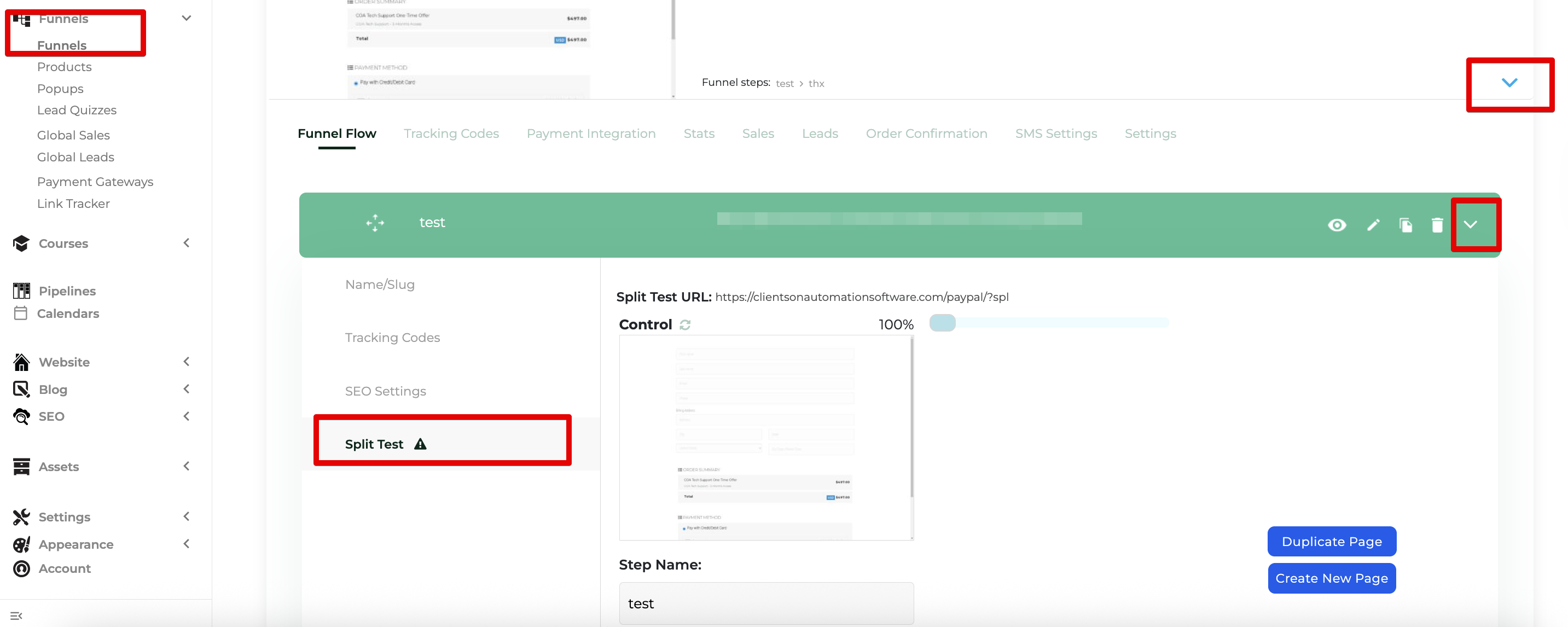
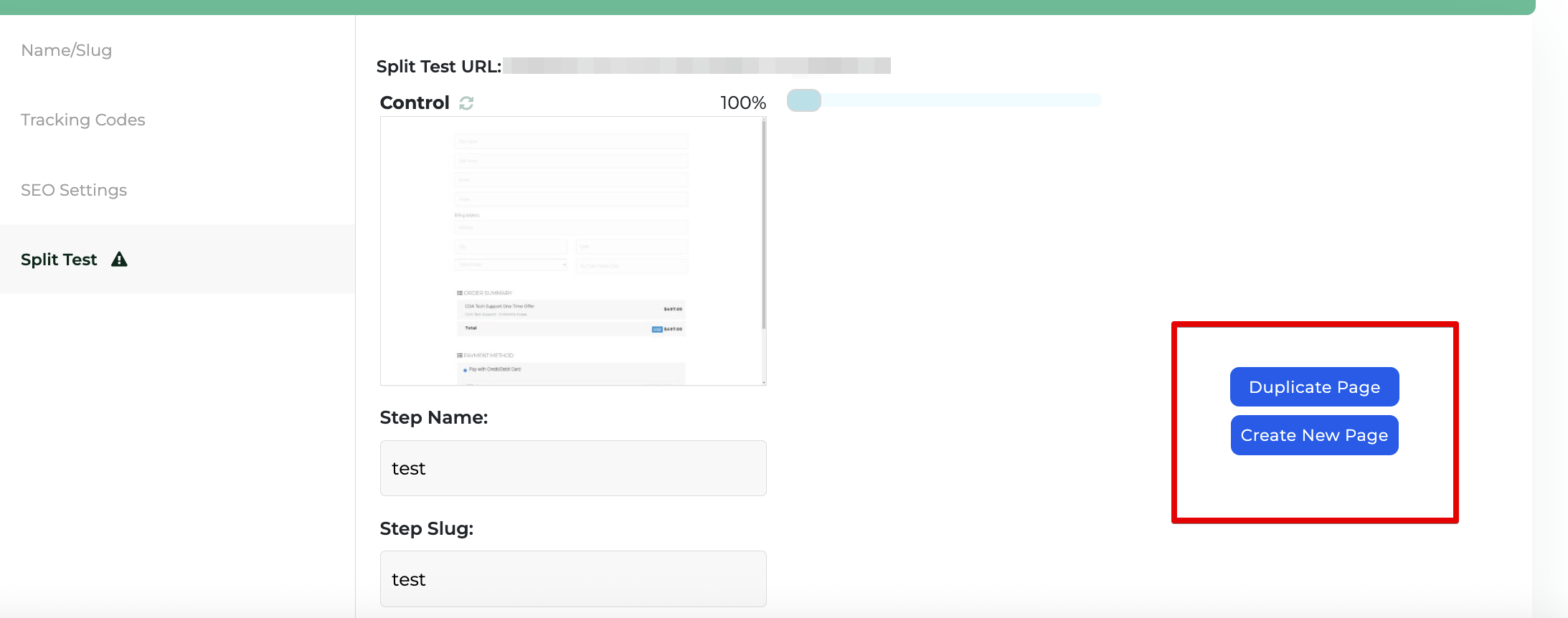
Step 2: Click to Duplicate the Page or Create New Page
To launch the split test you need to either Duplicate Page which you can then edit (we recommend this) or you can go ahead and Create New Page.
Step 3: Launch Split Test
After you Duplicate the original page or create a new variation page you'll need to click "Launch Experiment" to launch your split test.
Reset stats for Split test pages
The "Reset" arrow button for each split page allows you to reset the statistics.
Deleting Duplicate Split Test Page
To delete a split test page, simply declare the page you'd like to set as the winner. Once the winning page is selected, the other page(s) added to the split test will be automatically deleted.
This process ensures that only your preferred version remains active.

