
How to delay or animate buttons or modules
In this article, you are going to learn the 2 ways of adding animation and delay to a button or any Clients on Automation Software modules in your Funnel, Web Page, Course, and Blog.
Clients on Automation Software Advanced Animation
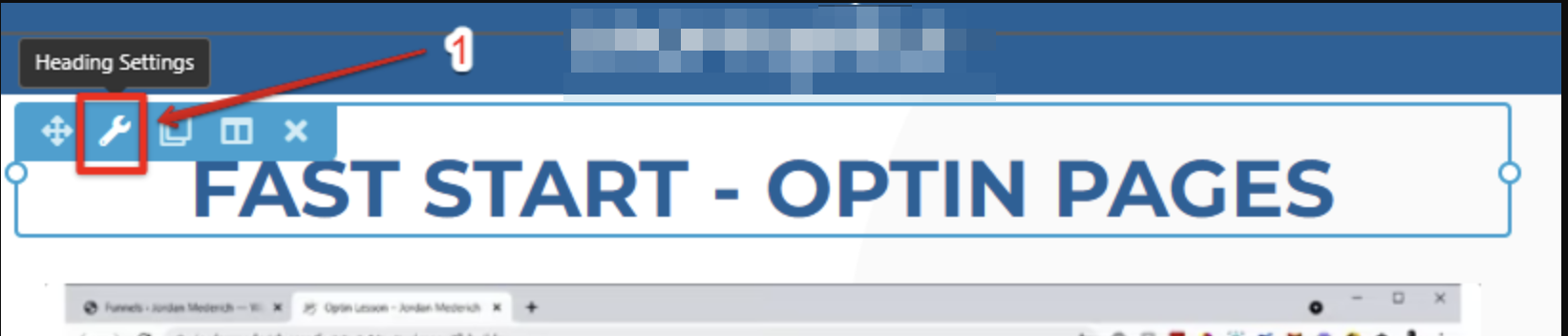
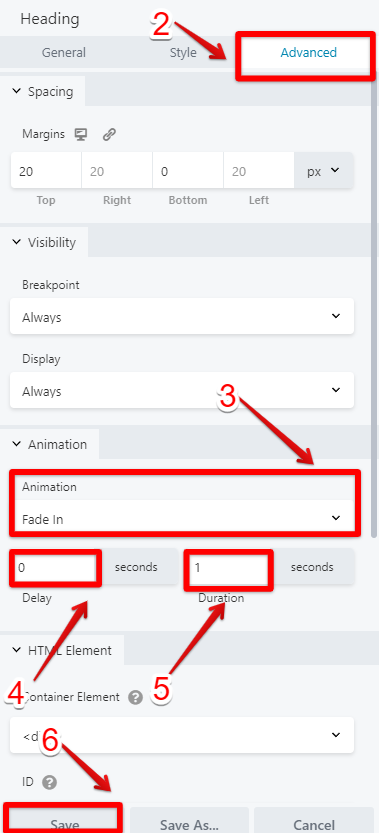
You can animate almost any content on your Site using the Clients on Automation Software Advanced Animation that can be found on Module's Settings > Advanced > Animation in all of your Clients on Automation Software modules.
Animations
Clients on Automation Software Advance Animation lets your Content gradually change from one style to another. Below are the available animations in any of your Clients on Automation Software Module:
Fade
- Fade in
- Fade Left
- Fade Right
- Fade Up
- Fade Down
Slide
- Slide Left
- Slide Right
- Slide Up
- Slide Down
Zoom
- Zoom In
- Zoom Left
- Zoom Right
- Zoom Up
- Zoom Down
Bounce
- Bounce
- Bounce In
- Bounce Left
- Bounce Right
- Bounce Up
- Bounce Down
Rotate
- Rotate In
- Rotate Down Left
- Rotate Down Right
- Rotate Up Left
- Rotate Up Right
Flip
- Flip Horizontal
- Flip Vertical
Fancy
- Flash
- Pulse
- Rubber Band
- Shake
- Swing
- Tada
- Wobble
- Jello
- Light Speed
- Jack in the Box
- Roll In
Delay
This specifies a delay for the start of an animation.
Duration
The duration defines how long an animation should take to complete. If the animation duration is not specified or set to "0", no animation will occur.
