How To Add Tracking Codes To Funnel Page/Step
In Clients on Automation Software, you have the flexibility to add tracking codes to each specific page in your funnel. Here's a simple guide to get you started:
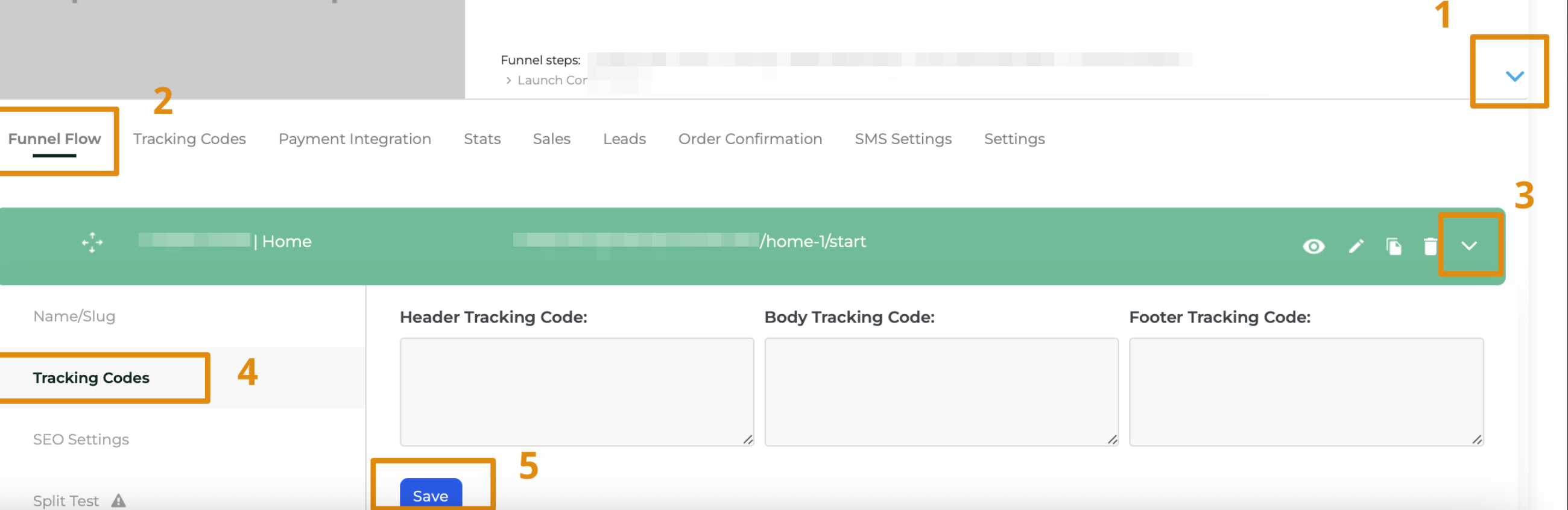
Navigate to Funnels > Funnels page and click the "+" sign to access your funnel pages, bringing you to the Funnel Flow tab.
Step 1: Expand your funnel.
- Note: If you want the same tracking code for all funnel steps, add it to the Tracking Codes tab on the right side of Funnel Flow in the blue row.
Step 2: Click on the Funnel Flow item to reveal your options.
Step 3: Click the downward arrow to expand the specific funnel step you're interested in.
Step 4: Click on Tracking Code to open the Tracking Code fields (Header, Body, and Footer).
Step 5: Don't forget to click Save.
Repeat these steps for any additional funnel pages if you require additional tracking. This allows you to customize and manage tracking codes for each page effortlessly.