
How to Create Countdown Timer
The Countdown module displays a visual timer that counts down to zero for a date and time that you specify. Scroll down to see screenshots.
To add a Countdown timer Module to your page
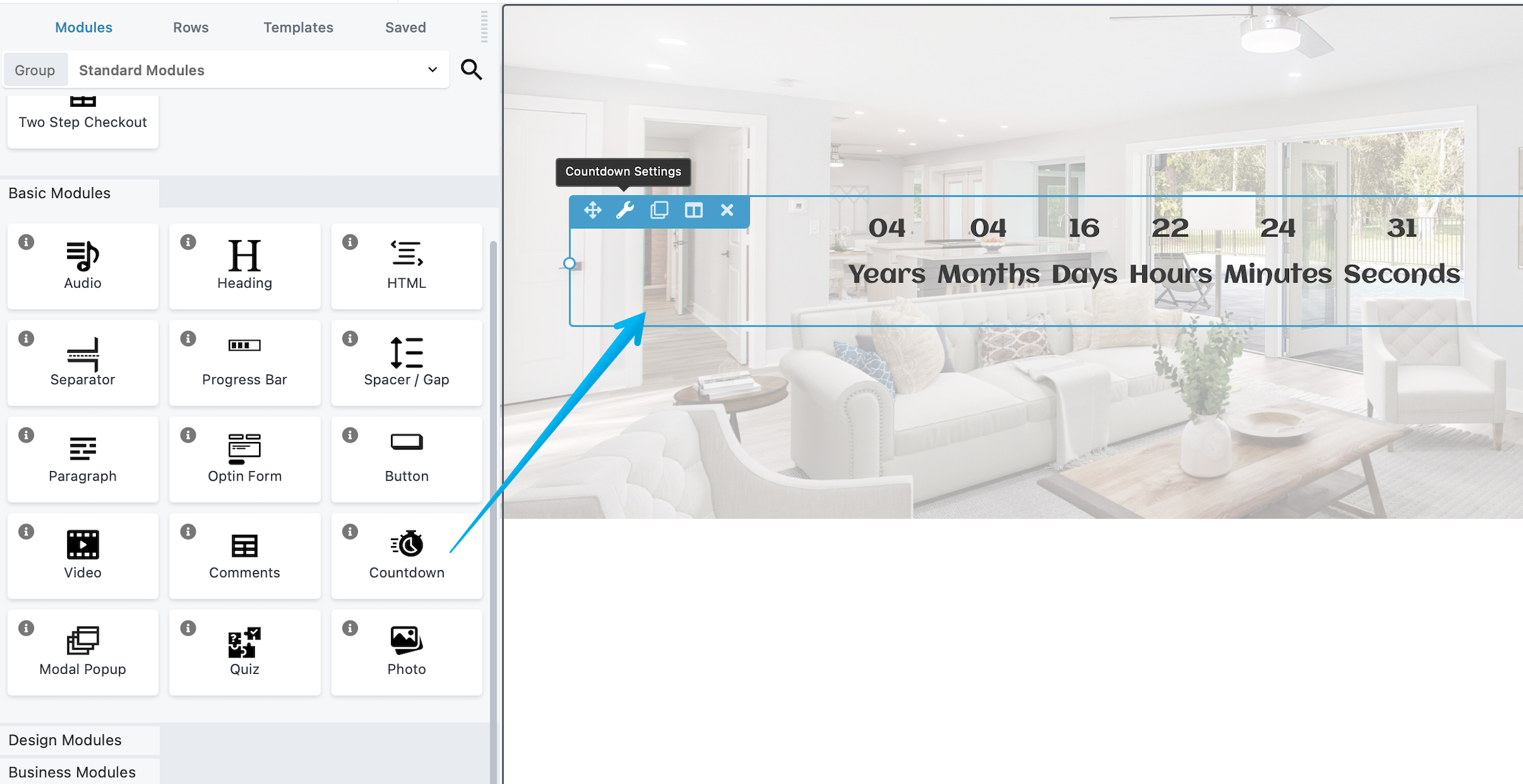
Step 1: Inside the page Builder locate the Countdown Module
Step 2: Click the "Countdown" module and drag it to your page inside the builder.
General tab
You can specify the target date and time, including choosing the timezone that should be used. There's also an option here to create a redirect by setting the "Action After Timer Expiry" to "Redirect user to a new URL" once the timer ends.
Advanced tab
There are all the usual Advanced tab settings for margins, visibility, animations, and advanced HTML settings.
Styling tab
This tab has a top section of settings, followed by several sections that vary depending on the type of layout you select.
Typography tab
- Timer Digit
The standard Typography section for the numbers displayed. - Timer Unit
The standard Typography section for the text displayed under the numbers.

