
Using Zoom as Your Meeting Location
This article will walk you through on how to use Zoom as your meeting location. To do this, you’ll need a Zoom account and Calendars enabled on your Clients on Automation Software account (currently Ultimate Plan only).
At the end of the article, we will walk you through on how to uninstall it as well.
The Zoom integration will allow you to add a unique meeting link to your Google Calendar events and notifications. Use this to create a common location where you and your clients can meet. Make sure to log in to your Zoom account before you proceed.
Step 1: Go to Calendar > Settings > Zoom
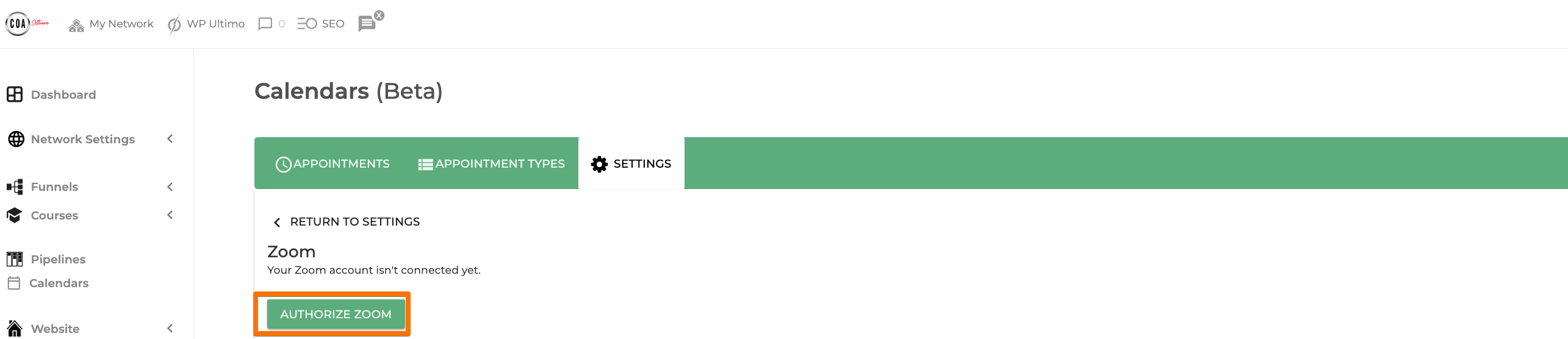
Step 2: Click Authorize
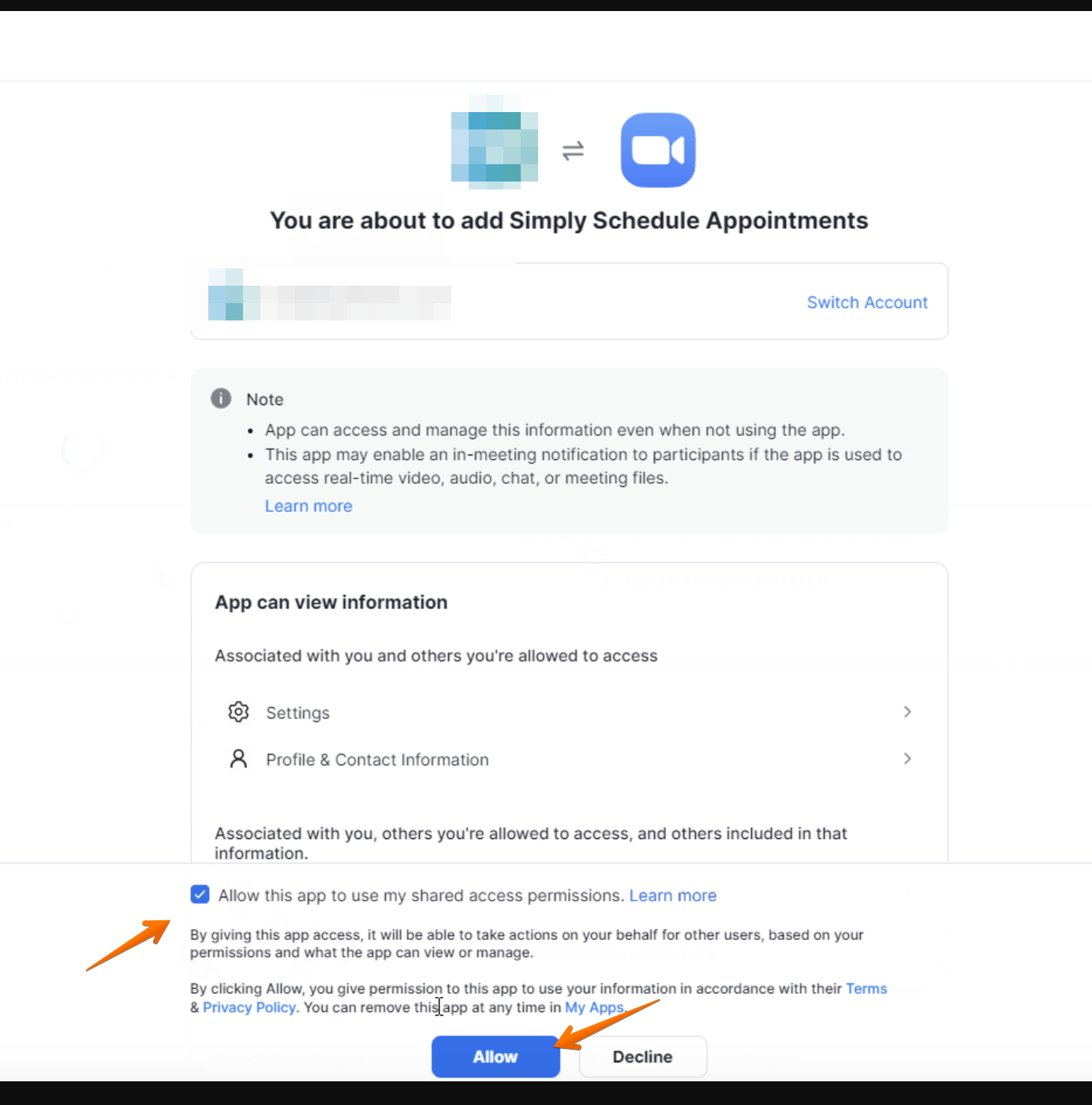
You should see a button that says Authorize Zoom. Click this to initiate the login process. You’ll be asked to log in to your account and asked to authorize the integration with Simply Schedule Appointments.
After clicking Authorize, you’ll be redirected back to Clients on Automation Software where you’ll see your account information listed on the page.
Step 3: Go to Appointment Types > click one from the list to open their settings > go to the Web Meetings tab.
Now that you’ve set up the integration, you’ll need to manually choose which Appointment Types you want to use for Web Meetings.
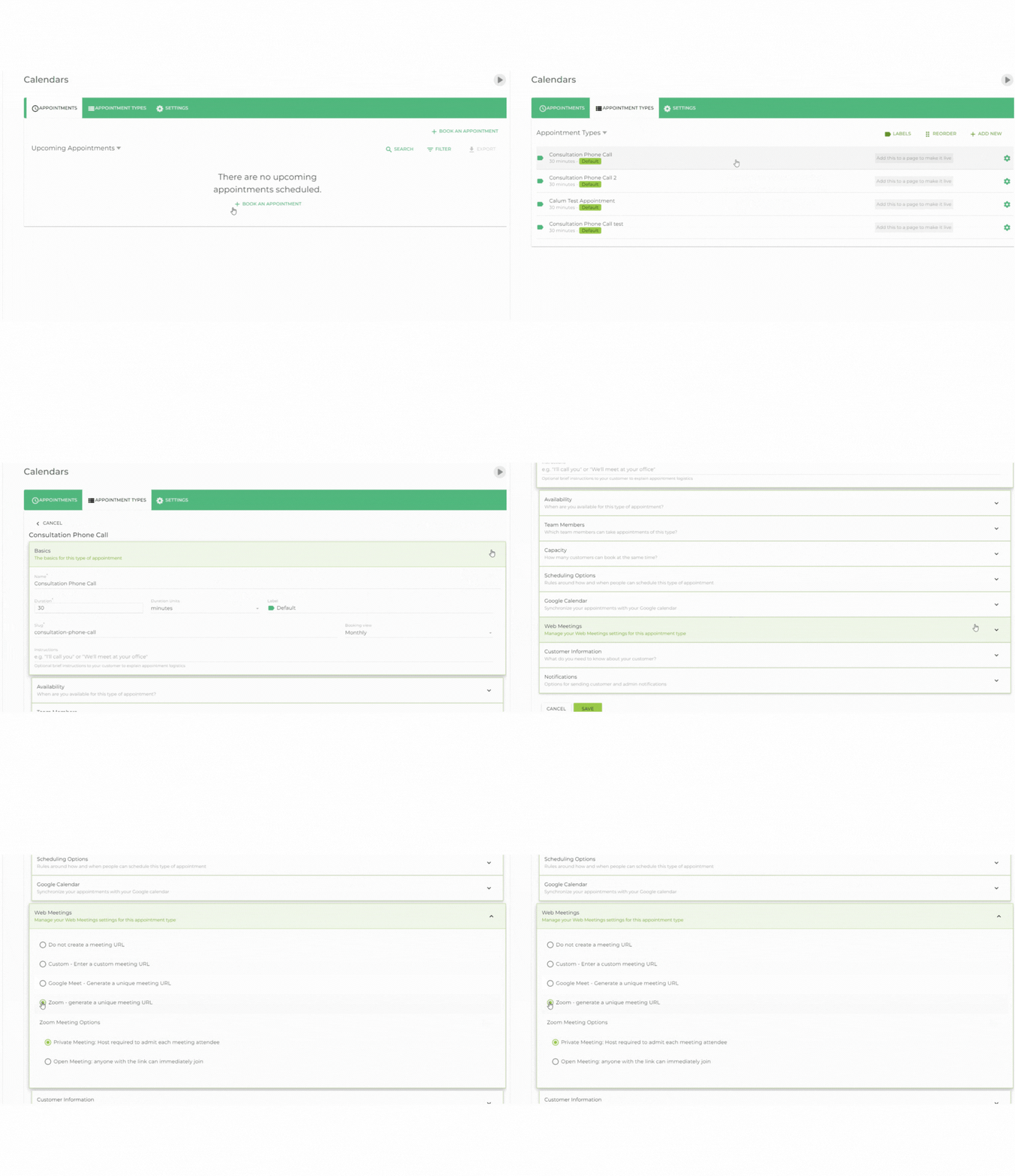
Select Zoom – generate a unique meeting URL. This will open up two options:
- Private Meeting: Host required to admin each meeting attendee
- Open Meeting: Anyone with the link can immediately join
Choose whichever best suits you and Save.
This integration is not compatible with our Team booking feature at the moment. Only a single meeting link can be used at a time; this could be an issue when multiple team members try to run a meeting simultaneously.
Disconnecting the Zoom Integration
If you decide to discontinue the integration with Zoom, you’ll need to Go to Calendar Settings > Zoom and click on the Disconnect button. You may refer to this Article Disconnecting the Zoom Integration
