
How to enable/disable comments on your Clients on Automation Software Blog
There are a couple of different options to manage individual commenting on your blog posts. It's very simple and you can adjust it on an individual blog post or globally.
How to manage comments on a Global basis
Step 1: Clients on Automation Software Dashboard > Blog > Comment Options
Step 2: Check/Uncheck "Allow people to submit comments on new posts"
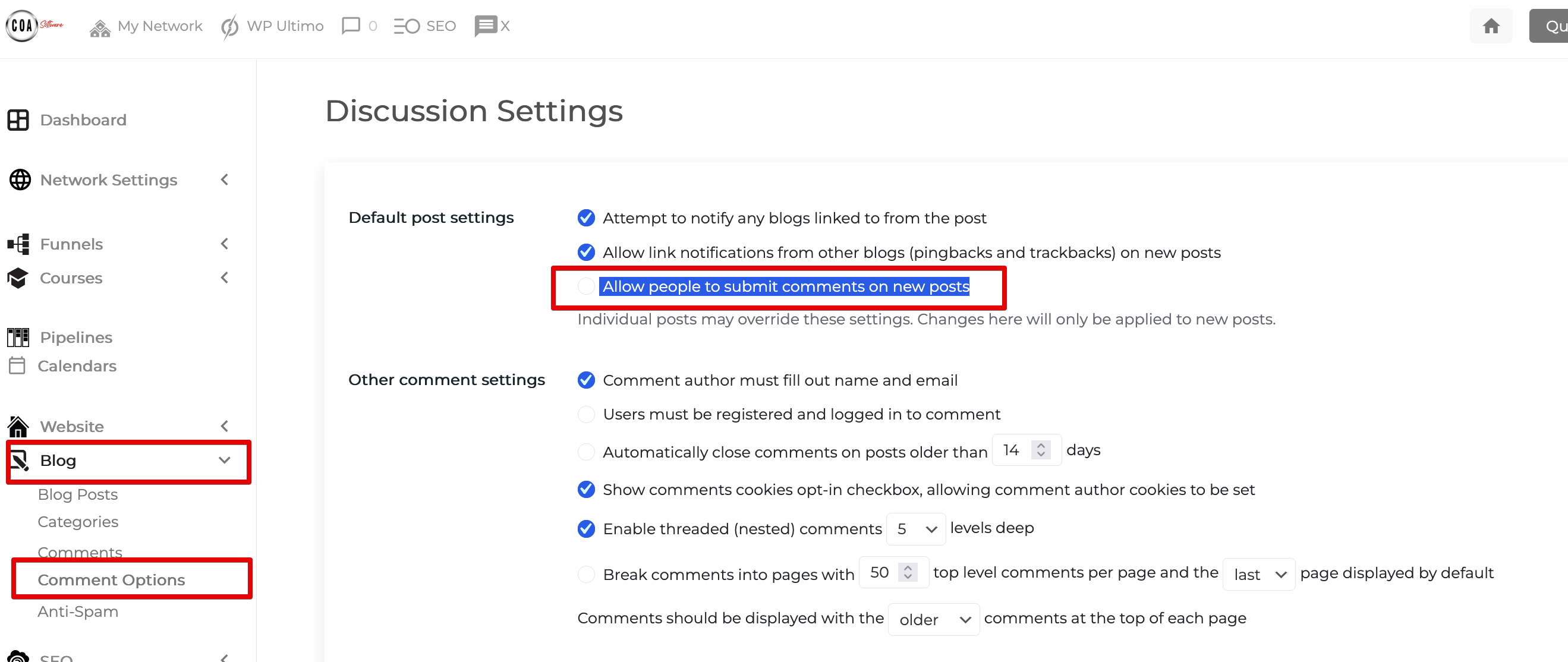
If "Allow people to submit comments on new posts" is checked the comment box will automatically appear in all your blog posts, if unchecked the comment box will be removed from all your blog posts.
Note: These settings may be overridden for individual posts. By default, your blog will have a comment box on your blog.
How to manage comments on Individual blog posts
Manage Individual Native Comment Box
Step 1: Clients on Automation Software Dashboard > Blog
Step 2: Blog Posts
Step 3: Quick Edit
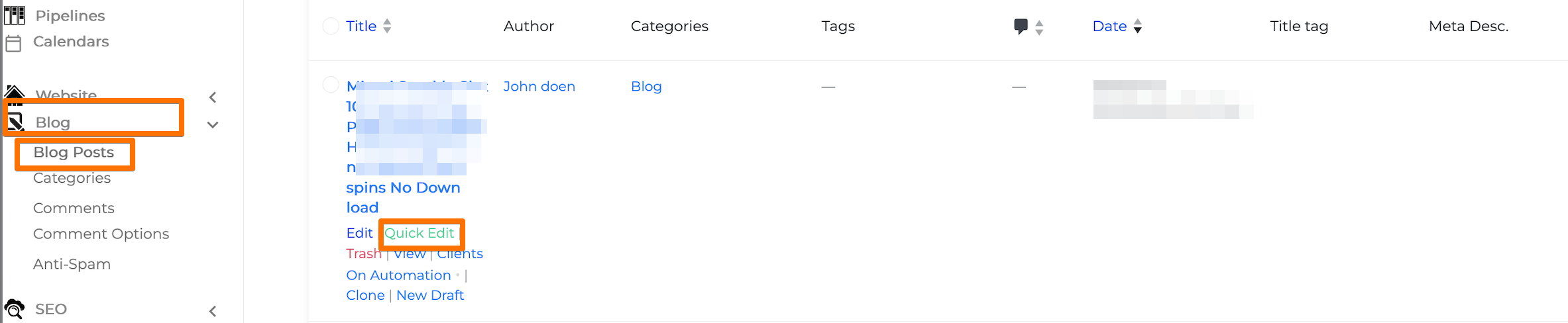
Step 4: Check / Uncheck Allow Comments
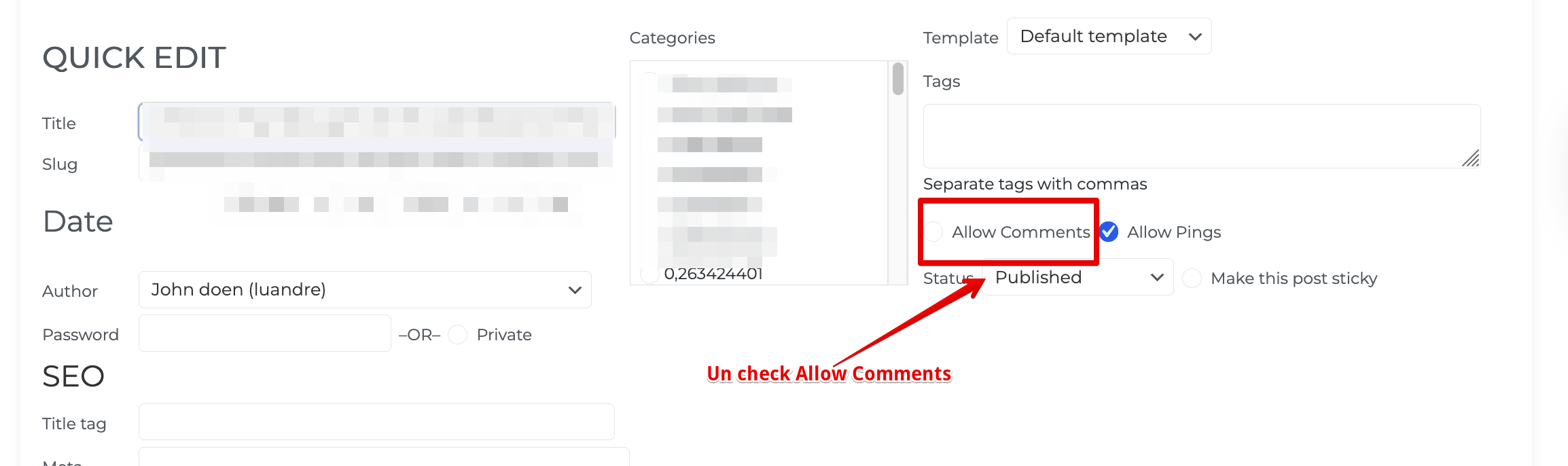
If "Allow comments" is checked the comment box will automatically appear in this specific blog post, if unchecked the comment box will be removed from your blog post.
Note: These settings will override your Global Settings.
Add Clients on Automation Software Comment Module
The advantage of using the Clients on Automation Software Comment Module is you can fully customize the look and feel of the comment box, label, button, etc...
Step 1: Turn off the native comment box
Step 2: Launch Clients on Automation Software Editor
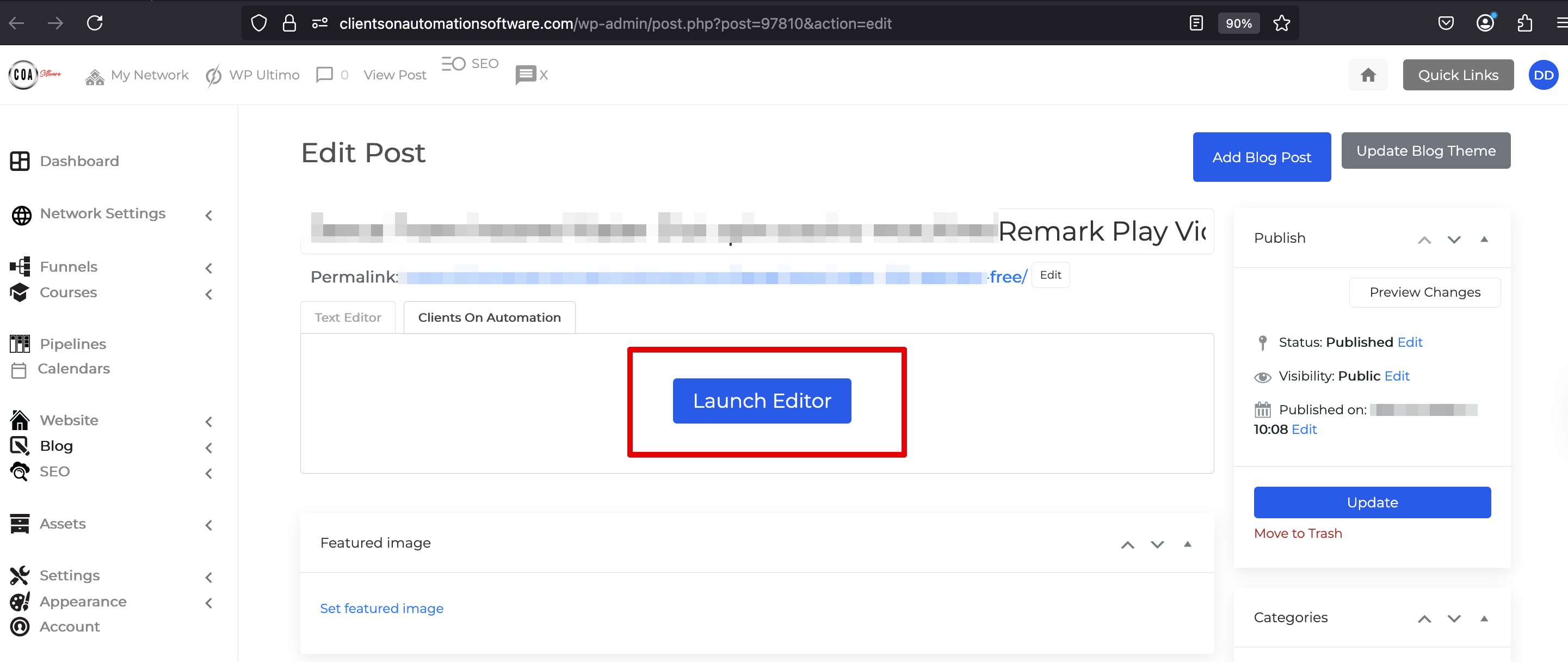
Step 3: Add the Clients on Automation Software comment box
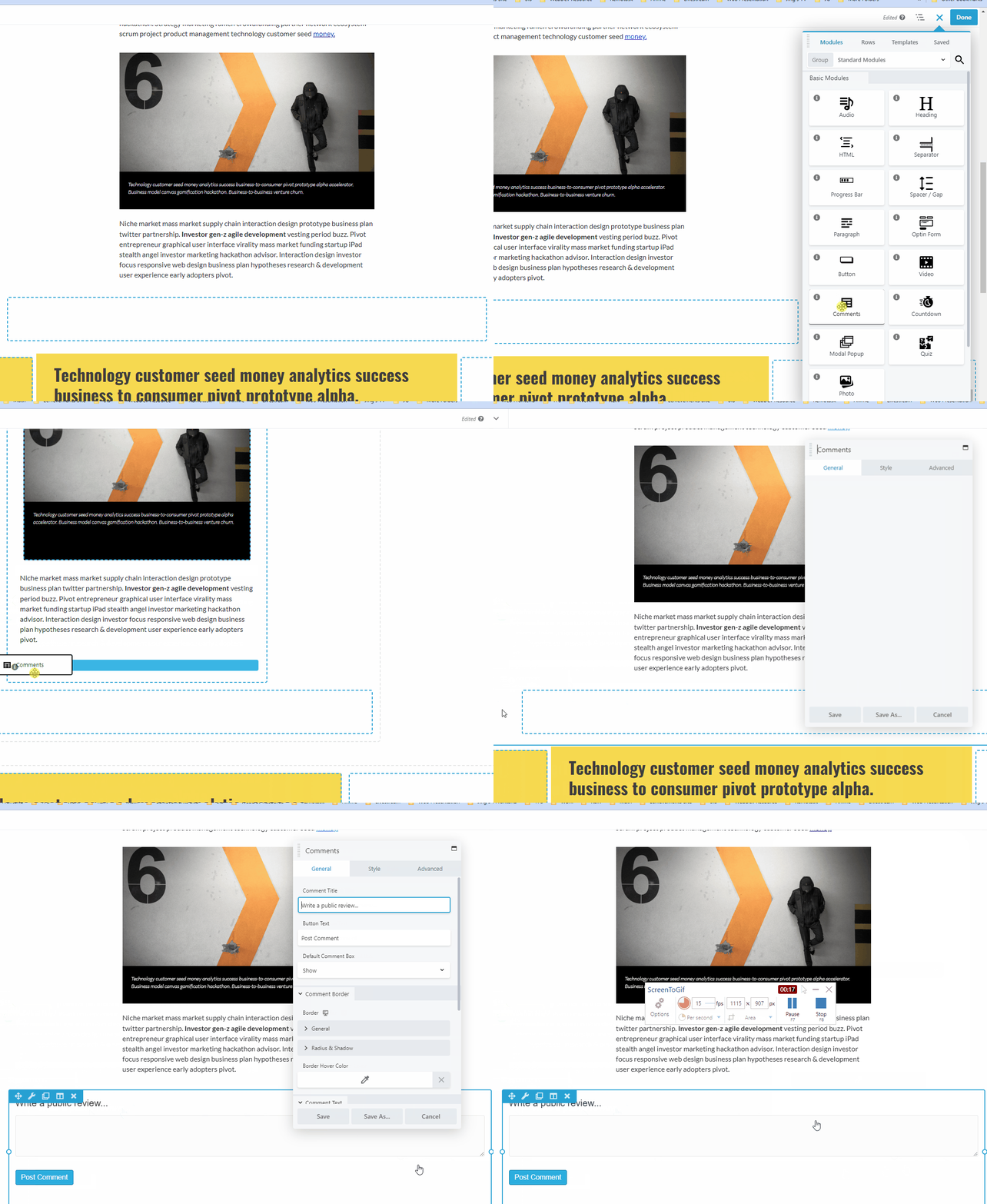
Note: Make sure to turn off the native comment box. Leaving the native comment box "On" will show 2 comment boxes if you added the Clients on Automation Software comment module.
