How to change the link and hover color?
By default the link color in Clients on Automation Software is Blue and when you hover your cursor to the link it turns to Green. In order to change the color of the link to your desired look and feel, you’ll first need to log in to your Clients on Automation Software account.
(Note: Every changes inside the Global settings will only apply to newly created pages.)
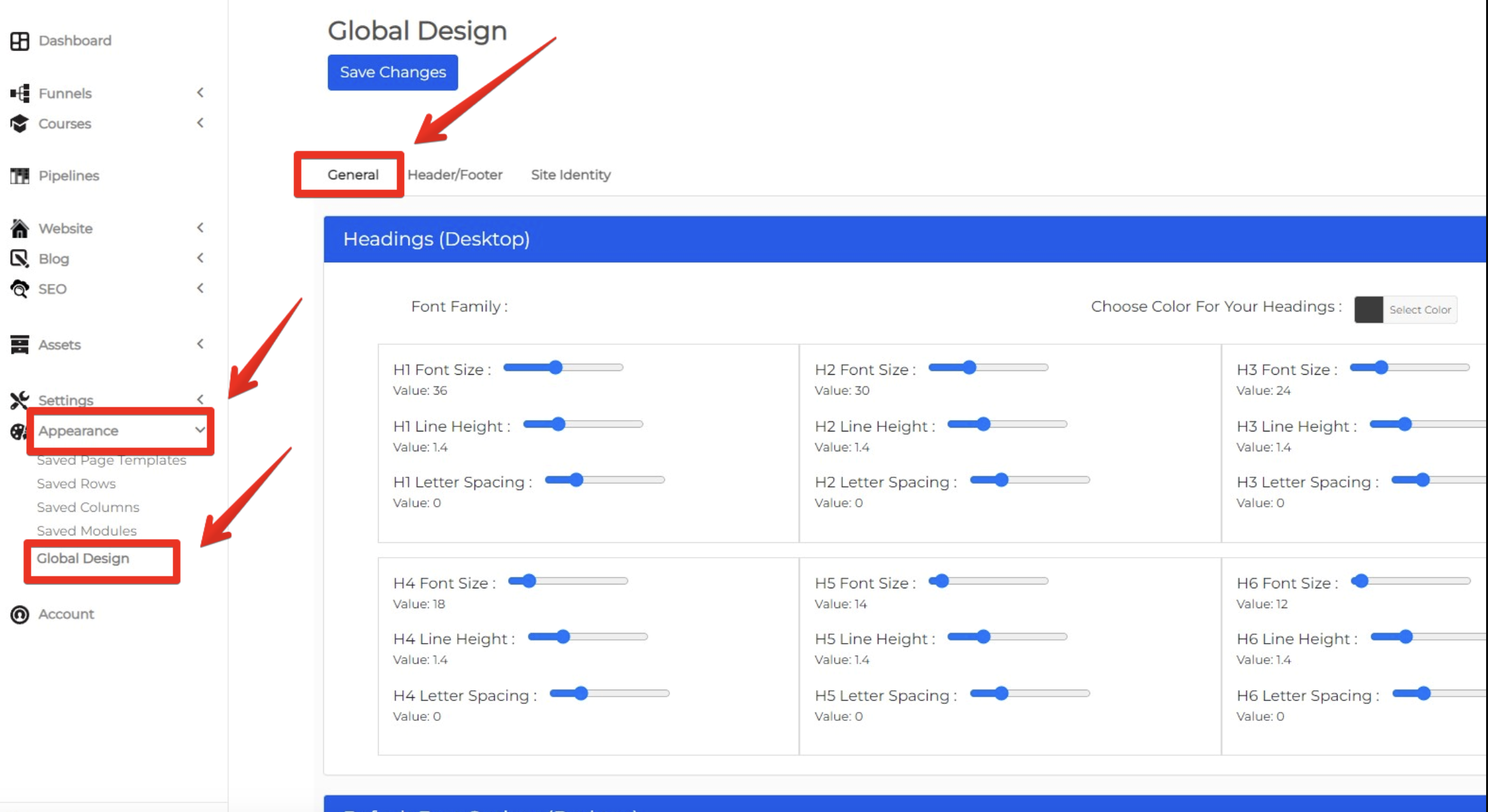
Step 1: Click on Appearance > Global Design > General
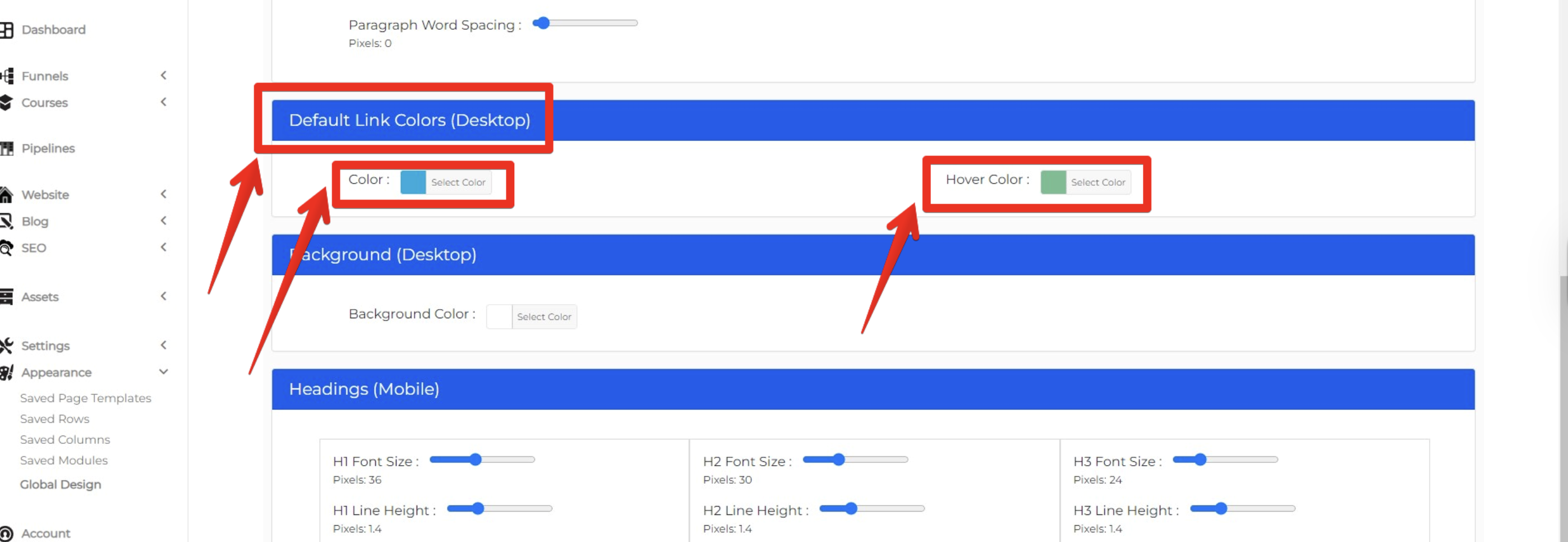
Step 2: Scroll down to Default Links and Colors (Desktop) and select your desired color and hover color.
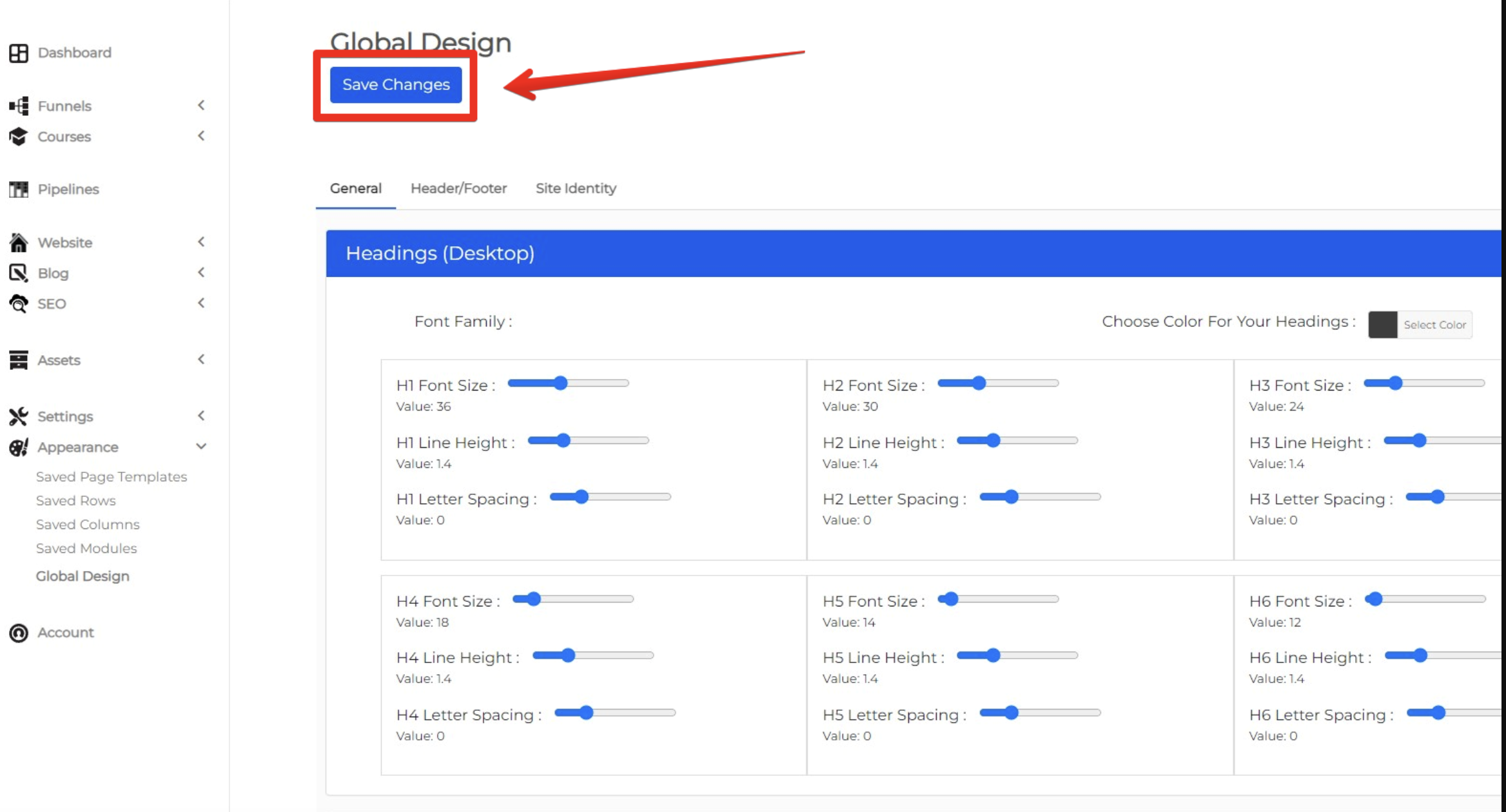
Step 3: Scroll up and Save Changes