
Button Module
The Clients on Automation Software Button Module is used to create a call to action (CTA) that tells a user to take some specified action. In digital marketing, this is often used to redirect your prospect to your Optin form, next funnel step, and many others.
How to add the Button Module to your Funnel/Web page?
To use the Button Module you need to add the module to your funnel.
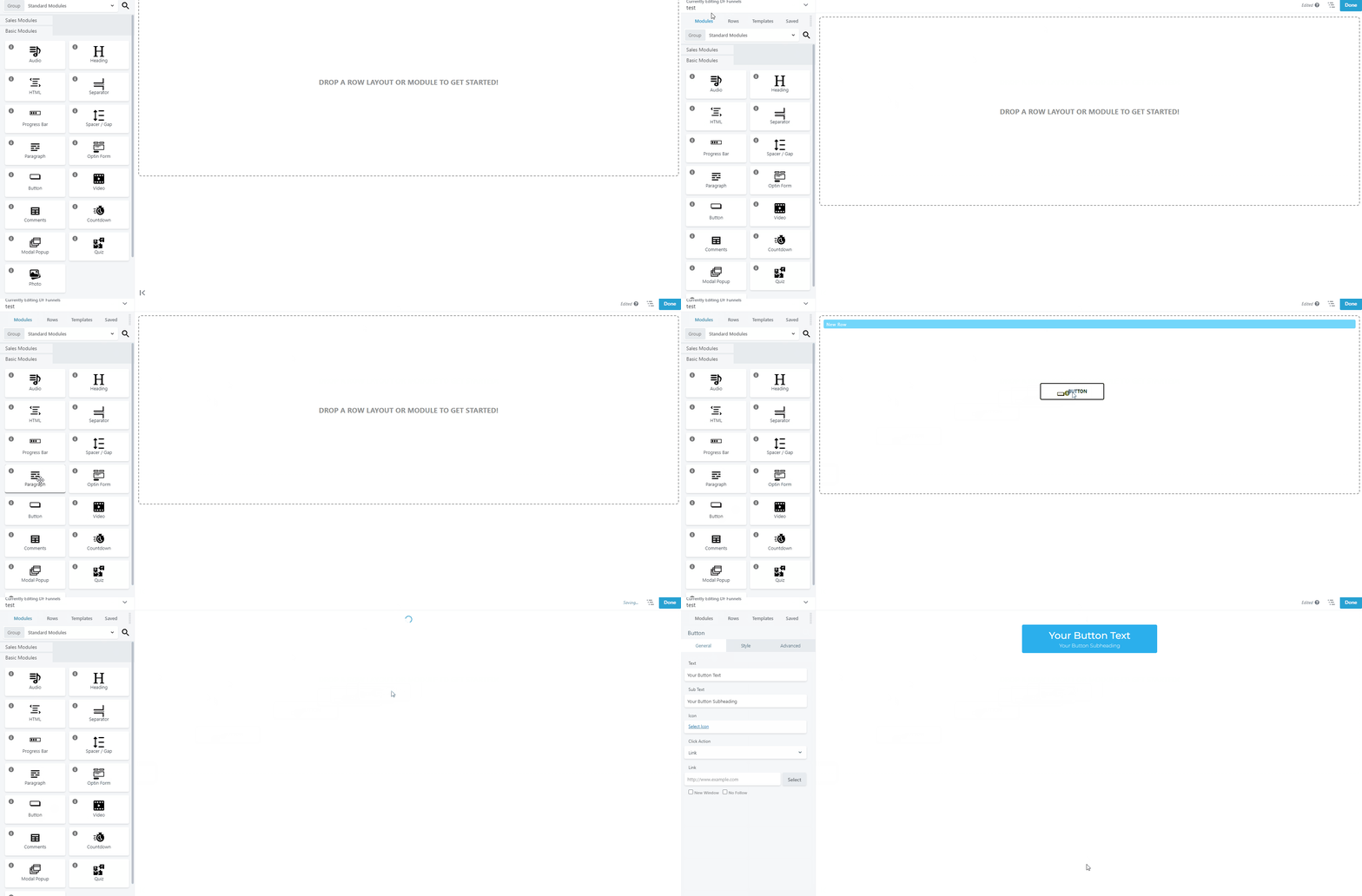
Things that you can do using Button Module
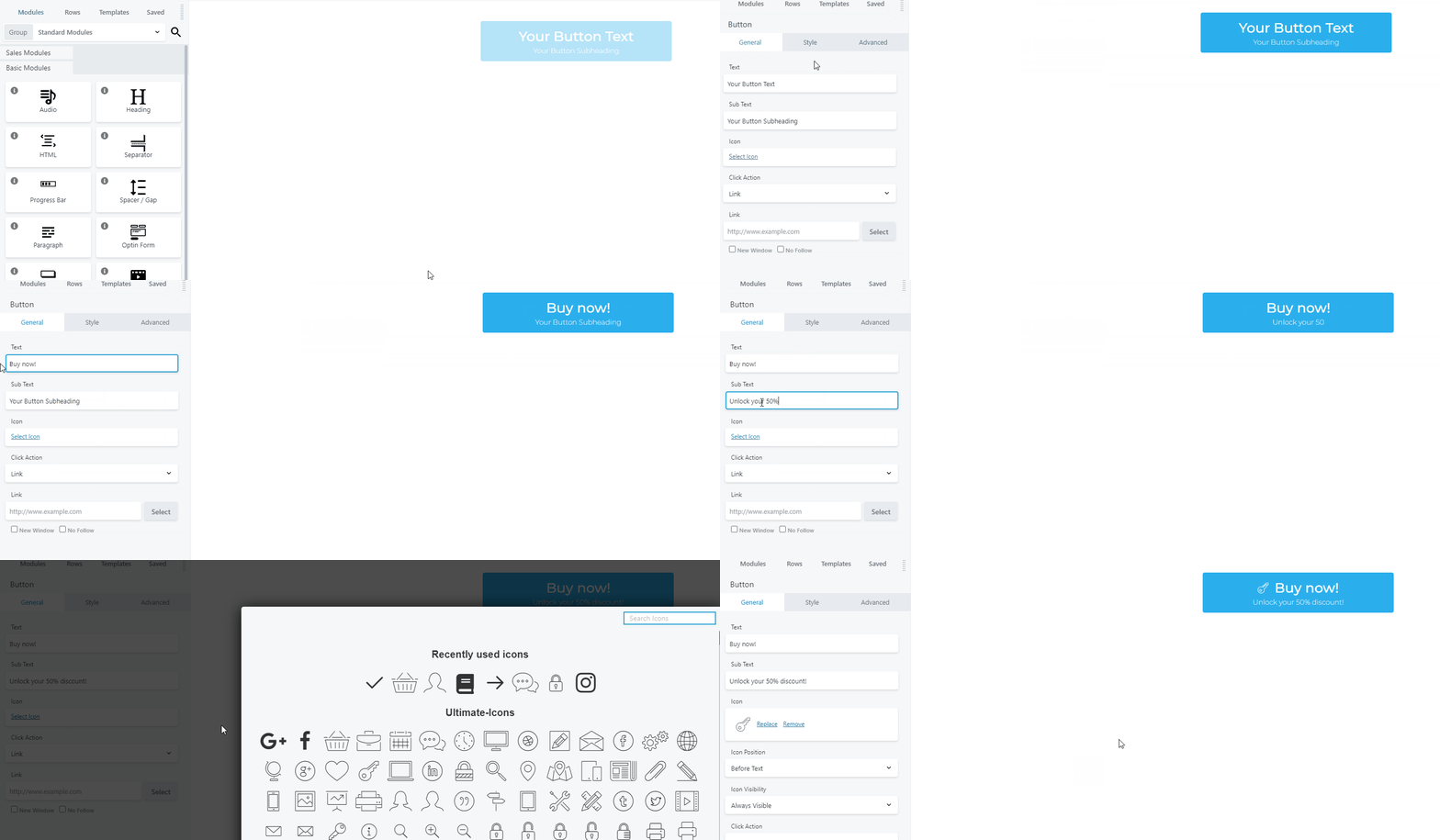
Customize the Button text and icon
The button module serves as a signpost that lets the user know what to do next. This means that you need to add a command or action phrase in a form of a text. To do this you need to go to Button Module Settings > General > then add the necessary Text, Sub text, and Icon.
Redirect to the next funnel steps
This option will only work when you are working on a funnel. To do this go to Button Module Settings > General > Click Action > Select "Next Funnel Step".
URL redirection and anchor links
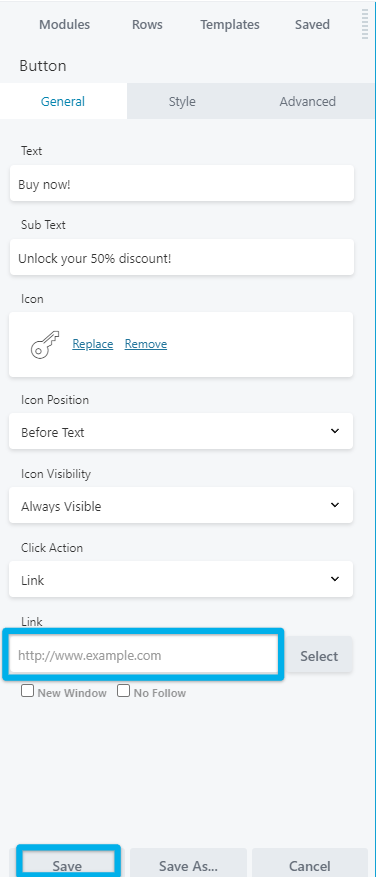
Go to Button Module Settings > General >Click Action > Link >Add the link where you want your leads to be redirected > Save.
For instructions on How to create an anchor link, click here.
